Safety and legal recommendations
All rights reserved. This publication may not be reproduced, copied or stored on a memory device. Furthermore, this publication may not be used for any purpose other than as the instructions for the use of the MESI ECG MODULE (part of MESI mTABLET ECG). This publication may not be translated into other languages or converted into other formats in any way without the prior written permission of MESI Ltd.
The contents of the instructions for use may be altered without notice. The latest version of the instructions for use is available at www.mesimedical.com.
To avoid personal injury and/or damaging the device or accessories, follow the safety recommendations given below.
1.2.1 SETUP AND TECHNICAL PERSONNEL
The device must be set up by authorized personnel with adequate professional training and experience who are aware of all the dangers in relation to the setup of the device and its use and who will take adequate risk prevention measures for themselves, users, other personnel and devices.
1.2.2 ACCESS TO THE DEVICE
Only authorized persons may be given access.
1.2.3 SAFETY MEASURES
Compliance with local safety requirements is required, in accordance with regulations. In addition to the local safety regulations, the safety instructions in this document must also be adhered to. Should there be any conflict between the safety recommendations in this document and the recommendations stipulated by local regulations, the local regulations take precedence.
Product description
MESI ECG MODULE is a 12-lead ECG diagnostic module for MESI mTABLET ECG system. All ECG signals are simultaneously processed and displayed on the MESI mTABLET to provide instant ECG recordings and interpretations. It is designed to measure the electrical activity of the heart in routine reviews of patients.
2.1 WHAT IS IN THE PACKAGE
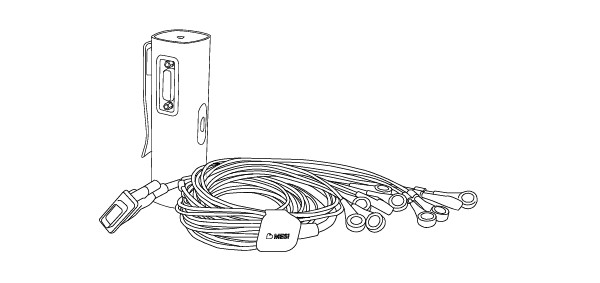
Your MESI ECG MODULE package includes the following equipment:
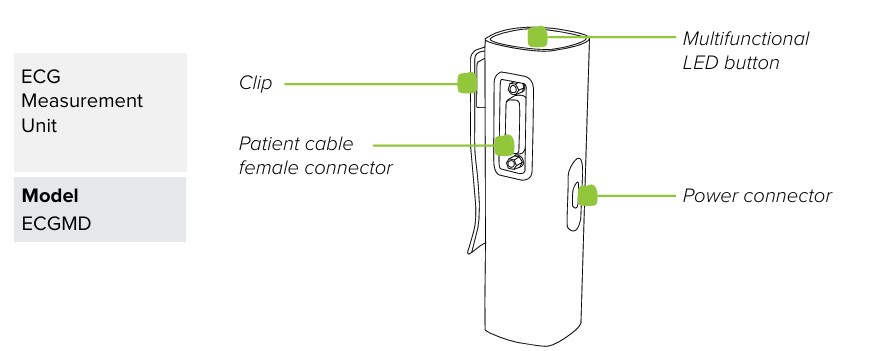
2.1.1 ACCESSORIES
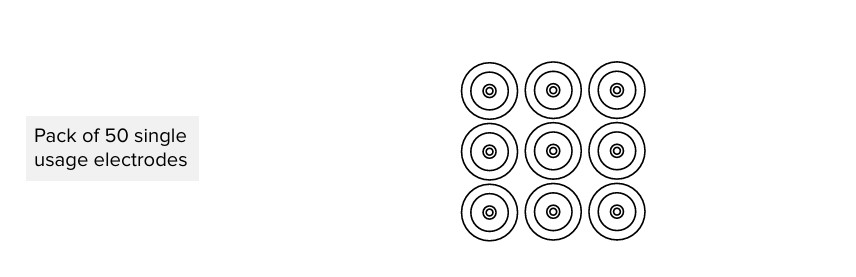
ECGSYS package contains 50 pieces of disposable electrodes. Please contact your local distributor for more information about the right type of electrodes and other resting MESI mTABLET ECG accessories; such as vacuum electrodes, trolleys etc.
2.2 INTENDED USE
The MESI mTABLET ECG is a wireless 12-lead resting ECG system for screening cardiac abnormalities. System is intended for acquiring, viewing and storing signals from adult and paediatric patients. It is a wireless system which is comprised of wireless medical tablet system, 12-lead ecg diagnostic module and a 4-port charging station module. MESI mTABLET ECG is intended to be used soley in a professional clinical environment by trained healthcare personnel which are able to place electrodes on the patient body, as well as able to verify that these connections are correct and start the recording process.
MESI mTABLET ECG is intended to measure hearth activity by ten electrodes placed on patient body which measure miniscule electrical activity generated by heart muscle depolarizations. This activity is captured and displayed a graphical representation on MESI mTABLET. With the standard software, the MESI mTABLET ECG supports acquisition of 10 seconds signal or manual mode with acquisition up to 5 minutes.
The MESI mTABLET ECG provides analytical statements (Glasgow algorithm for automatic interpretation) which are not intended to constitute professional advice, diagnosis or treatment, or substitute for professional judgment.
The device is recharged through AC/DC power supply, however, the ECG is not intended to be used while connected to mains electricity.

Technical specifications
Following are the technical information regarding ECG module, its measurement and patient cable provided within the package.
3.1 MESI ECG MODULE
3.1.1 DIMENSIONS
Width: 40 mm
Depth: 48 mm
Height: 135 mm
Weight: 220 g
3.1.2 POWER & BATTERY
Power & Battery| AC/DC adaptor | FW8030M/05 |
| Input | 100-240 V AC / 50-60 Hz / 600-300 mA |
| Output | 5 V DC / 5.0 A |
| Battery type | Rechargeable Lithium-Polymer battery |
| Capacity | 1240 mAh |
| Examinations per battery charge | > 100 |
| Charging time | Charge time for depleted battery: approximately 2 hours (minimum charge time for 1 automatic mode ECG: 10 minutes) |
3.1.3 CLASSIFICATION
Classification| Protection against electric shock | Class II equipment |
| Medical device classification | Class IIa |
| Applied parts | Type CF defibrillation protected |
| IEC 60601-1 (2006) | General requirements for basic safety and essential performance |
| IEC 60601-1-2 (2015) | General requirements for basic safety and essential performance – Collateral standard: Electromagnetic compatibility – Requirements and tests |
| IEC 60601-2-25 | Particular requirements for the basic safety and essential performance of electrocardiographs |
3.1.4 OPERATING CONDITIONS
OPERATING CONDITIONS| Temperature, operating | 10° to 40°C |
| Relative humidity | 25 to 85% (no condensation) |
| Pressure during operation | 700 to 1060 hPa |
| Ingress protection | IP44 |
3.1.5 TRANSPORT & STORAGE CONDITIONS
TRANSPORT & STORAGE CONDITIONS | Temperature | -15° to 50°C (< 1 month) / -15° to 40°C (< 3 months) / -15° to 25°C (< 12 months) |
| Relative humidity | 25 to 85 % (no condensation) |
| Pressure during operation | 700 to 1060 hPa |
| Ingress protection | IP44 |
3.1.6 MEASUREMENT SPECIFICATIONS
MEASUREMENT SPECIFICATIONS| Lead-fail indication | Disconected lead detection |
| Pacemaker detection | > ± 2 mv / 0.1 ms |
| Patient input circuitry | Fully floating and isolated, defibrillation protected (only with original MESI or approved patient cable) |
| Channel crosstalk | < 2% of applied signal |
| Input impedance | 1000 MΩ |
| Noise level | < 30 μVpp |
| Frequency response | Nominal input amplitude response
1 mVpp
1,5 mVpp
Relative output amplitude response
+/- 10 %
0 % / - 10 % |
| Impulse response | < 0.30 mV/s |
| Linear & Dynamic range | < 5% of output signal change |
3.1.7 ACCURACY
Accuracy| CMRR | > 110 dB |
| Sampling rate | 32 K samples/second/channel |
| Resolution | 2.5 uV / 19 bit |
| ECG analysis frequency | 1000 samples/second |
| Pacemaker detection | ≥ ± 2 mv / ≥ ± 0.1 ms |
| Sampling | Uniform sampling - 1 kHz
Simoultaneous sampling - Skew << 10 μs |
| Amplitude quantisation | 143 nV |
3.1.8 PROCESSING
PROCESSING| Interpretation | University of Glasgow Analysis Software |
| Patient data | name, BP, BPM, time and amplitude, recording duration |
| Low-pass filter | 150 Hz, 250 Hz |
| High-pass (baseline) filter | 0.05 Hz, 0.2 Hz, 0.5 Hz |
| Myogram (muscle tremor) filter | 25 Hz (40 dB/dec) or 35 Hz (20 dB/ dec) |
| Mains filter | Distortion-free suppression of superimposed 50 or 60 Hz sinusoidal interferences by means of an adaptive digital filter |
| Graph display | 6:6+1, 6:6, 3x3 main, 3:3 aux, 6 main, 6 aux, 3:4, 12, custom |
| Sensitivity | 5 mm/mV, 10 mm/mV, 20 mm/mV |
3.2 PATIENT CABLE
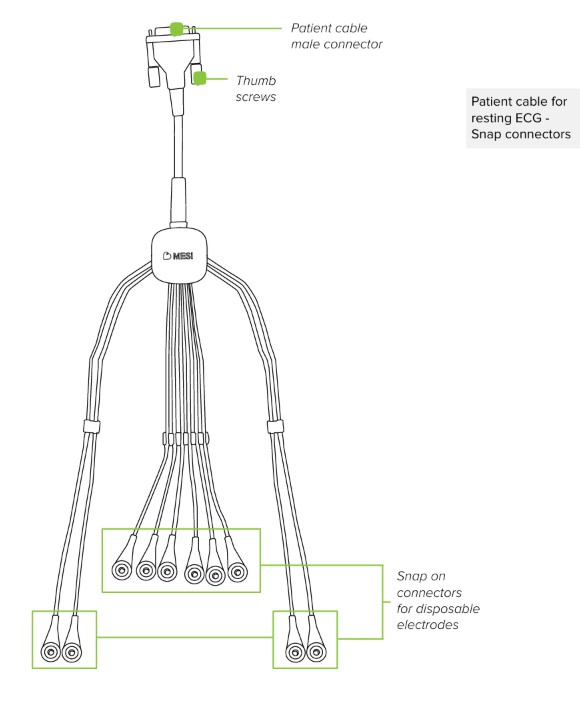
The basic package includes a patient cable for 12-lead ECG with snap connectors on lead cables. Leads are paired into three groups based on length and body application.
RA, LA, RL, LL leads - Group length: 110 cm
C1-6 leads - Group length: 75 cm
3.3. CALIBRATION AND SAFETY CHECK
Calibration of the MESI ECG UNIT is not required. To ensure safety and optimal performance, the device should be inspected by a qualified service engineer at least once every 12 months. This inspection should include safety checks for mechanical or functional damage to the device and its accessories and verification of performance in accordance with the instructions for use.
Quick recording guide
NOTE: Before using the device for the first time, read the instructions for use carefully and follow the recommendations and suggestions. This chapter only includes short instructions for the use of the MESI mTABLET ECG. For detailed descriptions of individual functions of the device, see chapter PERFORMING ECG RECORD. Please keep for future reference.
NOTE: Before starting the measurement make sure that there is no source of intense electromagnetic interference in the vicinity of the equipment (radio transmitters, mobile phones) which could have an adverse effect on the performance of the MESI mTABLET ECG.
NOTE: The MESI mTABLET ECG is intended for use in medical institutions, where recordings must be carried out by adequately trained medical personnel. The MESI mTABLET ECG is not intended for home use.
4.1 PREPARATION FOR RECORDING
⚠️MESI ECG MODULE is part of the MESI mTABLET ECG system. Before starting a measurement be sure that you are familiar with all devices and their instructions which are part of the system. MESI mTABLET ECG contains MESI mTABLET (MTABSYSW), MESI ECG MODULE (ECGSYS) and MESI LARGE CHARGING PLATE (CS4SYS).
Careful preparation of the patient and correct positioning of the electrodes are fundamental in obtaining an ECG recording of high quality.
4.1.1 PAIRING WITH MESI mTABLET UNIT
Before any recordings can be performed the MESI ECG UNIT module needs to be paired to your MESI mTABLET UNIT. For detailed instructions please follow instructions in chapter 5.1.4 Pairing.
4.1.2 CONNECTING PATIENT CABLE
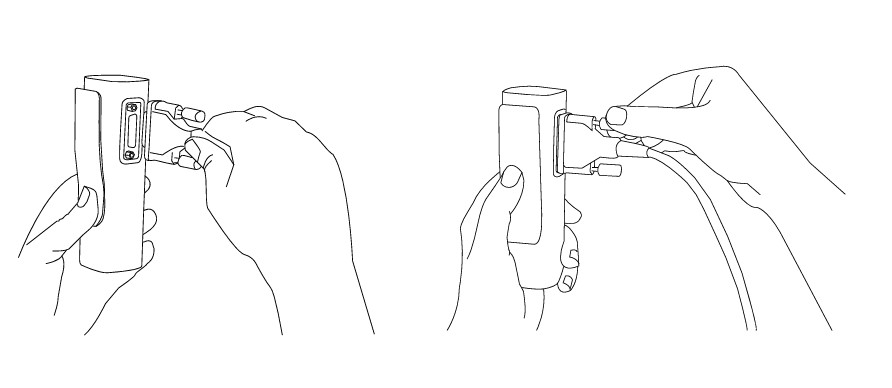
Patient cable is disconnected during storage and transportation. Before first use please connect main connector to patient cable port on the device.
4.1.3 PATIENT PREPARATION
Step 1
The patient needs to expose the skin and lie down on examination bed in a supine position. Make sure the patient is comfortable and relaxed and does not feel cold. The individual should lie back on a suitably large examination bed with arms and hands extended along the sides of the body: this will minimize the likelihood of the ECG trace being affected by muscle tremor.
Step 2
Clean the skin thoroughly with alcohol or ether at the areas where the electrodes will be placed. In some cases, it may be necessary to shave the hair in these areas to provide a better skin surface for good electrical contact.
Step 3
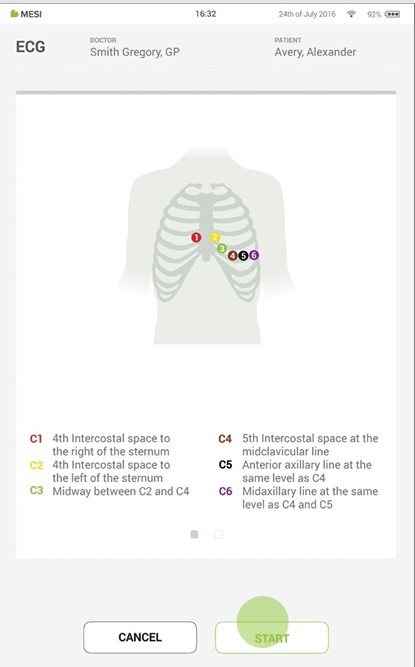
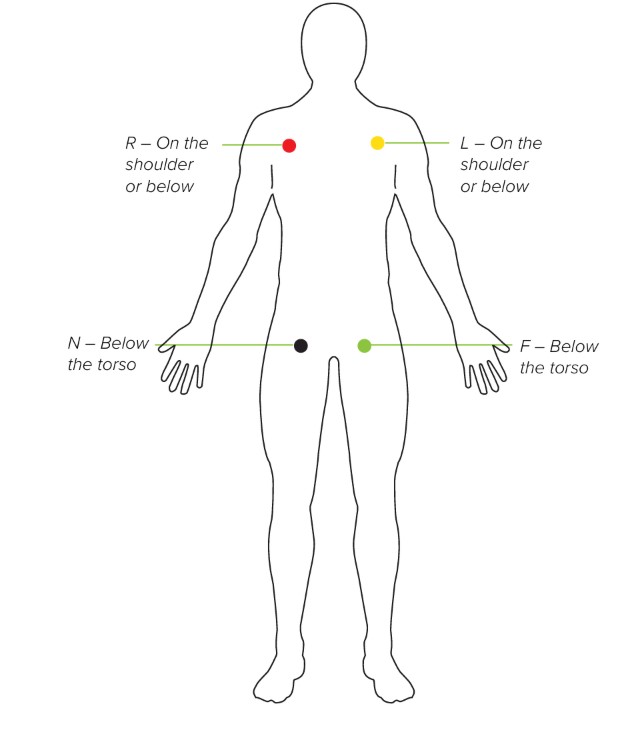
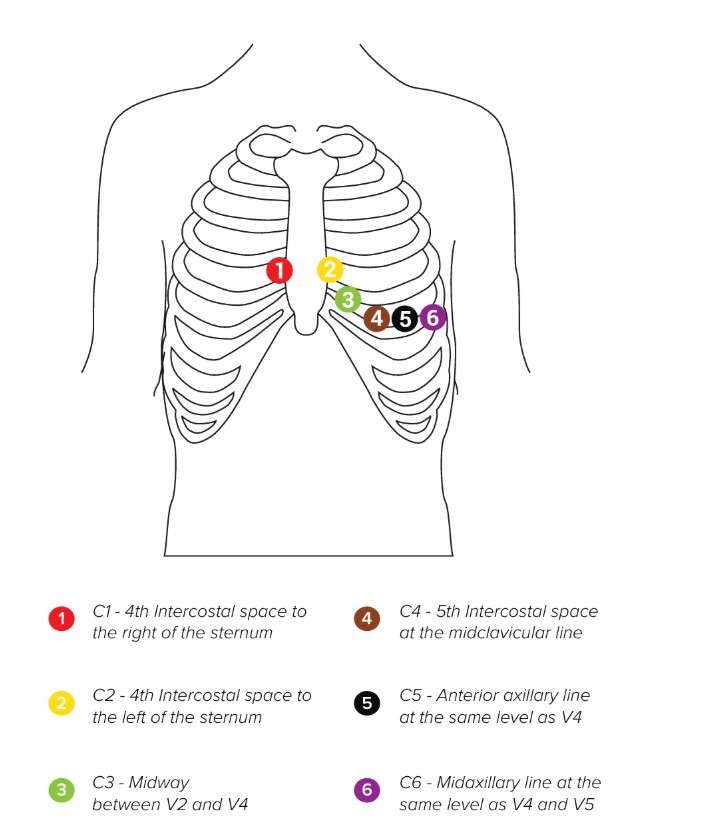
Place electrodes on patient cable. The following figure shows the standard positioning of the disposable electrodes.
Step 1
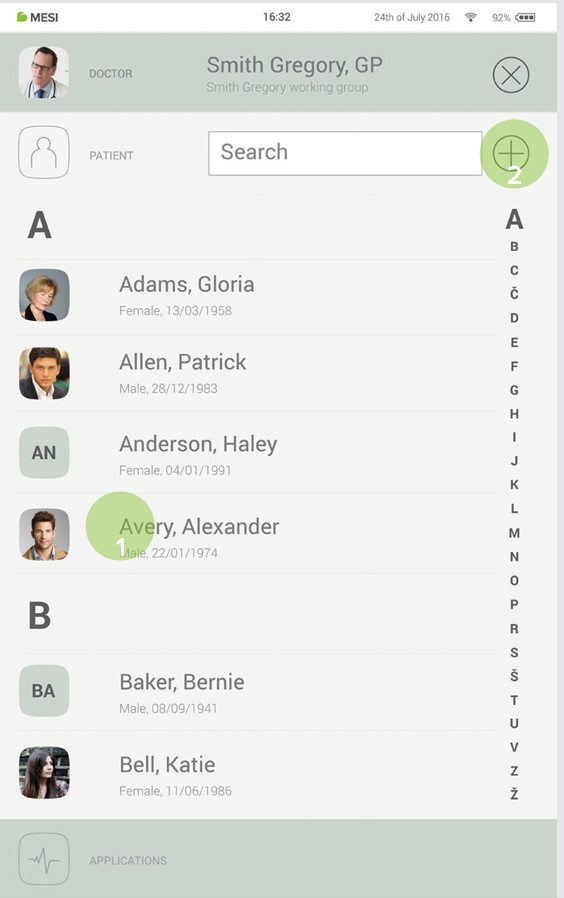
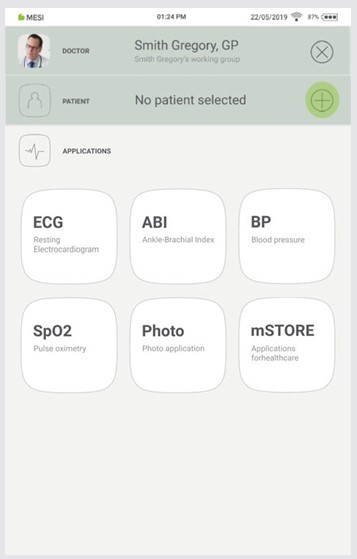
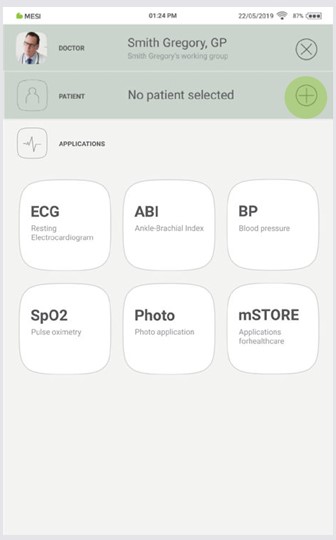
On your MESI mTABLET UNIT, select existing patient (1) or add a new one (2).
Step 2
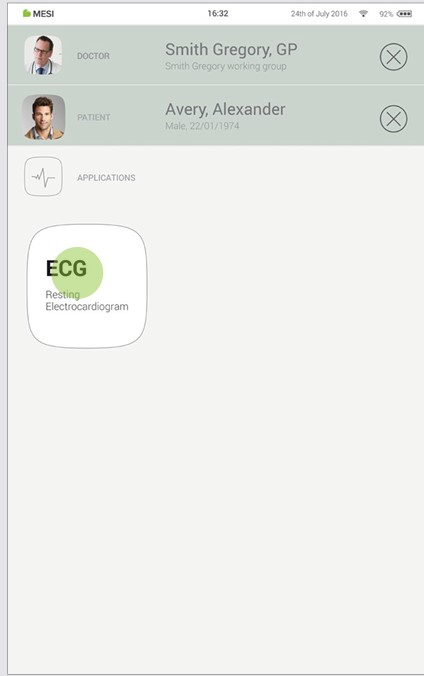
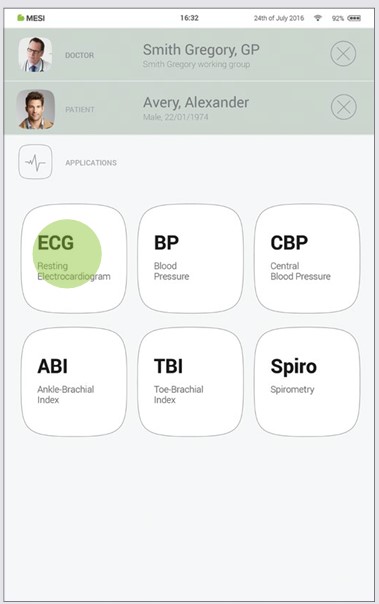
After selecting the patient, please select the ECG measurement in the application menu
NOTE: For additional information please see MESI mTABLET instruction manual – chapter PATIENT MANAGEMENT
Step 3
Press start to begin the recording process.
Step 4
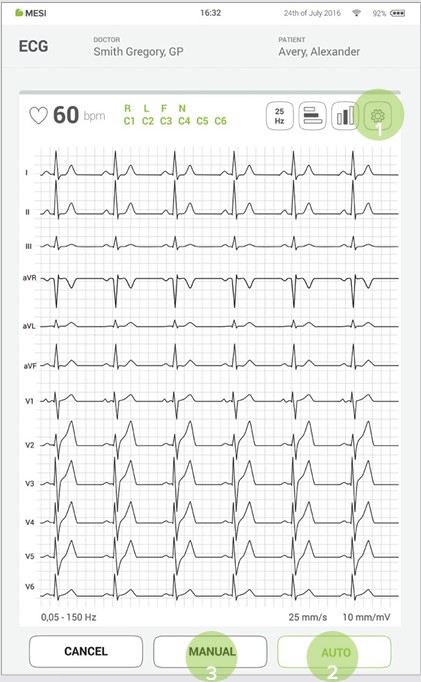
Select recording parameters such as speed, sensitivity and filters by pressing the settings button (1).
Step 5
When the ECG signal is stable you can begin the recording process by pressing AUTO for automatic 10s signal acquisition (2) or MANUAL for up to 5 minutes ECG signal capture (3).
NOTE: For more information about advanced functions please see chapter Performing ECG recording / Recording settings and filters.
4.2 RESULTS
After the recording is complete, you will be directed automatically to the result page where additional parameters of signal can be viewed by scrolling up and down. Top menu navigation provides you with basic actions such as:
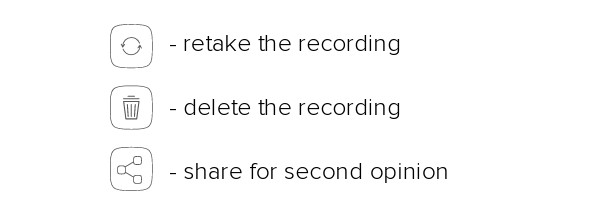
Unless deleting or retaking the ECG recording, results will be saved to mRECORDS where medical specialist responsible for ECG examination can interpret the patient ECG signal.
NOTE: For more information about the result screen, please see chapter Reviewing ECG (p. 33).
NOTE: For bigger display and additional functions rotate the tablet 90 degrees into landscape mode. This will bring the result screen into full screen mode where you have a better overview with advanced display functions by pressing the setting button.
Detailed instructions
This chapter contains all the information required by users of the device for safe, correct and accurate measurement. This chapter includes a detailed and complete description of all the functions of the device, the safety instructions and all the information required to understand the operation of the device.
5.1 FIRST TIME USE
5.1.1 BASIC FUNCTIONALITIES
MESI ECG MODULE package contains ECG wireless module, power adaptor, patient cable for disposable electrodes and a packet of 50 pieces of snap on electrodes. Before first use, the device needs to be paired with MESI mTABLET UNIT. Please follow instructions carefully.
5.1.2 TURNING ON
MESI ECG UNIT comes with an internal battery and is ready to use upon receiving. Press the button on top of the MESI ECG UNIT to wake up the module. If the green light flashes, the module is ready for the next step. Otherwise, please see the following chapter for more information on battery charging.
NOTE: The battery inside a completely new device is most likely not completely empty and can provide enough power to start the device up. Nonetheless, connect the device to the mains electricity using the AC/DC power supply before first use.
NOTE: When the battery needs to be replaced, the mTABLET will display a battery warning. For more information, please see the Errors section.
5.1.3 AC/DC POWER SUPPLY AND BATTERY
The MESI ECG UNIT uses two power sources. The mains electricity, using an AC/DC power supply for charging and battery power while performing measurement.
NOTE: MESI ECG UNIT is not intended to be connected to mains electricity while performing an ECG measurement.
Connect the AC/DC power supply to a wall socket with a mains voltage of 100-240V at 50-60Hz and to the connector at the back of the device. The device is now recharging its battery. During this process the light on the module will be flashing yellow. Only when the device is completely charged will it start flashing green.
5.1.4 PAIRING
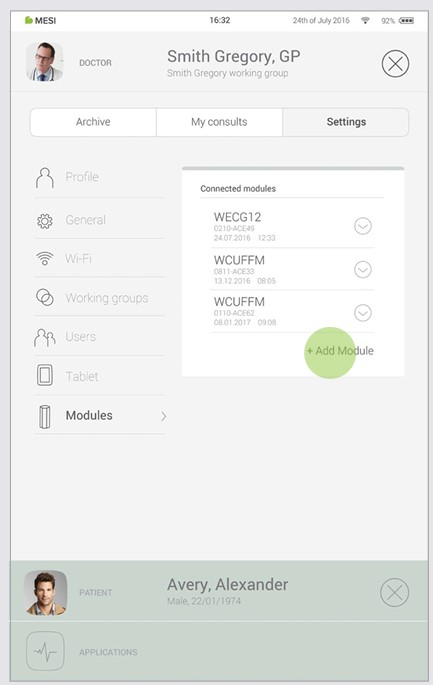
Before any recordings can be performed the MESI ECG UNIT needs to be paired to your MESI mTABLET UNIT. Please take the MESI mTABLET UNIT and open Doctor’s profile (for more information about user accounts please see MESI mTABLET instruction manual, chapter MANAGING USERS). Go to Settings > Modules and tap +Add module on the right side. The application will guide you through the next steps.
Step 1
Go to User profile > Settings > Modules > +Add module
Step 2
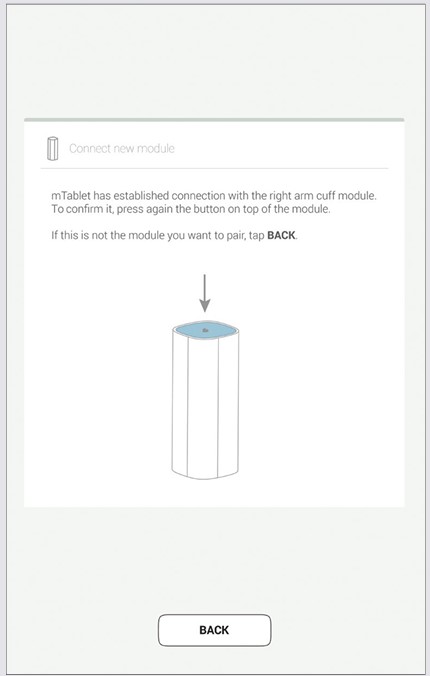
Press button on top of the MESI ECG UNIT.
Step 3
When the MESI mTABLET UNIT establishes a connection with MESI ECG UNIT, the light on top of the module will change. Confirm the pairing process by pressing the button on top of the module again.
Step 4
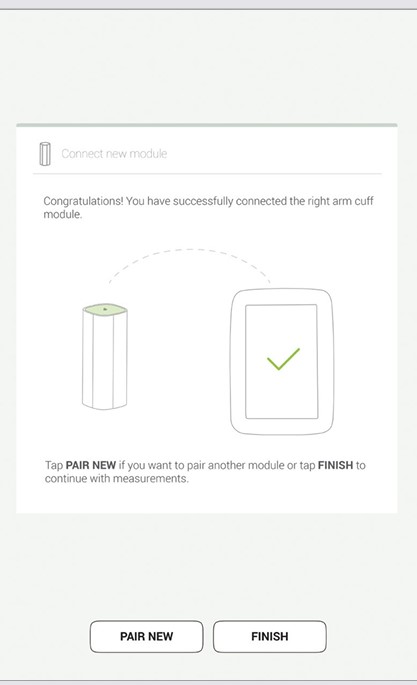
Final screen indicates successful connection between the MESI mTABLET UNIT and the wireless module. You can access all technical information about the connected modules in User profile > Settings > Modules (see Step 1, p. 17).
NOTE: If you are operating only with one MESI mTABLET UNIT, then performing this operation is required only once. In case of more MESI mTABLET UNITS this process will have to be repeated on each MESI mTABLET UNIT.
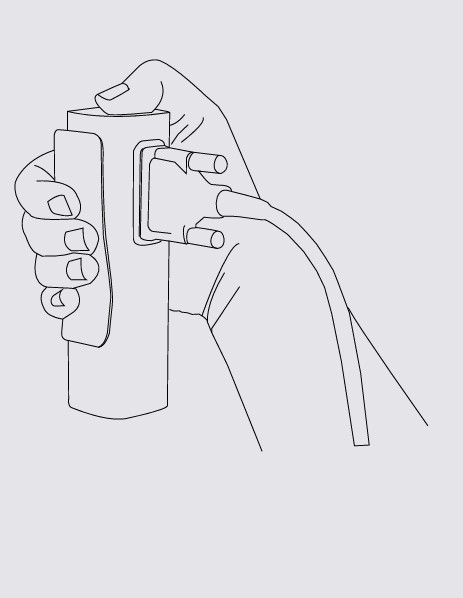
5.1.5 CONNECTING PATIENT CABLE
Before first use, during transportation and when storing for longer periods, the patient cable should be disconnected from the ECG. To connect the patient cable, please follow the next steps:
Step 1
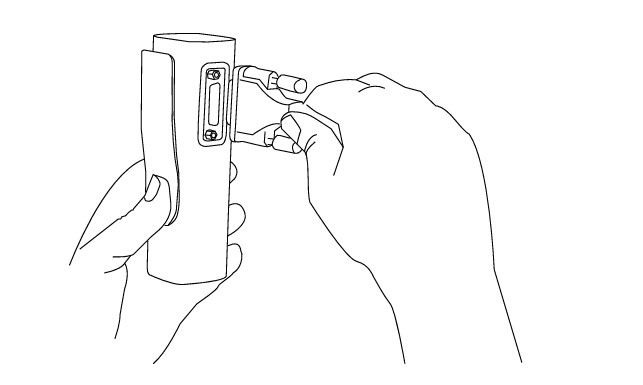
Hold resting MESI ECG UNIT in your hands firmly. Connect MESI ECG UNIT and patient cable.
Step 2
Use two thumb screws to secure patient cables to the module.
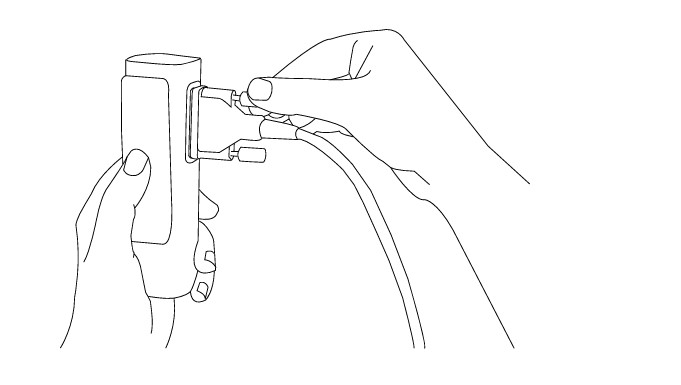
NOTE: MESI ECG MODULE comes with patient cable for disposable electrodes. For connecting other types of patient cable please look at the manual supplied with the patient cable.
5.2 PATIENT SELECTION
Before performing recording, patient needs to be selected or added to your working groups patient list.
5.2.1 SELECTING A PATIENT
Step 1
Select the patient tab button.
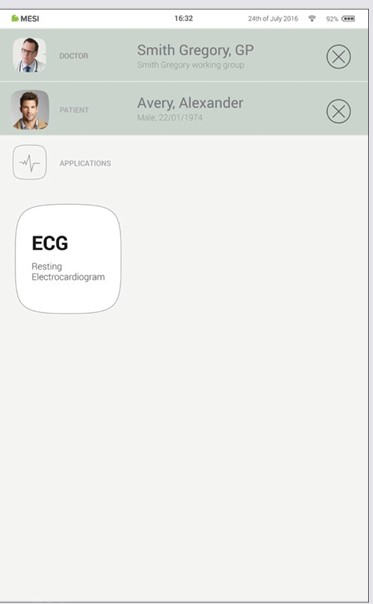
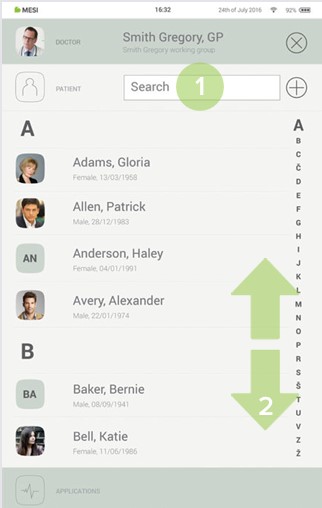
Step 2
Use search bar (1) or scroll (2) to the patient who is having the ECG recorded.
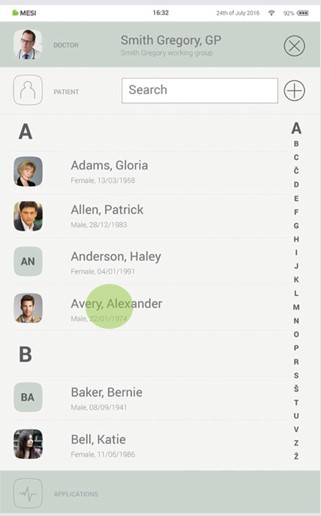
Step 3
Select the patient.
5.2.2 ADDING A PATIENT
Step 1
On your home screen, press the + button in the Patient tab.
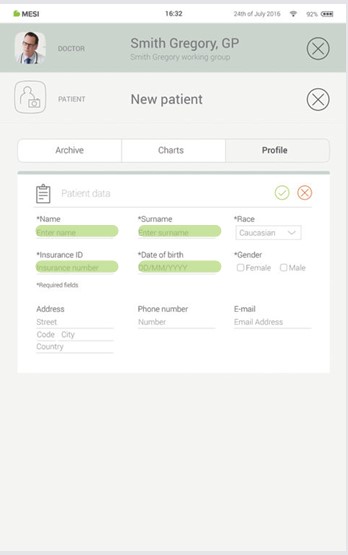
Step 2
Fill out required fields (Name, Surname, Date of Birth and Gender) and any additional information regarding the patient.
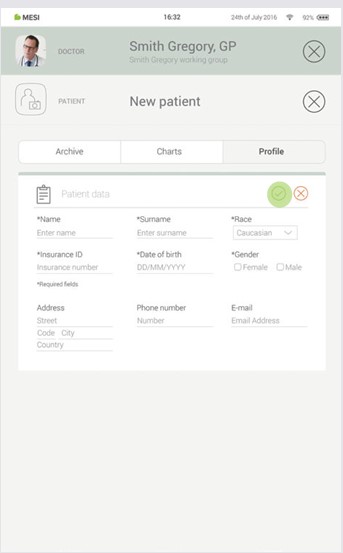
Step 3
Save the patient by pressing the ✔️ button.
5.3.1 ELECTRODE PLACEMENT
The standard accessories include four (longer) limb and six (shorter) precordial snap cables for single use electrodes. Skin needs to be cleaned with alcohol or ether at the areas where the electrodes will be placed. In some cases, it will be necessary to shave the hair in these areas to provide a better skin surface for good electrical contact. Once the electrodes are attached to patient cable leads, you can apply them to their corresponding positions on the patient’s body.
NOTE: MESI mTABLET ECG is CF rated. The patient connection is fully isolated and defibrillation protected. However, protection against defibrillation voltage is only ensured if the MESI approved patient cable is used. Make sure that during ECG recording neither the patient nor the conducting parts of the patient connection or the electrodes (including the neutral electrode) come into contact with other persons or conducting objects (even if these are earthed).
5.3.2 RECORDING THE ECG
Step 1
On your MESI mTABLET UNIT select existing patient or add a new one. For additional information please see chapter 5.2 Patient selection.
Step 2
After selecting the patient, please select the ECG application in application menu.
Step 3
When starting the ECG application, you are greeted with an instruction screen that helps you with placing electrodes. At the same time the MESI mTABLET UNIT in this screen connects to ECG module. Only when the connection was successful the start button will turn green.
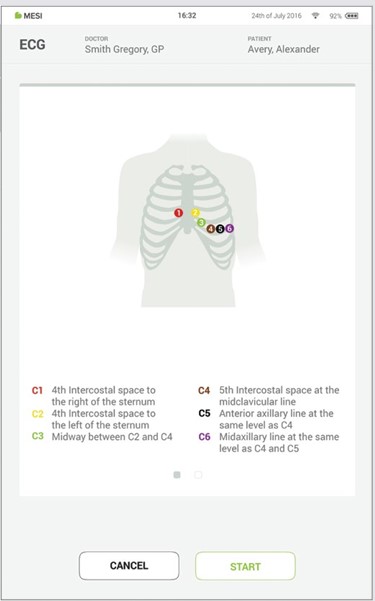
NOTE: If MESI ECG UNIT has low battery or connectivity issues warning will be displayed on instructions screen. In case of errors, please advise the troubleshooting chapter.
Step 4
Prepare application points on the patient before applying the electrodes. (If applying vacuum electrodes please refer to the instructions for use that came with the electrodes).
Step 5
Apply electrodes to their appointed locations. For more information’s please see chapter 5.3 Electrode placement.
Step 6
Once electrodes are applied press button START to begin with the ECG recording.
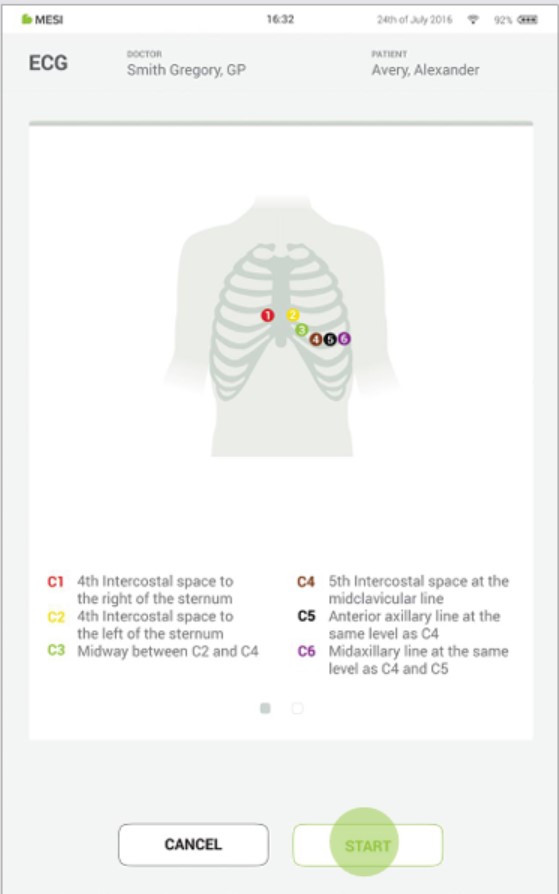
⚠️When electrodes are being applied, be careful that the ECG measurement unit doesn’t touch the patient. Due to its metallic case, it might be cold to touch which can result in muscle tremor that can interfere with ECG signal.
Step 7
Recording screen is combined from 12 lead signal displayed in real time and recording settings. At the same time, it displays the electrode connection status which will notify you if the applied electrode has good or a bad signal strength.
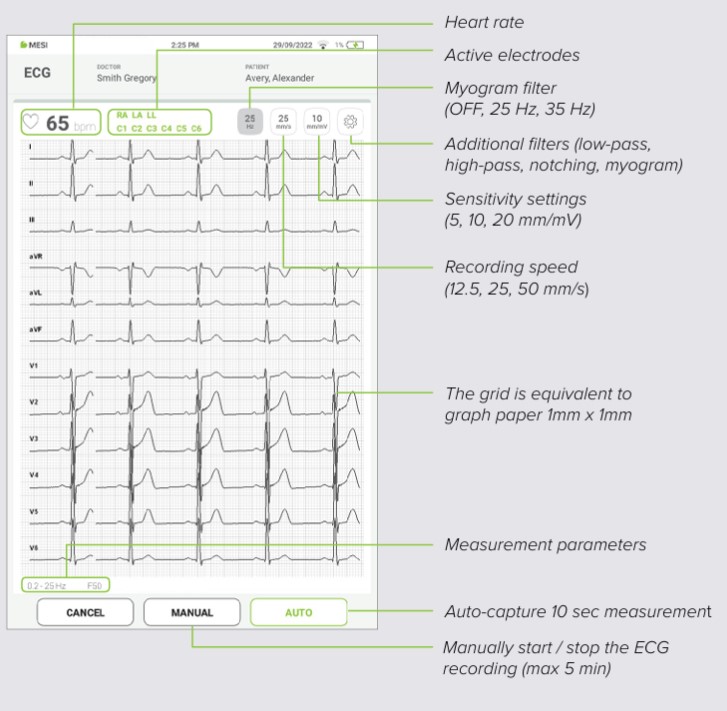
NOTE: MESI mTABLET ECG is designed to detect pacemaker impulses. When patients are implanted with the pacemaker, PACE will light up next to electrode status.
Step 8
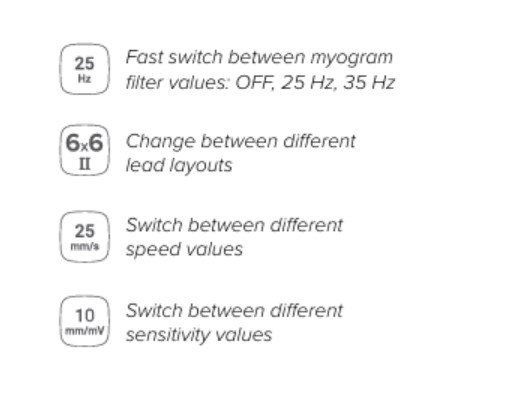
Fast buttons are there to change between most common filters, recording speed and sensitivity. By pressing on the button repeatedly you can switch between the following options:
Myogram filter button rotates between 25 Hz, 35 Hz and “off” options
Sensitivity button changes the amplitude settings between 5, 10, 20 mm/mV
Recording speed button rotates between 12, 25, 50 mm/s values
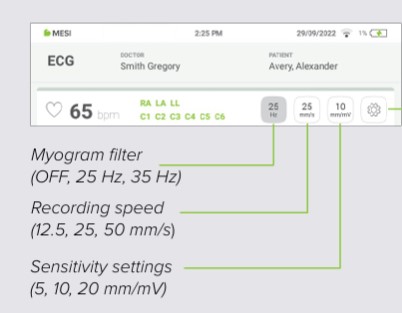
Step 9
During recording you can enhance or improve signal display within recording settings menu. It can be accessed with the press on settings icon. For more information about recording settings filter see chapter 5.3.3 Recording settings and filters.
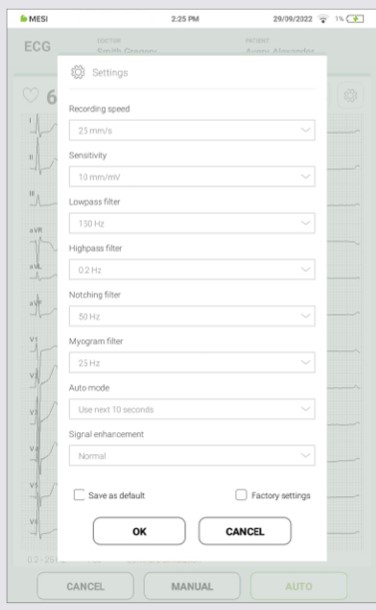
NOTE: To zoom in on bipolar limb leads and augmented unipolar limb leads you can press on top part of the recording while to zoom on unipolar chest leads you can press on the bottom part.
Step 10
When the ECG signal is clear and stable press Auto button to save automatic last 10 second ECG recording.
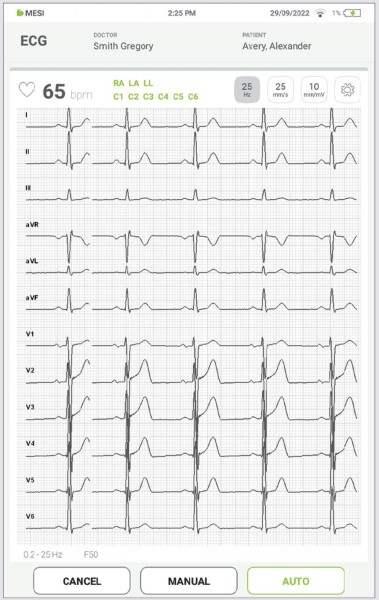
NOTE: When a longer signal acquisition is needed, manual mode can be enabled by pressing Manual button. At that moment ECG signal recording will start until pressed for the second time. Manual signal acquisition is limited with 300 second duration.
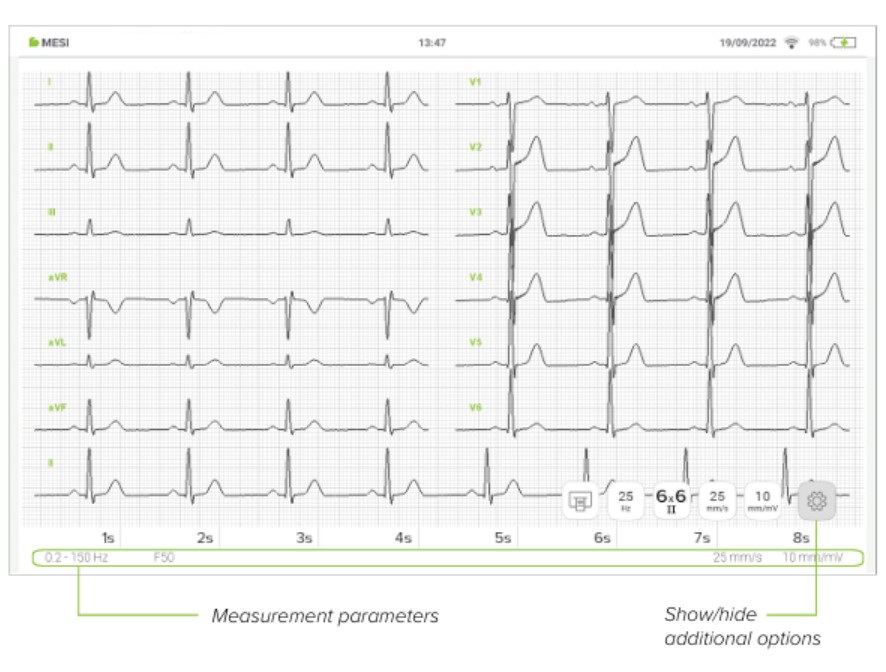
NOTE: Rotating MTABMDinto landscape position when looking at the measurement will present you with an enhanced view for this recording.
5.3.3 RECORDING SETTINGS AND FILTERS
If necessary, it is possible to activate filters capable of improving the legibility of the signal without modifying its morphology. Activation of the filters has an effect on both the displayed and the printed signal. To guarantee a correct and accurate analysis, any automatic interpretation of the trace is performed always and only on the non-filtered ECG signal.
⚠️Filters may suppress diagnostically relevant portions of the signal, because they limit the transmission range. Therefore, only enable filters if necessary.
5.3.3.1 Recording Speed
The ECG recording speed is by default set to 25mm/s. This translates into each small horizontal box (1 mm) being 0.04 second (40ms). With heavier lines forming larger boxes that include five small boxes and hence represent 0.20 sec (200ms) intervals.
In some cases, the recording speed is increased to 50 mm/s to help with defining some waveforms which would stay hidden with slower recording speed. In this situation, each large box is only 0.10 sec and each small box is only 0.02 sec. In addition, the heart rate appears to be one-half of what is recorded at 25 mm/sec paper speed, and all of the ECG intervals are twice as long as normal.

5.3.3.2 Sensitivity
By default, the sensitivity is set to 10 mm/mV therefore 10 mm (10 small boxes) equals 1 mV with standard calibration. On occasion, particularly when the waveforms are small, double standard is used (20 mm/mV) to help with defining waveforms. On another hand when the wave forms are very large, half standard may be used (5 mm/mV).

5.3.3.3 Low-Pass Filter
A low-pass filter reduces high frequency noise, mainly noise produced by electrical interference from the power grid and in some cases, also by chest and extremity muscles. It has two different filter levels 150 and 250 Hz.
5.3.3.4 High-Pass Filter (Baseline Filter)
High-pass filter can be adjusted with three different filter levels (0.5 Hz / 0.2 Hz / 0.05 Hz) to reduce base line drift on the ECG and keep the signal around centreline. It can be used also to remove the offset which in turn is largely caused by the electrode/gel/body interface.
5.3.3.5 Notching Filter (Mains Filter)
Notching filter can be used for filtering mains interference without distorting the ECG signal. Since power-line noise falls in the region of interest, the setting of Notching filter is by default set to OFF. In case of 50 or 60 Hz pickup in ECG signal accompanying filter can be used.
5.3.3.6 Myogram Filter
Myogram filter can help with suppressing disturbances caused by strong muscle tremor. Filter can be accessed directly on recording screen or in filter menu. The cut-off frequency of the filter can be set to either 25 Hz or 35 Hz. A recorded ECG is stored unfiltered. It is therefore possible to print the stored ECG either with or without passing the myogram filter.
5.3.3.7 Save as Default
Save as default option will save current settings and apply them to all future recordings. Default options can be easily overwritten with new parameters and saved again as default.
5.3.4 AUTO MODE RECORDING
ECG signal can be recorded either up to the point when the Auto button was pressed or from that point on. By default, option “use last 10 second” is enabled where the Auto button will record and save the last 10 seconds up to the point when the button was pressed. On another hand “Use next 10 seconds” will start the recording process only after the Auto button was pressed and record 10 seconds from that point on.
NOTE: When performing a distortion test, the ECG has to be configured with highest bandwidth in filter settings.
5.4 REVIEWING ECG
NOTE: Isoelectric segments at the beginning of a QRS complex are excluded from the first component of the QRS complex.
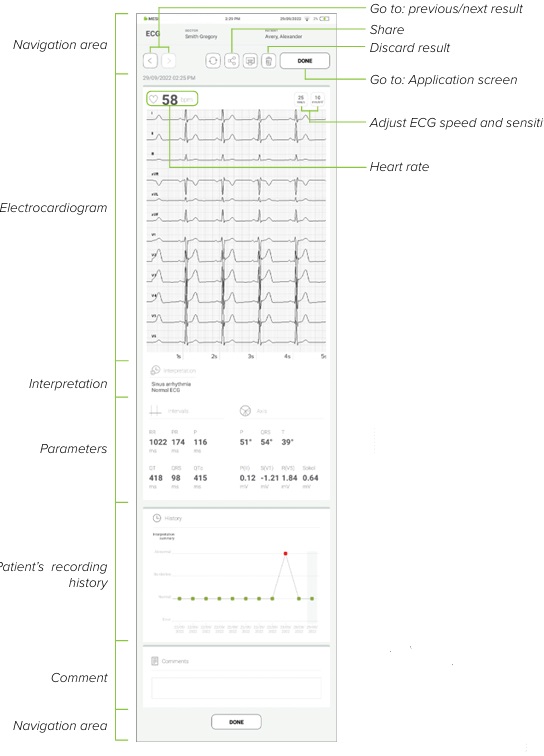
NOTE: Rotating MTABMD into landscape position when looking at the result will present you with an enhanced view for this recording. When the recording process is completed, result will be displayed on the screen. It consists of five different areas: navigation area, numeric result with interpretations, electrocardiogram and other visual representations, patient’s history of recordings and comments on the result.
If you turn the MTABMD into a landscape position when reviewing the result, you will unlock a new view.
5.4.1 MESI MTABLET RESULTS SCREEN
When the recording process is completed, result will be displayed on the screen. It consists of five different areas: navigation area, numeric result with interpretations, electrocardiogram and other visual representations, patient’s history of recordings and comments on the result.
5.4.1.1 Navigation area
All the buttons and information placed in the navigation area are there to help you get around the application. You can toggle between previous results of this patient. If you are not satisfied with the recording for any reason, you can quickly discard it or in case of uncertainty you can consult with other doctors by simply entering their e-mail addresses. It also contains the names of both the doctor performing the recording and the patient.
5.4.1.2 Electrocardiogram
All 12 leads are displayed simultaneously on the electrocardiogram for a faster overview. The ECG recording can be viewed either immediately on the MESI mTABLET UNIT or it can be accessed through mRECORDS for further analysis. In both cases, the recording is standardized with the help of the grid. Time is measured along the horizontal axis while voltage is measured along the vertical axis. By default, each small square is 1 mm in length and represents 0.04 seconds while each larger square is 5 mm in length and represents 0.2 seconds. Similarly, the default value for voltage is set to 10mm/mV which means that each 10mm represents 1 mV. The settings below the electrocardiogram can be used to change these parameters to help you with the interpretation.
5.4.1.3 Automatic interpretation
With the help of the advanced algorithm of the University of Glasgow’s ECG Analysis Software, all recorded data points are analysed automatically. As such it provides a diagnosis which can help you with identifying hidden conditions.
⚠️The data available through automatic interpretation are for informative purposes only and are not intended to constitute professional advice, diagnosis or treatment, or as a substitute for your professional judgment.
5.4.1.4 Parameters
Parameters are made up of the calculated results and measured values. On the left side under intervals section the duration of RR, PR, P, QT, QRS and QTc are displayed in milliseconds (ms). On the right side of the screen the electrical axes of the heart are determined separately for the P, T and QRS waves. They indicate the main spreading direction of the electrical vector in the frontal plane.
5.4.1.5 History
History holds an overview of recordings done by the same doctor on the same patient. It shows the trend of the patient’s results. With the ECG’s history, it records the number of abnormalities recognized by the University of Glasgow’s ECG Analysis Software.
A comment can be added to every measurement. It will be stored and always available together with recoding report.
5.5.1 LED INDICATORS
Even though most of the MESI ECG UNIT control is done through the MESI mTABLET UNIT interface there is still a multifunctional LED button on top of the device. Next to basic colour light notification functionalities of this button there is also a possibility to perform some additional operations. These operations are based on the current status of the ECG measurement unit.
5.5.1.1 Standby
Green: Battery capacity is more than 25%.
Red: ECG module battery is almost empty, please recharge the module as soon as possible.
5.5.1.2 Charging
Green: Battery is fully charged.
Orange: ECG module is charging.
5.5.1.3 Pairing
Blue: ECG module is waiting for confirmation from mTABLET.
5.5.2.1 Standby
Button functions - Standby| Status check | Quick press on button in standby mode will perform a basic status check of MESI ECG UNIT – green, more than 25% battery charge, while red means less than 25% charge is left and the module should be charged. |
| Pairing mode | Holding the button for 4 seconds will put the module into pairing mode where it can be connected to MESI mTABLET UNIT (for more information please look at chapter PAIRING) |
| Reset module | To perform a reset of the MESI ECG UNIT please press and hold the LED button for 10 seconds until it changes colour to red. Module will be ready to use in a few seconds. |
5.5.2.2 Recording mode
Recording mode| Stop recording | Pressing the button quickly while performing an ECG will cancel the recording and return the MESI mTABLET UNIT to the home screen. |
Use with defibrilator
The patient signal input is defibrillation-proof. Therefore, it is not necessary to remove the ECG electrodes during defibrillation. If the defibrillation occurs while recording the signal will be automatically restored after a couple of secondse. Remember always to avoid direct contact between the electrodes of the defibrillator and those of the electrocardiograph. The original approved electrodes supplied with the electrocardiograph have been designed so as to minimize the risk in case of accidental contact.
Maintenance
7.1 CHARGING THE BATTERY
The device can be only used on battery power therefore you must ensure that the battery is charged regularly. One battery charge is sufficient for approximately 100 recordings.
To charge the battery, please place the MESI ECG UNIT on the MESI charging station.
If the capacity of the battery is significantly decreased after a certain period of intensive use, the battery is most likely spent and you should replace it. As the device does not contain any parts which can be replaced by a user, you should contact your dealer or the manufacturer about replacing the battery.
7.2 CLEANING INSTRUCTIONS
It’s recommended to clean the device regularly with a soft, dry or damp cloth. Do not use aggressive cleaning agents, volatile liquids or excessive force when cleaning the device. Do not wash the patient cables or immerse them in water. Also, do not use petrol, thinners or similar solvents to clean the patient cables. To adequately clean or disinfect the electrodes, use a soft lint-free cloth, which has been soaked in a 70% alcohol solution. Afterwards dry the electrodes well.
7.3 PRODUCT LIFE AND STORAGE
If correctly used and maintained the device will have a minimum service life of 5 years. You can store the device in suitable conditions for a maximum of 5 years. While in storage the battery needs to be recharged every 3 months to avoid accidentally over-discharging your batteries. When using the device after storage, we recommend you to subject the device to a thorough maintenance check.
The device should be inspected by a qualified service engineer at least every 12 months for the following safety checks:
any mechanical or functional damage on device and accessories,
performance of device in accordance to instructions for use,
legibility of warning label,
battery cycle count.
General warnings
8.1 PATIENT INJURY PREVENTION
⚠️Do not place the electrodes on wounds, as this may cause additional injury.
⚠️Before using the device for the first time, read the user manual carefully and follow the recommendations and suggestions.
⚠️This unit is CF classified according to IEC 60601-1. This means that the patient connection is fully isolated and defibrillation protected. The manufacturer can only guarantee protection against defibrillation voltage however, when the original MESI patient cable is used.
⚠️There is no danger when using the MESI ECG UNIT for a pacemaker patient or with simultaneous use of other electrical stimulation equipment. However, the stimulation units should only be used at a sufficient distance from the electrodes. In case of doubt, the patient should be disconnected from the recorder.
⚠️It must be ensured that neither the patient nor the electrodes (including the neutral electrode) come into contact with other persons or conducting objects (even if these are earthed).
⚠️While the electrocardiograph is safety-rated CF for direct cardiac contact, it is not intended to be connected directly to the patient’s heart. Only surface contact with the patient’s skin is intended.
8.2 RECORDING
⚠️The MESI mTABLET ECG users must be adequately trained to use the device. Before the first use of the device, users must carefully read the entire instructions for use and follow the instructions for use of the connected equipment.
⚠️MESI mTABLET ECG complies with EMC regulations for medical products which affords protection against emissions and electrical interference. However special care must be exercised when the unit is used with high frequency equipment.
⚠️Use only accessories and other parts recommended or supplied by MESI. Use of other than recommended or supplied parts may result in injury inaccurate information and/ or damage to the unit.
⚠️This product is not designed for sterile use.
⚠️Do not use this unit in areas where there is any danger of explosion or the presence of flammable gases such as anaesthetic agents.
⚠️Filters may suppress diagnostically relevant portions of the signal, because they limit the transmission range. Therefore, only enable f ilters if necessary.
8.3 MAINTENANCE
⚠️If device is used or stored outside the specified temperature range and air humidity, the accuracy specified within the technical specifications of the device is not guaranteed.
⚠️Before cleaning disconnect from the mains. Due to constant standby mode do not clean device terminals.
⚠️Do not use the device when it is wet. After cleaning the device with a damp cloth, wait for it to dry. Only use the device when it is completely dry.
⚠️Do not, under any circumstances, immerse the unit or cable assemblies in liquid.
⚠️Only use non-aggressive cleaning agents to clean the device. The device may be wiped with a damp cloth.
⚠️Do not use high temperature sterilization processes (such as autoclaving). Do not use e-beam or gamma radiation sterilization.
⚠️Make sure that the device does not come into contact with an electrical current while it is being cleaned.
⚠️Do not dispose of the device as unsorted municipal waste. Prepare it for recycling or separate waste collection in accordance with Directive 2002/96/EC on scrap electrical and electronic equipment (WEEE).
⚠️To prevent electric shock hazard due to current leakage, only use AC/DC power supplies which are compliant with the technical specifications of the device.
⚠️The AC/DC power supply must be connected to an easily accessible socket (the AC/DC power supply also serves for galvanic isolation).
⚠️To prevent electric shock do not disassemble the unit. No serviceable parts inside. Refer servicing to qualified personnel only.
⚠️The use of cables and accessories other than those approved for use by MESI ltd. may negatively affect EMC performance.
⚠️Inspect patient cable for damage and observe the calibration signal before performing a measurement.
8.4 FUNCTIONING OF THE DEVICE
⚠️The device must only be operated using battery power if the earth connection is suspect or if the mains lead is damaged or suspected of being damaged.
⚠️Protect the device from moisture and liquids and extremely high/low temperatures. Also, protect the device from mechanical stress and do not expose it to direct sunlight, as this can cause the device to not function properly.
⚠️Never carry out repairs of any kind yourself. Do not open the device. The device does not contain any parts which can be replaced by a user. Do not alter or adapt the device. If a defect occurs, consult your dealer or distributor.
⚠️MESI mTABLET ECG module must not be used in an oxygen-rich environment.
⚠️The ECG measurement unit is not intended for use in conjunction with high frequency surgical equipment.
⚠️Important information on electromagnetic compatibility (EMC). As the number of electronic devices such as computers and mobile phones in the room increases, medical devices can become sensitive to the electromagnetic influences of other devices. Electromagnetic interference can cause medical devices to malfunction, which can potentially lead to dangerous situations. Furthermore, medical devices must not interfere with other devices. The IEC/EN 606011-2 standard was introduced due to the necessity to establish electromagnetic compatibility (EMC) requirements for the prevention of dangerous situations in the use of medical devices. The standard defines the level of resistance to electromagnetic interference for medical devices. This medical device is compliant with the IEC/ EN 60601-1-2 standard in terms of resistance to electromagnetic interference and electromagnetic emissions. Nevertheless, do not use mobile phones and similar devices which create strong electromagnetic fields in the vicinity of the device. This can cause the device to malfunction, which can potentially cause a dangerous situation.
⚠️Portable RF communications equipment including peripherals such as antenna cables and external antennas should be used no closer than 30 cm (12 inches) to any part of the device including cables specified by the manufacturer. Otherwise degradation of the performance of this equipment could result.
⚠️Use of this equipment adjacent to or stacked with other equipment should be avoided because it could result in improper operation. If such use is necessary, this equipment should be observed to verify that they are operating normally.
Errors
Errors| ECG measurement unit was not found.
ERROR: Timeout | Your ECG measurement unit is out of range. Please bring MESI mTABLET UNIT closer to your ECG measurement unit and restart the ECG application. |
| Please bring MESI mTABLET UNIT closer to MESI ECG UNIT.
ERROR: Bad connection | When performing measurement and the connection between MESI mTABLET UNIT and MESI ECG UNIT is not optimal (i.e. you are performing measurement close to mobile devices with wireless connections) please bring your MESI mTABLET UNIT closer to MESI ECG UNIT or remove any mobile devices in proximity of MESI ECG UNIT. |
| Please bring MESI mTABLET UNIT closer to measuring module and repeat the measurement.
ERROR: Bad connection | If the measurement was interrupted because of bad connection, please bring your MESI mTABLET UNIT closer to MESI ECG UNIT or remove any mobile devices in proximity of MESI ECG UNIT. After this please repeat the measuring process. |
| MESI ECG UNIT not working.
ERROR: ECG inoperable | Please contact the manufacturer or the local distributor. |
| High battery cycle
ERROR: Replace battery | Battery will need to be replaced soon, please contact the manufacturer or the local distributor for replacement. |
| Problem with calibration signal
ERROR: Failed calibration | Initial calibration signal problem. Please reset the MESI ECG UNIT by pressing and holding the multifunctional button for about 10 seconds or until it changes colour to red. If the problem continues, please contact the manufacturer or the local distributor. |
Troubleshooting
The LED on top of the MESI ECG UNIT is continuously flashing either purple or red.
Press and hold the button on top of the MESI ECG UNIT for 15 seconds to restart it. In the unlikely event that the light is still flashing regardless of this action, please set the ECG module aside for about 10 minutes without touching it. After 10 minutes, if the light is still blinking please press the top button again for 15 seconds. If the status light doesn’t change to green or yellow, please contact the manufacturer or the local distributor for further assistance.
No light shows when the multifunctional button on top of the MESI ECG UNIT is pressed.
Please place the MESI ECG UNIT on the charging station and leave it to charge for at least half an hour before retrying. If the light doesn’t start blinking either on the charging station or after charging for half an hour, please contact the manufacturer or the local distributor for further assistance.
ECG measurement will not start even though the MESI ECG UNIT is paired and next to mTABLET.
Please make sure that there aren’t any devices nearby which produce electromagnetic interference. These devices can interfere with the basic functions of the MESI mTABLET ECG, which can potentially lead to dangerous situations. If the problem continues, please contact the manufacturer or the local distributor for further assistance.
Warranty information
For the ECGSYS systems purchased from April 1, 2026 on, the company MESI Ltd. hereby ensures a warranty period up to two years, which begins with the date of purchase (delivery date shown on the invoice). The warranty is valid with an invoice or a copy of the invoice. The Company MESI Ltd. also guarantees that the ECGSYS system you have purchased is free from defects in materials and is made from suitable materials. In the warranty period the company MESI Ltd. guarantees a free repair of defective device or parts covered by this warranty. If the defective device in the warranty period cannot be repaired, a free replacement will be provided. The company MESI Ltd. will ensure maintenance and supply spare parts for a period of ten years from the date of purchase as long as (spare) parts are available from suppliers.
The warranty does not cover:
The cost of repairs and/or damage done by an unauthorized person. If you wish to make a warranty claim, please contact your local distributor or the manufacturer of the ECGSYS system, whose contact details can be found at the company’s website.
Regular inspections (at the customer’s request) and/or maintenance (replacement of worn parts).
Deterioration of accessories and other additions other than the main device.
Costs incurred due to disagreement with the warranty conditions (it shall be charged).
Any damage caused by accidents, misuse, neglect, abrasion, exposure to extreme temperatures, solvents, acids, water, normal wear and tear or damage in transit, theft or loss.
Use of the device for purposes other than its intended use.
Damage caused by airline or freight company mishandling.
Improper use or abuse of ECGSYS system, including but not solely limited to the failure to use this product for its normal purposes or in accordance with company’s instructions on usage and maintenance.
Defects resulting from usage of the product in conjunction with accessories that are not approved by company MESI Ltd. for use with the ECGSYS system.
Defects or deficiencies of the ECGSYS system arising from incorrect installation or use not consistent with the instructions and technical or safety standards prescribed in the device’s user manual.
Accidents, Acts of God, lightning, water, fire, public disturbances, improper ventilation, voltage fluctuations or any cause beyond the control of company MESI Ltd.
Damage to the battery caused by failing to charge the empty battery regularly, or failure to use in accordance with the instructions of user manual.
Replacement or repair of defective device or it’s parts, if the serial number on the product has been altered, deleted, removed or made illegible.
| Parts included in the two-year warranty | ECGMD device |
| Parts included in the 90-day warranty | Patient cable |
| Parts excluded from warranty | Packaging, disposable electrodes |
All of the above is the sole and exclusive warranty for the ECGSYS system.
We state:
That during the warranty period the ECGSYS system will work flawlessly, if handled as stated in the instructions for use and if maintained regularly.
That the warranty period commences on the date of purchase.
That in the warranty period the defects and technical deficiencies of the ECGSYS system that are generated during normal use will be eliminated at company’s own expense.
That the ECGSYS system will be fully operational, if optimum conditions for the operation of the product, ranging from 10-40 °C, max. 80% humidity, non-condensing and without excessive amounts of dust and dirt, are fulfilled.
That the warranty is not applicable to cases other than defects in material and workmanship.
That the warranty is void if the ECGSYS system is used in a rental capacity and damaged at the same time.
That the repair or replacement under the terms of this warranty does not provide the right to extension or renewal of the warranty period.
That the warranty will be void if payments are not received by company MESI Ltd. in the period after any agreed upon credit terms expire.
Description of the warranty claim process:
The warranty is valid only if the ECGSYS system and its parts are returned during the applicable warranty period, together with the original invoice or its copy issued by the manufacturer of the device. If necessary, give a description of the problem. In case the invoice is not presented, the company MESI Ltd. holds the right to void the warranty.
Standard compliance
The provisions of the Council Directive 93/42/EEC concerning medical devices were complied with. The standards in the table below were complied with.
Standard compliance| Reference number | Description |
|---|
| EN 60601-1:2006/ A1:2013 | Medical electrical equipment - Part 1: General requirements for basic safety and essential performance |
| EN 60601-1-6:2010/ A1:2015 | Medical electrical equipment - Part 1-6: General requirements for basic safety and essential performance - Collateral standard: Usability |
| EN 60601-225:2015 | Medical electrical equipment - Part 2-25: Particular requirements for basic safety and essential performance of electrocardiographs |
| EN 62304:2006/ A1:2015 | Medical device software - Software lifecycle processes |
| EN 62366:2008 | Medical devices - Application of usability engineering to medical devices |
| EN 60601-1-2:2015 | Medical electrical equipment - Part 1-2: General requirements for basic safety and essential performance - Collateral Standard: Electromagnetic disturbances - Requirements and tests |
| EN 980:2008 | Symbols for use in the labelling of medical devices |
| EN 1064:2005/ A1:2007 | Health informatics - Standard communication protocol - Computerassisted electrocardiography |
| EN 303 446-1:2017 | Electromagnetic Compatibility (EMC) standard for combined and/or integrated radio and non-radio equipment; Part 1: Specific conditions for equipment in residential locations. |
| EN ISO 14971:2012 | Medical devices – Application of risk management to medical devices |
| EN ISO 109931:2009/AC:2010 | Biological evaluation of medical devices – Part 1: Evaluation and testing within a risk management proces |
| EN ISO 13485:2012/C:2012 | Medical devices – Quality management systems – Requirements for regulatory purposes |
12.1. MANUFACTURER DECLARATION ON EMC (ELECTROMAGNETIC COMPATIBILITY) ACCORDING TO IEC 60601-1-2:2007
12.1.1 CABLE Lengths
CABLE Lengths| Patient leads | approx. 1100 mm (extremity leads) |
| approx. 750 mm (chest wall leads) |
12.1.2 MANUFACTURER’S DECLARATION - ELECTROMAGNETIC EMISSIONS
MESI mTABLET ECG is intended for use in the electromagnetic environment specified below. The customer or the user of the above listed models should assure that they are used in such an environment.
Manufacturer declaration on EMC| Emission Measurements | Compliance | Electromagnetic environment - guidance |
|---|
| HF emissions according to CISPR11 | Group 1 | The above listed models use RF energy only for its internal function. Therefore, its RF emissions are very low and are not likely to cause any interference in nearby electronic equipment. |
| RF emissions CISPR 11 | Class B | MESI mTABLET ECG is suitable for use in all establishments, including domestic establishments and those directly connected to the public low-voltage power supply network that supplies buildings used for domestic purposes. |
| Harmonic emissions IEC 61000-3-2 | N/A | MESI mTABLET ECG is suitable for use in all establishments, including domestic establishments and those directly connected to the public low-voltage power supply network that supplies buildings used for domestic purposes. |
| Voltage fluctuations / flicker emissions IEC 61000-3-3 | Complies | MESI mTABLET ECG is suitable for use in all establishments, including domestic establishments and those directly connected to the public low-voltage power supply network that supplies buildings used for domestic purposes. |
12.1.3 MANUFACTURER’S DECLARATION - ELECTROMAGNETIC IMMUNITY
MESI mTABLET ECG is intended for use in the electromagnetic environment specified below. The customer or the user of the above listed models should assure that they are used in such an environment.
MANUFACTURER’S DECLARATION - ELECTROMAGNETIC IMMUNITY| Immunity Test | IEC 60601 Test Level | Compliance Level | Electromagnetic environment - guidance |
|---|
| Electrostatic discharge (ESD) according to IEC 61000-4-2 | ± 8 kV contact discharge ± 2,4,8, 15 kV air discharge | ± 8 kV contact discharge ± 15 kV air discharge | Floors should be wood or concrete or be equipped with ceramic tiles. If the floor is covered with synthetic material, the relative air humidity should be et least 30 |
| Fast transient electric interference factors/bursts according to IEC 61000-4-4 | ± 2 kV 100kHz Repetition frequency | ± 2 kV | Mains power quality should be that of a professional healthcare facility environment and Home healthcare environment. |
| Surges according to IEC 61000-4-5 | ± 0,5kV, ± 1 kV line(s) to line (s) ± 0,5kV, ± 1 kV, ± 2 kV line(s) to ground | ± 1 kV, Differential mode | Mains power quality should be that of a professional healthcare facility environment and Home healthcare environment. |
| RATED power frequency magnetic fields IEC 61000-4-8 | 50/60 Hz | 30 A/m | Power frequency magnetic fields should be at levels characteristic of a typical location in a typical commercial or hospital environment. |
| Conducted RF induced by RF fields IEC 61000-4-6
Radiated RF EM fields and Proximity fields from RF wireless communications equipment IEC 61000-4-3 | 3 Vrms 150 kHz - 80 MHz 6 Vrms in ISM bands between 150 kHz - 80 MHz
3 V/m 80 MHz – 2,7 GHz | 3 Vrms 150 kHz - 80 MHz 6 Vrms in ISM bands between 150 kHz - 80 MHz
3 V/m | Portable and mobile RF communications equipment should not be used no closer to any part of the above listed models, including cables, than the recommended separation distance calculated from the equation applicable to the frequency of the transmitter. Recommended separation distance d = 1,2√P
d = 1,2√P 80 MHz - 800 MHz
d = 2,3√P 800 MHz – 2,7 GHz
Where P is the maximum output power rating of the transmitter in watts (W) according to the transmitter manufacturer and d is the recommended separation distance in meters (m).
Field strengths from fixed RF transmitters, as determined by an electromagnetic site survey a should be less than the compliance level in each frequency range. Interference may occur in the vicinity of equipment marked with the following symbol: |
Comment 1: With 80 MHz and 800 MHz the higher frequency range is valid. Comment 2: These guidelines may not apply in every case. The propagation of electromagnetic variables is influenced by absorptions and reflections of buildings, objects and people.
12.1.4 RECOMMENDED PROTECTIVE DISTANCES BETWEEN PORTABLE AND MOBILE HF TELECOMMUNICATION DEVICES AND MESI ECG
MESI mTABLET ECG is intended for use in the electromagnetic environment in which radiated RF disturbances are controlled. The customer or the user of the above listed models can help prevent electromagnetic interference by maintaining a minimum distance between portable and mobile RF communications equipment (transmitters) and the above listed models as recommended below, according to the maximum output power of the communication equipment.
Separation distance according to frequency of transmitter m
Separation distance according to frequency of transmitter m| Rated maximum output power of transmitter W | 150 kHz to 80 MHz d = 1.2√P | 80 MHz to 800 MHz d = 1.2√P | 800 MHz to 2.5 GHz d = 2.3 √P |
|---|
| 0.01 | 0.12 | 0.12 | 0.23 |
| 0.1 | 0.38 | 0.38 | 0.73 |
| 1 | 1.2 | 1.2 | 2.3 |
| 10 | 3.8 | 3.8 | 7.3 |
| 100 | 12 | 12 | 23 |
For transmitters rated at a maximum output power not listed above, the recommended separation distance d in metres (m) can be determined using the equation applicable to the frequency of the transmitter, where P is the maximum output power rating of the transmitter in watts (W) according to the transmitter manufacturer.
NOTE 1: At 80 MHz and 800 MHz, the separation distance for the higher frequency range applies.
NOTE 4: These guidelines may not apply in all situations. Electromagnetic propagation is affected by absorption and reflection from structures, objects and people.
Essential performance of MESI mTABLET ECG is performing an ECG measurement in specified operating conditions (IFU). Due to the devices high sensitivity, intended use and operating modes the device is susceptible to EM interferences. In the event that the device essential performance is degraded, an acceptable and unacceptable risks have been defined in risk management file.
EM interferences shall not affect the measurement with the difference for each amplitude measurement. These amplitude measurements shall not deviate from the reference value by more than ± 50 μV for reference values ≤ 500 μV, or by more than 5 % or ±100 μV (whichever is greater) for reference values > 500 μV. In case of higher deviations of signal, the device presents an unacceptable risk and will warn user of its inoperability.
In the event of defibrillation, ESD or any other short term interference the MESI ECG UNIT will recover after a couple of seconds and continue with intended operation. If the event occurred during the measurement process, the measurement is complete the recording will be saved to the MESI mTABLET UNIT.
Important labels
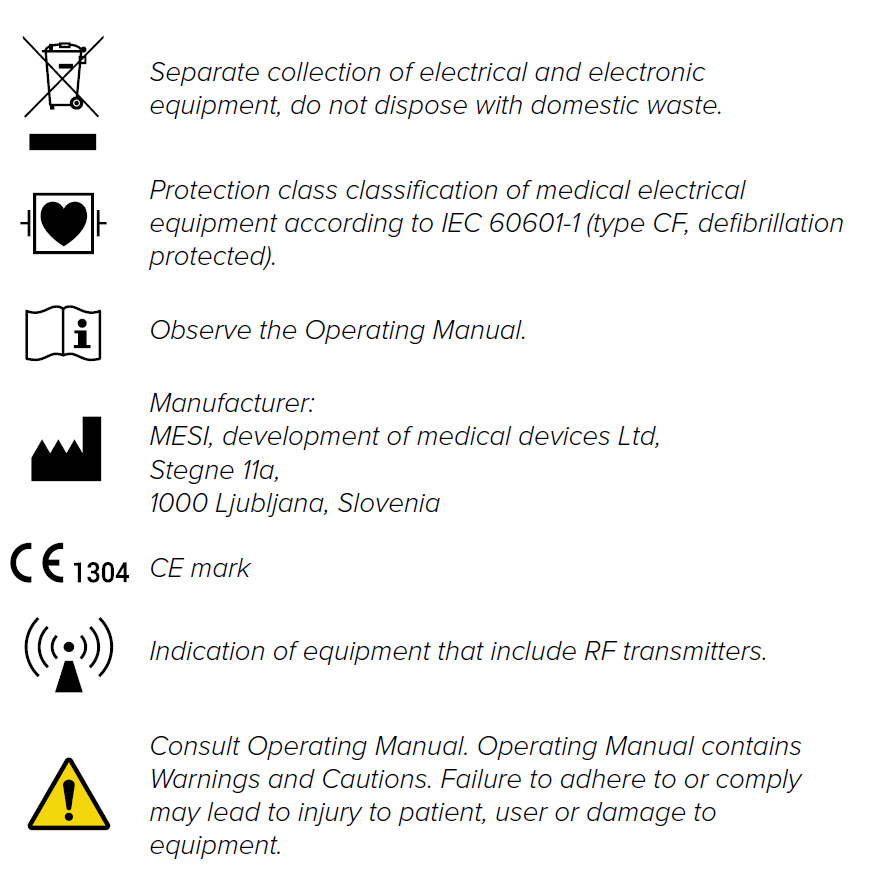
The symbols on the labels on the bottom of the device, the packaging and the instructions provide important information about the device. The symbols are described below.