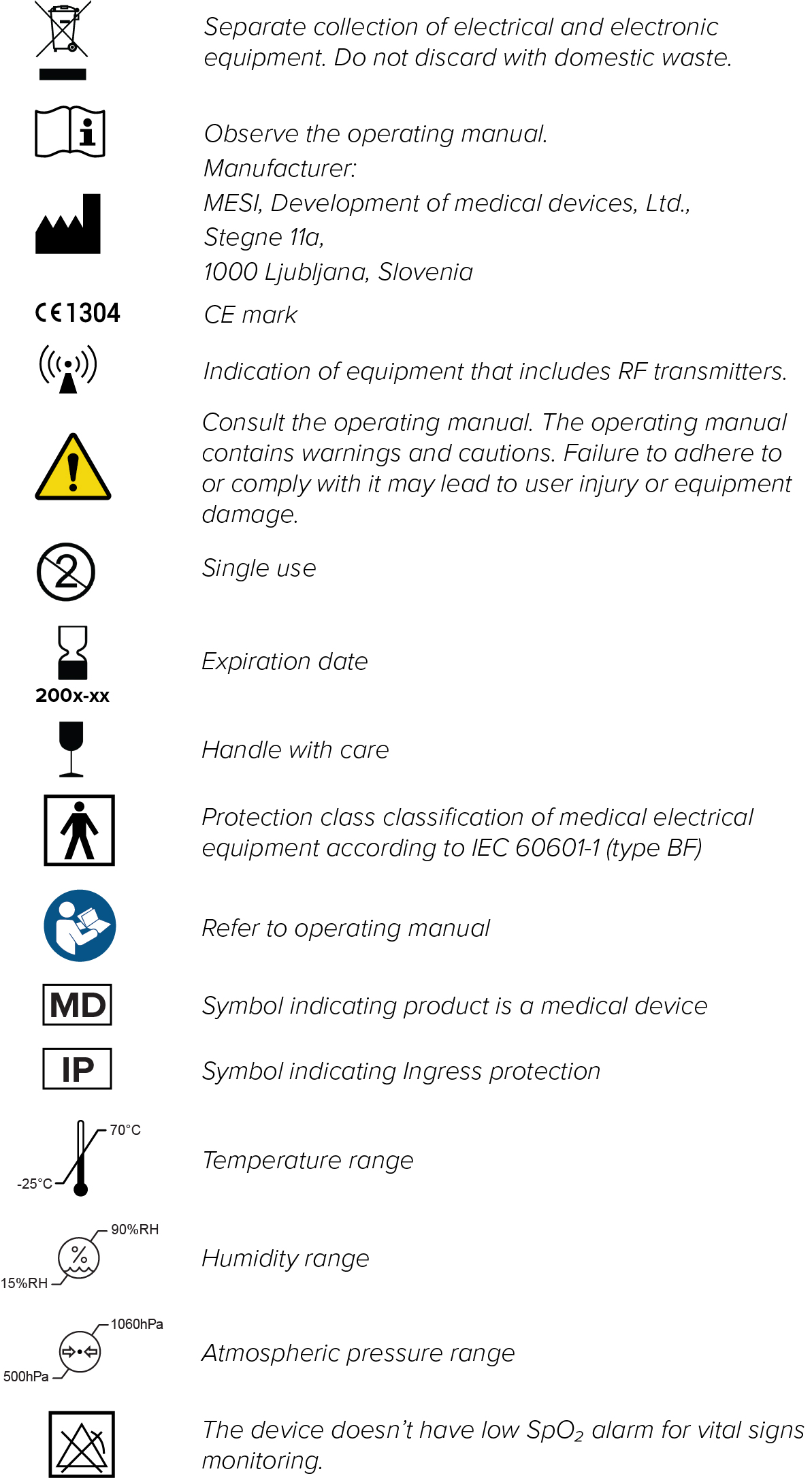
Safety and legal recommendations
All rights reserved. This publication may not be reproduced, copied or stored on a memory device. Furthermore, this publication may not be used for any purpose other than as the instructions for the use of the MESI mTABLET VITALS. This publication may not be translated into other languages or converted into other formats in any way without the prior written permission of MESI Ltd. The contents of the instructions for use may be altered without notice. The latest version of the instructions for use is available at www.mesimedical.com/support/mtablet_vitals.
NOTE: This document can be provided in paper form at no additional cost upon request.
To avoid personal injury and/or damaging the device or accessories, follow the safety recommendations given below.
1.2.1 SETUP AND TECHNICAL PERSONNEL
The device must be set up by authorised personnel who have adequate professional training and experience, are aware of all the dangers in relation to the setup of the device and its use, and take adequate risk-prevention measures for themselves, patients, other personnel and devices.
1.2.2 ACCESS TO THE DEVICE
Only authorized persons may be given access.
1.2.3 SAFETY MEASURES
If a serious incident occurs in connection with the use of the MESI mTABLET VITALS, the user and/or patient must immediately report the incident to MESI, Ltd., and to the competent authority of their respective country of residence. A serious incident includes any malfunction, failure, or deterioration of the device that directly or indirectly results in death or severe deterioration of health.
The device does not contain medicinal products, tissues and cells of human and animal origin, substances intended to be introduced into the human body/absorbed/locally dispersed, nor CMR or endocrine-disrupting substances.
Product description
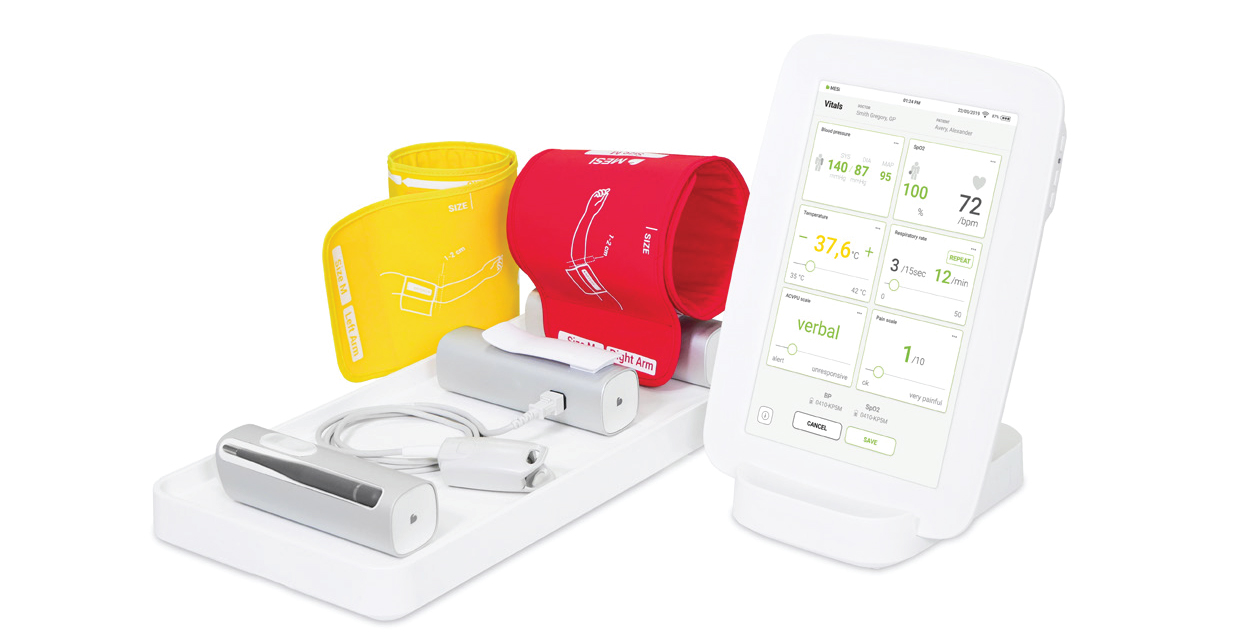
The MESI mTABLET VITALS is a vital signs monitoring system comprising the MESI TUBELESS CUFF UNIT for blood pressure measurement, the MESI PULSE OXIMETER UNIT for SpO₂ meas urement, and the MESI THERMOMETER UNIT for body temperature measurement, with measurements transmitted to and displayed on the MESI mTABLET.
2.1 WHAT IS IN THE PACKAGE
The MESI mTABLET VITALS package includes the following equipment:
-MESI THERMOMETER UNIT (THERMOMD), which consists of:
MESI mTABLET INFRARED PROBE (IRTMD)
MESI mTABLET CONTACT PROBE (CTMD)
MESI disposable contact probe shield set (100 pieces)
-MESI PULSE OXIMETER UNIT (SPO2MD)
-FingerClip Sensor (CS10299)
-MESI TUBELESS CUFF UNIT (CUFFMD)
-Size M cuffs for left and right arms
-Wireless medical tablet system (MTABSYSW), which consists of:
-4-port charging station (CS4SYS)
-Quick guide
-Calibration reports for all devices
-Declaration of conformity for all devices
Optional equipment:
MESI mTABLET VITALS TROLLEY
MESI mTABLET, DATALOGIC, BARCODE SCANNER
2.1.1 ACCESSORIES
NOTE: Contact your local distributor for more information on accessories
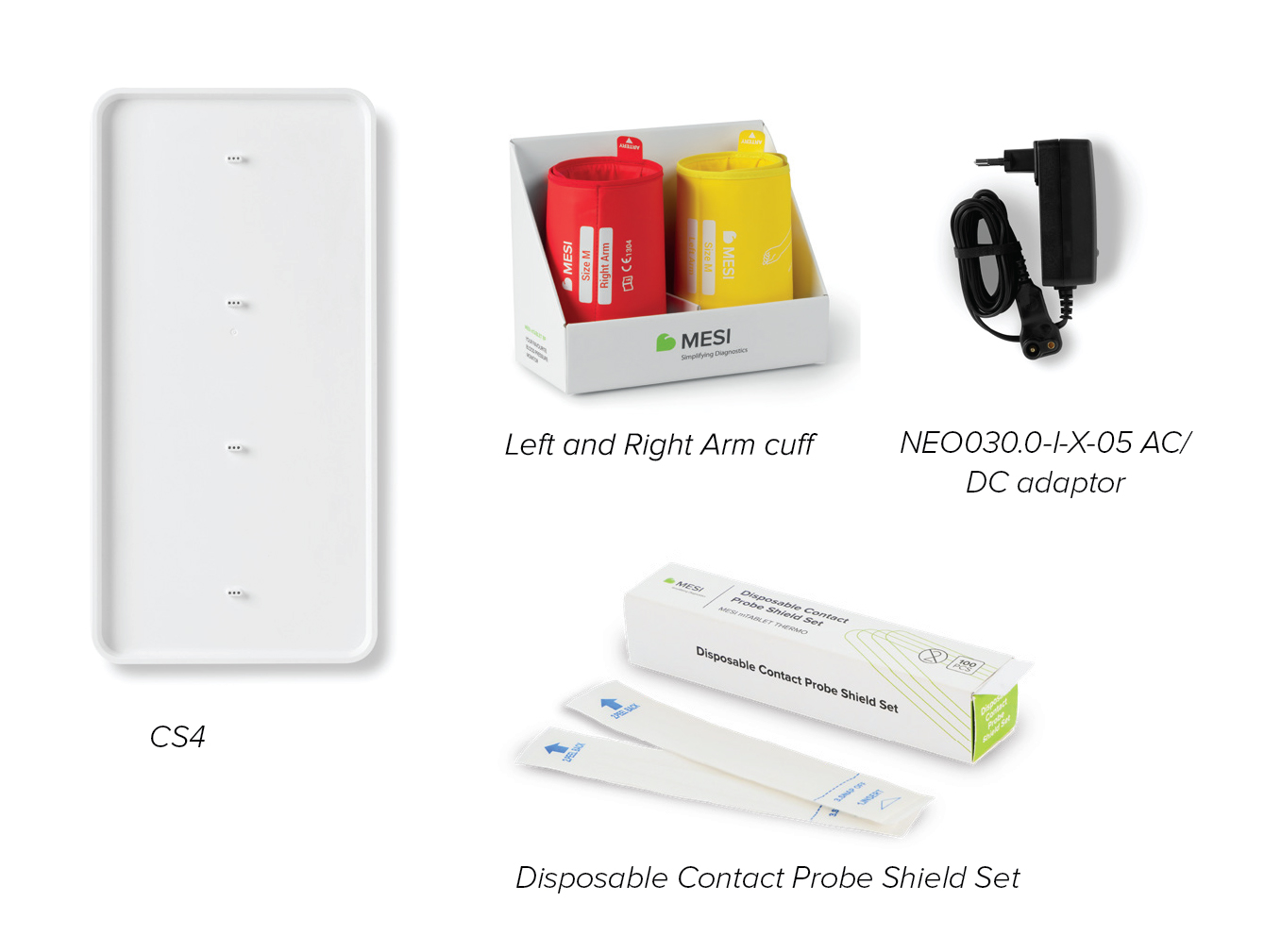
⚠️Use only the accessories and other parts recommended or supplied by MESI. The use of other than recommended or supplied parts may result in injury, inaccurate information, and/or damage to the unit. Follow the instructions provided with the specific accessory.
⚠️ The 4-port charging station and MESI mTABLET WI-FI DOCKING UNIT are intended for use only in dry, indoor environments. These components must be kept away from water, moisture, and liquids at all times. They are not designed for use in wet areas (such as bathrooms or kitchens) and must not come into direct contact with the patient. Use only as instructed to avoid the risk of electric shock or malfunction.
2.2 INTENDED PURPOSE
For intended purpose, refer to the Instructions for Use of each device:
https://mesimedical.com/support/mtablet_temp/mtablet_ thermometer_ifu_product-description
https://mesimedical.com/support/mtablet_spo2/mtablet_ spo2_ifu_product-description
https://mesimedical.com/support/mtablet_bp/mtablet_bp_ ifu_product-description
https://mesimedical.com/support/mtablet/mtablet_ifu_prod uct-description
2.2.1 INTENDED MEDICAL INDICATIONS AND CONTRAINDICATIONS
For intended medical indications, contraindications, and clin ical benefits, refer to the Instructions for Use of each device:
https://mesimedical.com/support/mtablet_temp
https://mesimedical.com/support/mtablet_spo2
https://mesimedical.com/support/mtablet_bp
https://mesimedical.com/support/mtablet
Technical specifications
For technical specifications, refer to the Instructions for Use of each device:
https://mesimedical.com/support/mtablet_temp/mtablet_ thermometer_ifu_technical-specifications
https://mesimedical.com/support/mtablet_spo2/mtablet_ spo2_ifu_technical-specifications
https://mesimedical.com/support/mtablet_bp/mtablet_bp_ ifu_technical-specifications
https://mesimedical.com/support/mtablet/mtablet_ifu_techni cal-specifications
Instructions for use
Before using the devices for the first time, read the instructions carefully and follow all their recommendations and suggestions. This chapter contains all the information required for safe, cor rect and accurate measurement with the MESI mTABLET VITALS. It includes a detailed description of all features, the safety instruc tions, and all information required to understand the operation of the devices and the system.
4.1 FIRST-TIME USE
4.1.1 ACTIVATION OF MODULES
When setting up the MESI mTABLET VITALS system for the first time, the devices need to be activated out of the shipping mode. The measurement modules (THERMOMD, SPO2MD and CUFFMD) will not respond until the CS4SYS charging plate is connected with the AC/DC power supply to a wall socket with a mains voltage of 100-240 V at 50-60 Hz, and the modules are placed on the charging plate. This makes the multifunctional buttons on each device illuminate, which indicates that the battery is charging. During this process, the light on the module flashes orange. When the device is fully charged, the multifunctional button starts flashing green. It is recommended that the measurement modules are fully charged before initial use
NOTE: The battery inside a new device is probably not completely empty and can provide enough power to start up the device. Nevertheless, connect the de vice to the mains electricity using the AC/DC power supply before its first use.
4.1.2 ACTIVATION OF MODULES
Before any measurements can be performed, the THERMOMD, SPO2MD and CUFFMD modules need to be paired to the MESI mTABLET UNIT, as described below
Step 1
Log in to the User’s profile on the MESI mTABLET UNIT.
Step 2
Go to User Profile > Settings > Modules > +Add Module.
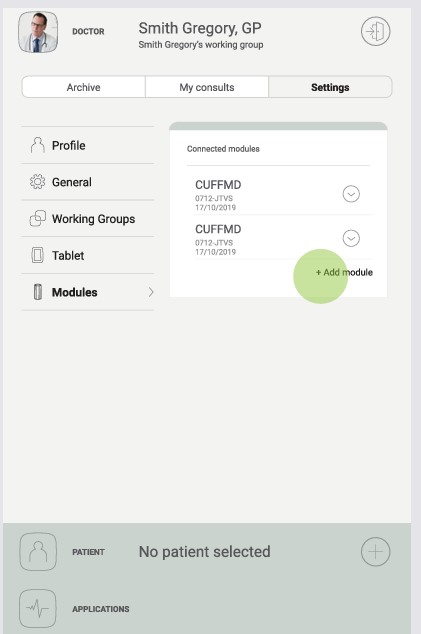
Step 3
Press the button at the top of the module.
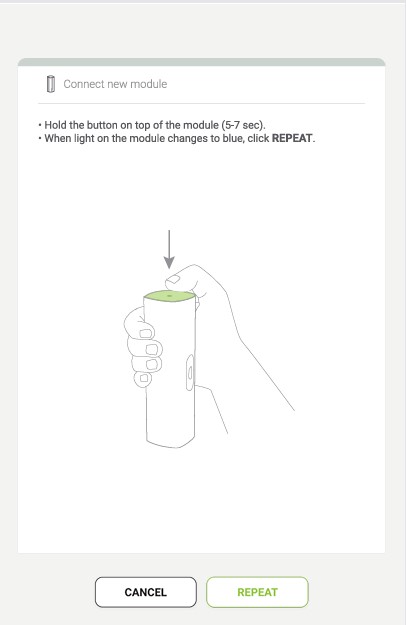
Step 4
When the MESI mTABLET UNIT establishes a connection with the module, the light at the top of the module will change. Confirm the pairing process by pressing that button again.
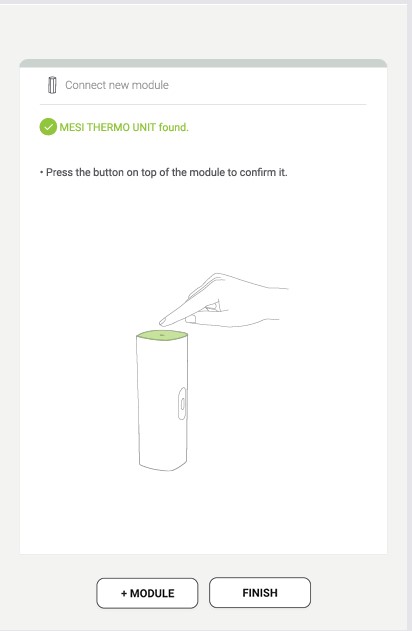
Step 5
The final screen shows a successful connection between the MESI mTABLET UNIT and the module. You can access all technical information about the connected modules in User profile > Settings > Modules.
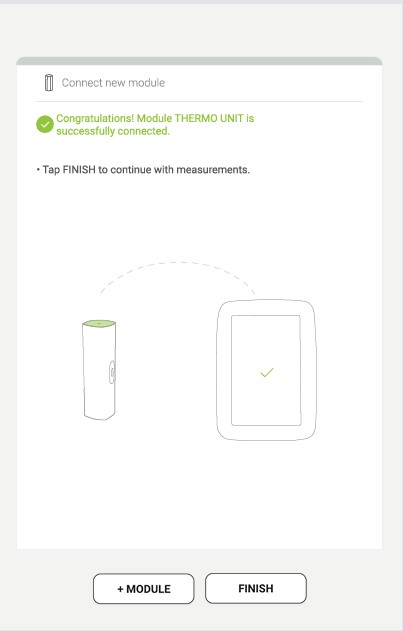
Step 6
Repeat for all modules.
NOTE: When operating one MESI mTABLET UNIT only, this operation is only required once. In case of more MESI mTABLET UNITS, this process has to be repeated on each MESI mTABLET UNIT
NOTE: The pairing process needs to be performed with all modules being used.
4.2 PREPARATION FOR MEASUREMENT
4.2.1 CONNECTING THE SENSOR TO THE PULSE OXI METER UNIT
FingerClip Sensor (CS10299) is disconnected during storage and transportation. Before first use connect the sensor to the port on the MESI PULSE OXIMETER UNIT. Ensure that the sensor is securely connected.
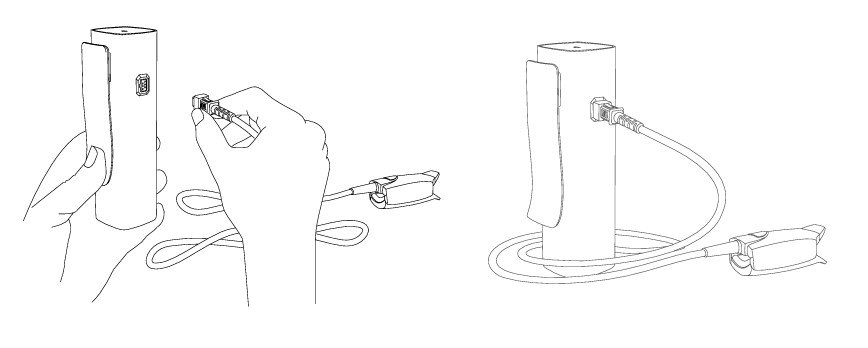
NOTE: MESI SPO2 MODULE comes with a Finger Clip Sensor (CS10299), used for measuring SpO₂ on the finger. For instructions on other types of sensors, please observe the manual supplied with the sensor package.
4.2.2 CONNECTING THE CUFF TO THE BLOOD PRESSURE UNIT
During shipping and transportation, the conical cuff is disconnect ed from the CUFFMD module. Before first use, connect the cuff to the port on the module, as shown on the image below. Ensure that the cuff is securely attached.
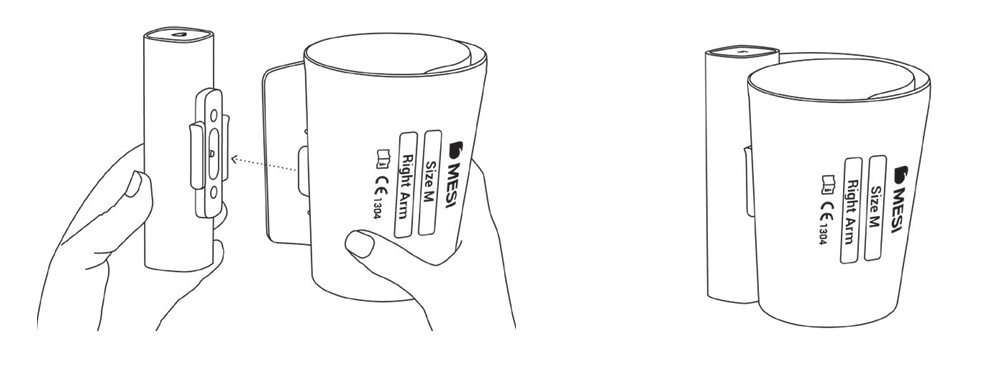
⚠️Use only accessories and other parts recommended or supplied by MESI. Use of other than recommended or supplied parts may result in injury, inaccurate information and/or damage to the unit. This product is not designed for sterile use.
4.2.3 PREPARING THE MESI mTABLET THERMO DEVICE
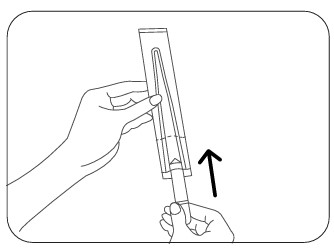
Before using the MESI mTABLET CONTACT PROBE (CTMD), apply the MESI disposable contact probe shield, as shown below, to prevent cross-contamination.
Step 1
Hold the probe shield and insert the thermometer between the two tabs. Slide to the farthest point.
Step 2
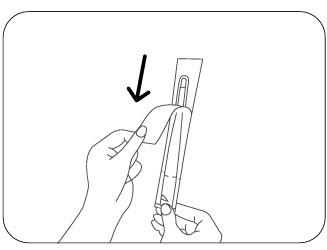
Hold the thermometer and the back of the shield firmly. Peel away the front paper protective shield.
Step 3
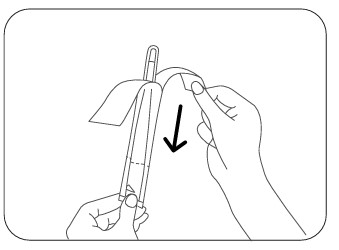
Peel away the paper backing. The thermometer is now protected and ready for use.
Step 4
After use, remove the disposable probe shield without touching the contaminated part and dispose of it.
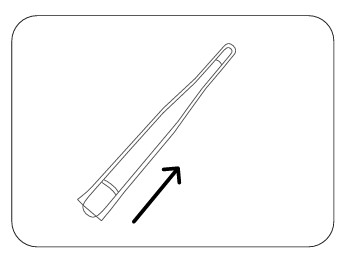
Using the MESI non-contact thermometer does not need additional preparation for performing a measurement.
NOTE: The contact probe must always be used with the MESI contact probe shield. Do not use it without a shield or with other brands. The probe shield does not affect measurement accuracy.
4.2 PREPARATION FOR MEASUREMENT
Step 1 - Choose the right colour of the cuff
Select the appropriate cuff, depending on the description and colour of the cuff:
Choose the right colour of the cuf| Position | Description on the cuff | Colour |
|---|
| Right arm | Rightt arm | Red |
| Left arm | Left arm | Yellow |
Step 2 - Place the cuff on the appropriate arm
Position the cuff 1-2 cm above the elbow joint and align the Artery marking on the cuff with the artery on the inner side of the arm. Apply the cuff snugly, allowing space for approximately two fingers between the cuff and the arm.
Verify that the correct cuff size has been selected by checking the SIZE marking and ensuring the arm circumference falls within the OK range indicated on the cuff.
Hold the thermometer and the back of the shield firmly. Peel away the front paper protective shield.
NOTE: Observe instructions for use that are provided with the cuff.
Step 3 - Prepare SpO2
Select the appropriate SpO₂ sensor, depending on the patient’s category, weight and application site.
Clean the application site and remove any barriers (e.g. coloured nail polish, dried blood). Apply the sensor to the patient’s index finger on the arm opposite to the one where the blood pressure cuff is placed.
Step 4 - Prepare the infrared thermometer
Ensure the patient has rested indoors for at least 5 minutes, has no recent heat or cold exposure, and that the forehead is clean, dry, and unobstructed before measurement.
Step 5 - Prepare the contact thermometer
Alternatively, if body temperature is measured using a contact thermometer instead of an infrared thermometer, first apply the MESI disposable contact probe shield, as described in the chapter “Using the disposable contact thermometer probe shields”, then place the thermometer in one of the measurement sites, as described below.
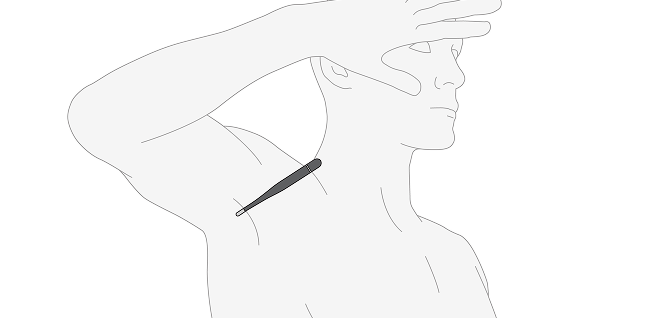
Axillary measurement:
Place the contact thermometer with its metal point in the middle of the armpit, and the other end of the thermometer facing the patient’s head.
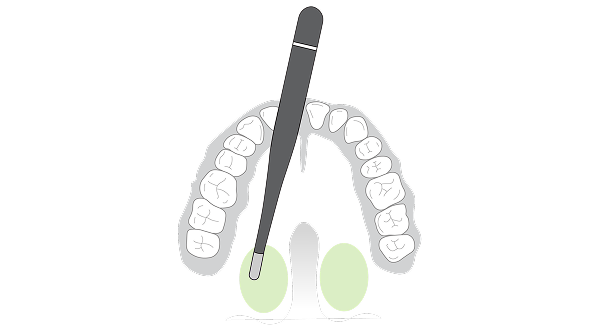
Oral measurement:
Place the contact thermometer with its metal point on either side under the patient’s tongue.
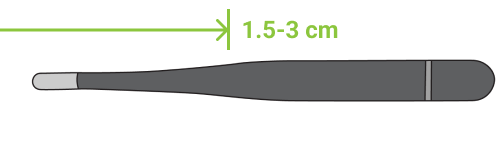
Rectal measurement:
Insert the contact thermometer 1.5 to 3 cm into the rectum. Hold the thermometer in place and make sure the patient remains still and relaxed throughout the measurement.
The patient is now correctly prepared, and the measurement may be performed.
4.4 PATIENT SELECTION
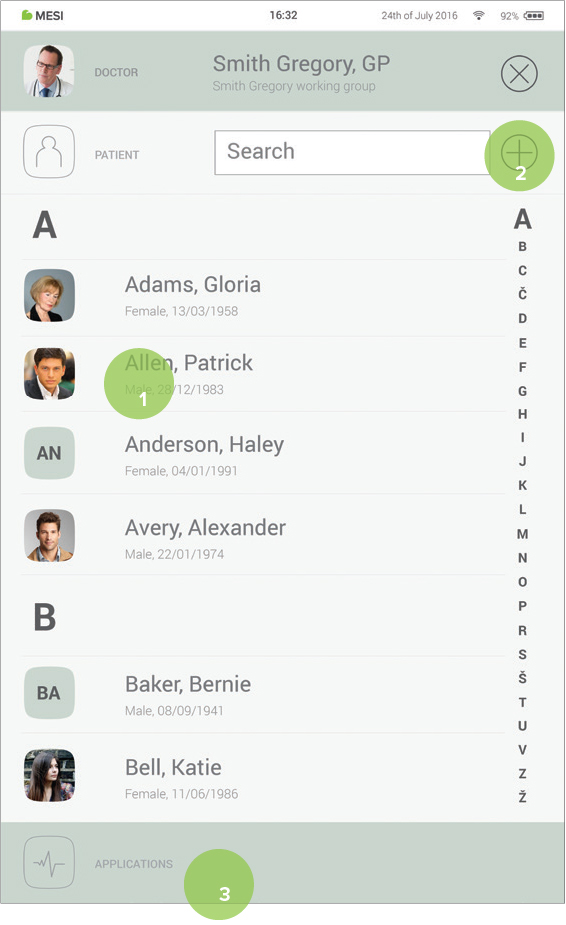
4.4.1 SELECTING A PATIENT
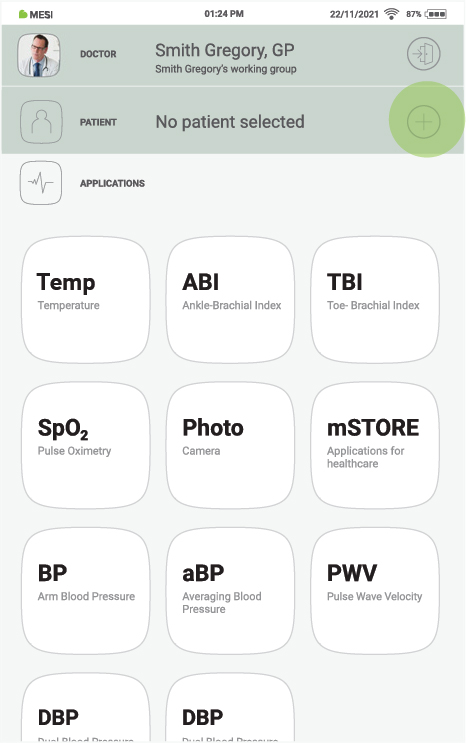
Step 1
Press the Patient tab button on the home screen.
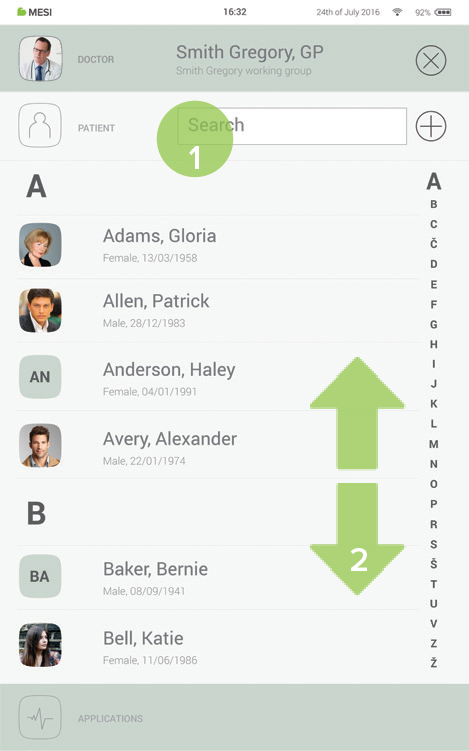
Step 2
Use the search bar (1) or scroll (2) to the patient who is having the Vitals measured.
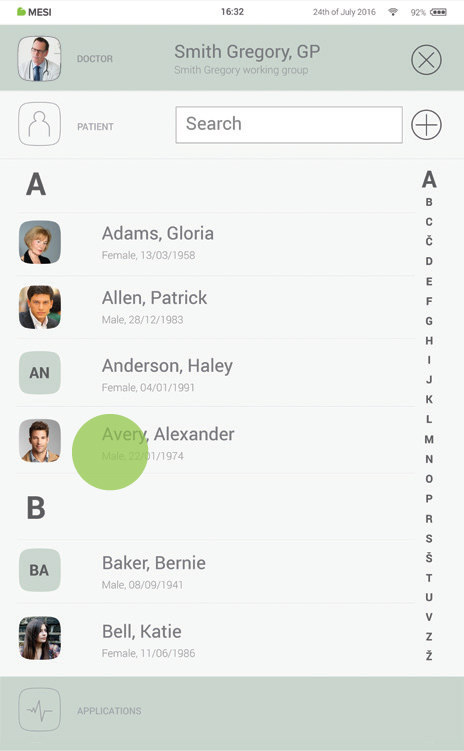
Step 3
Select the patient.
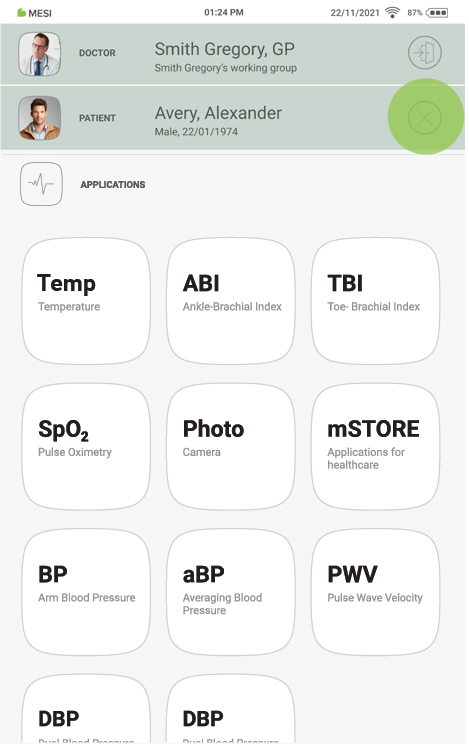
4.4.1 ADDING A PATIENT
Step 1
On the home screen, press the + button in the Patient tab.
Step 2
Fill out required fields (Name, Surname, Date of Birth and Gender) and any additional information regarding the patient.
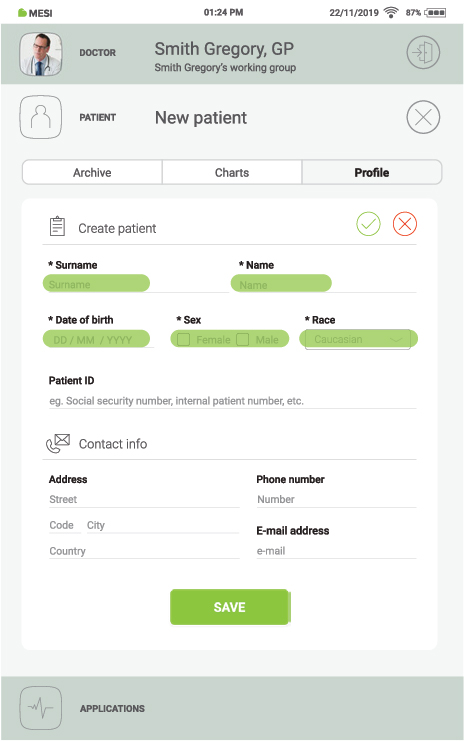
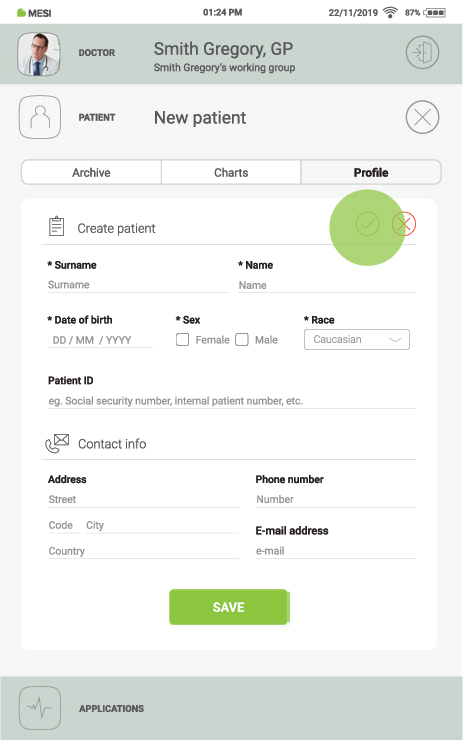
Step 3
Save the patient by pressing the ✔️ or ”SAVE” button. Cancel adding the patient by pressing the ”X” or ”Delete patient” button.
Open the Vitals application as described. When the application opens, it may take a few moments for the paired measurement modules to connect. When connected, the modules appear at the bottom of the screen.
Step 1
On your MESI mTABLET UNIT, select an existing patient (1) or add a new one (2) and press the “APPLICATIONS” button on the bottom of the screen (3).
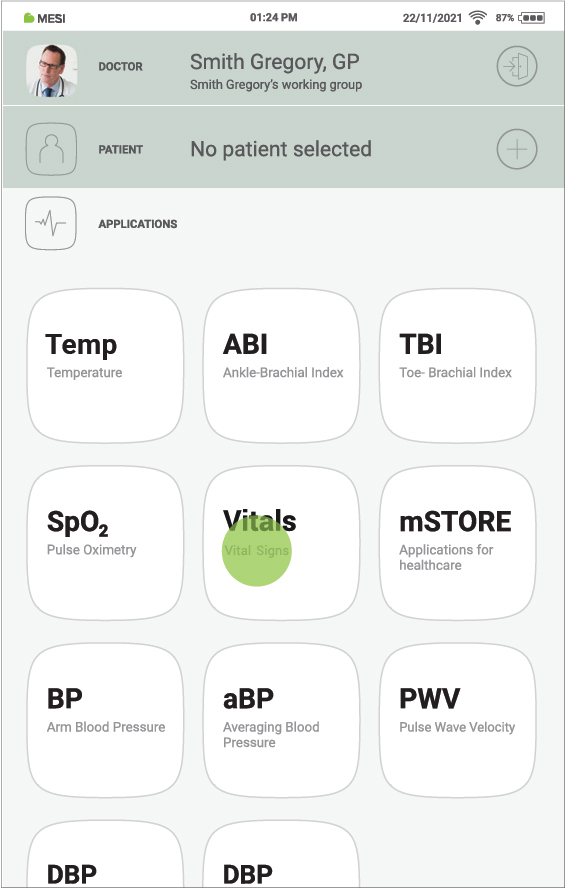
Step 2
After selecting the patient, select the Vitals application in the application menu.
4.5.1 MEASUREMENT SETTINGS
Before performing the Vitals measurement for the first time, make sure to go through the measurement and Early Warning System (EWS) settings, as described below.
To access the measurement settings, press the gears button in the lower right corner of the Vitals measurement screen.
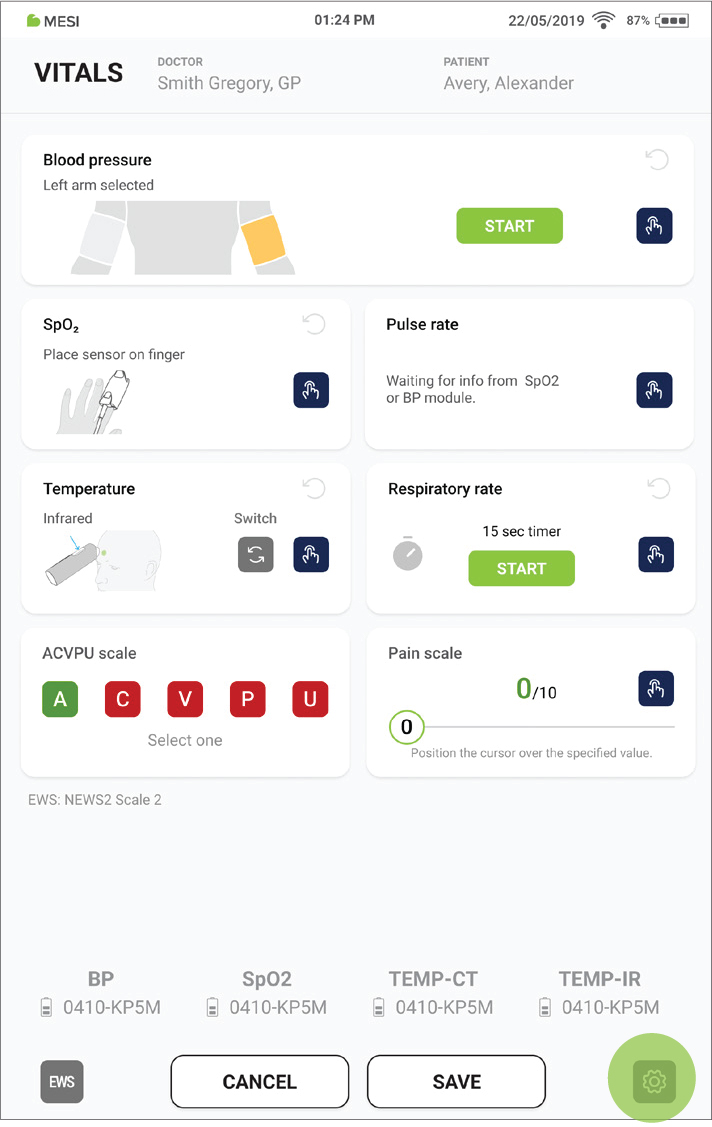
The measurement settings are used to set up the basic parameters of the blood pressure and temperature measurement, as well as some general instructions for performing all three measurements.
4.5.1.1 Blood pressure measurement settings
To use Standard inflation, select the “Standard inflation” option. In this mode, the blood pressure cuff automatically inflates to the pressure required for the measurement. This setting is recommended when the patient’s approximate blood pressure is unknown.
To use Custom inflation, select the “Custom inflation” option, and use the “+” and “-“ buttons to set the target inflation pressure. In this mode, the cuff inflates only to the preset pressure, which can make the measurement faster than with the Standard inflation setting. This setting is recommended when the patient’s approximate blood pressure is known.
The set target inflation pressure can be saved as the default by selecting “Use as default”. When enabled, this pressure is applied automatically each time the Vitals app is opened. If not selected, the pressure resets to 180 mmHg on each app launch.
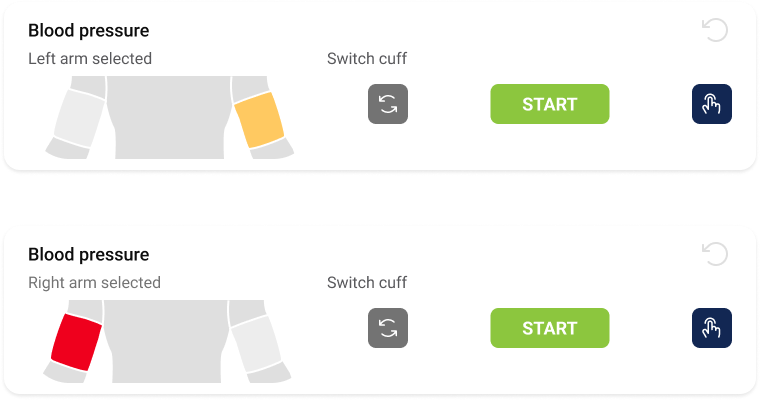
To choose the arm for the blood pressure measurement, select the “Left arm” or “Right arm” option.
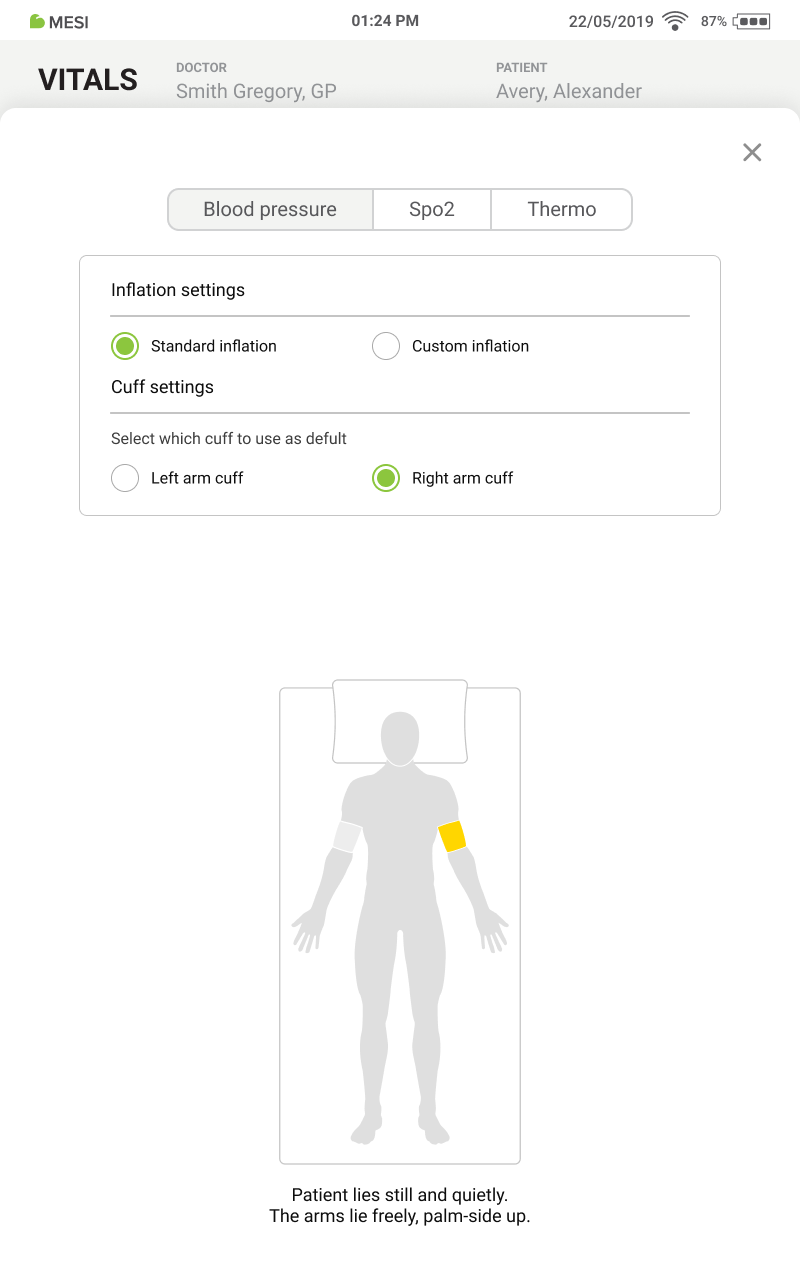
NOTE: After selecting the arm for the blood pressure measurement, the Vitals app needs to be reopened, in order for the measurement module to recognise the correct cuff.
4.5.1.2 Temperature measurement settings
Using the dropdown menus, you can select the following three parameters:
- Infrared
- Contact
- Celsius
- Fahrenheit
- Centimeters
- Inches
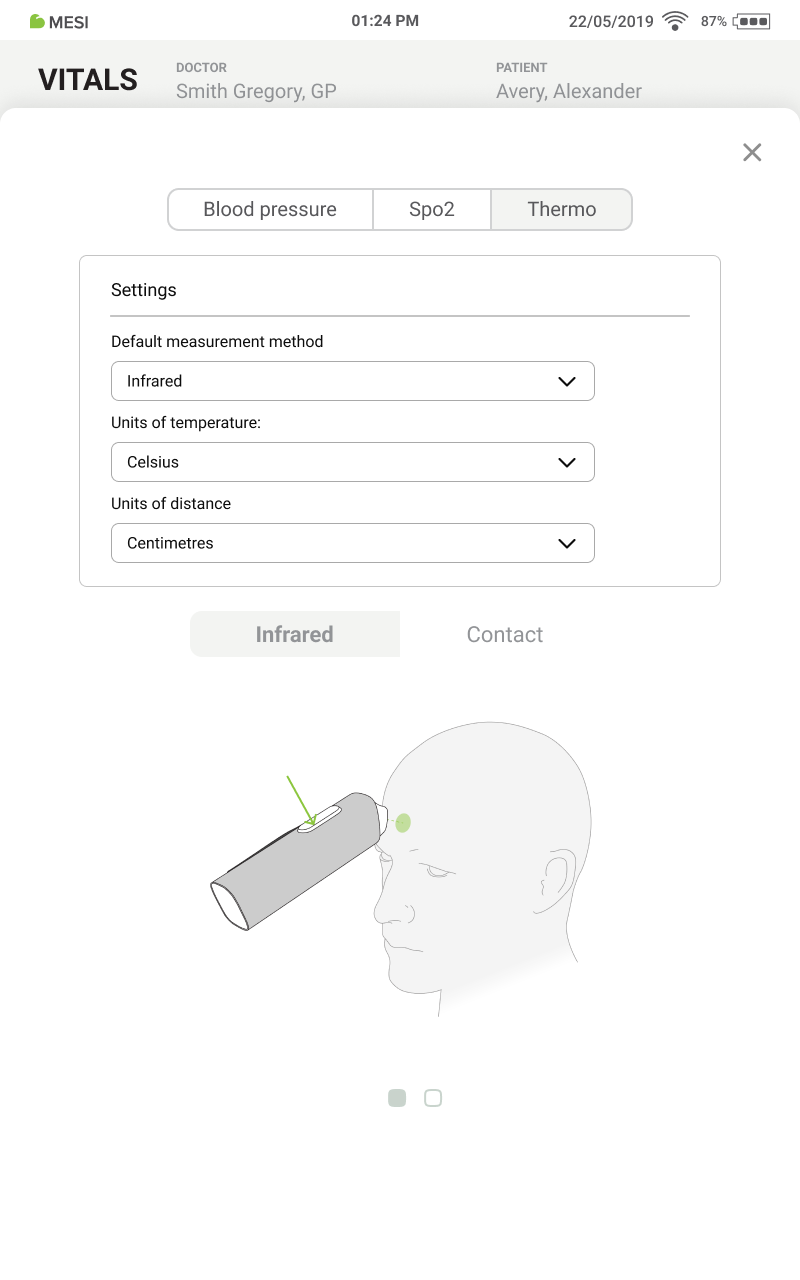
4.5.1.3 Early warning system settings
To access the EWS settings, press the EWS button in the lower left corner of the Vitals measurement screen. Here, one of the three different EWS calculators can be selected using a dropdown:
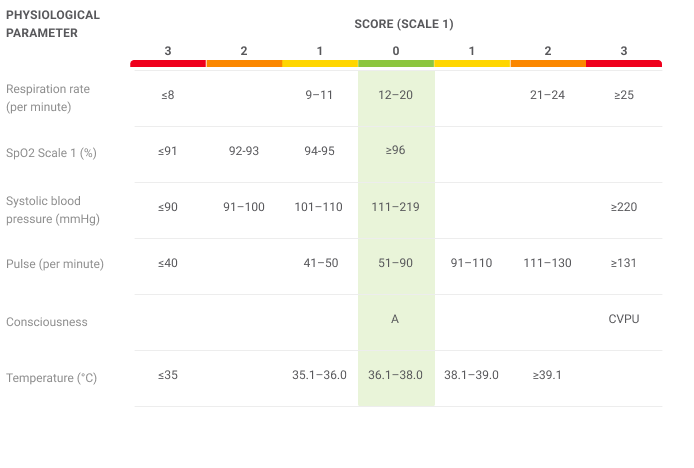
National Early Warning Score (NEWS) 2 - Scale 1
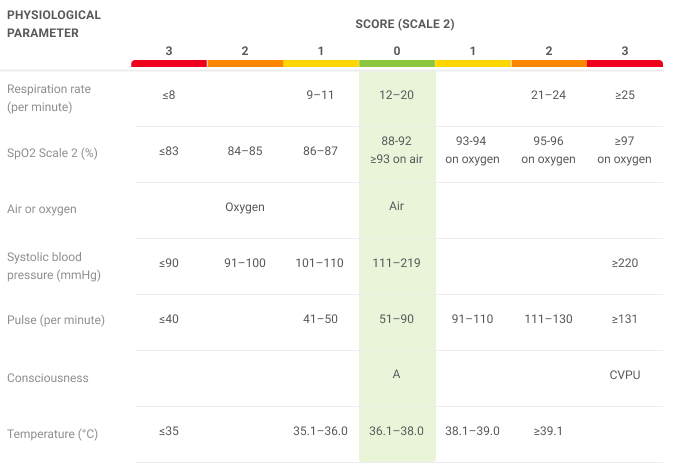
National Early Warning Score (NEWS) 2 - Scale 2
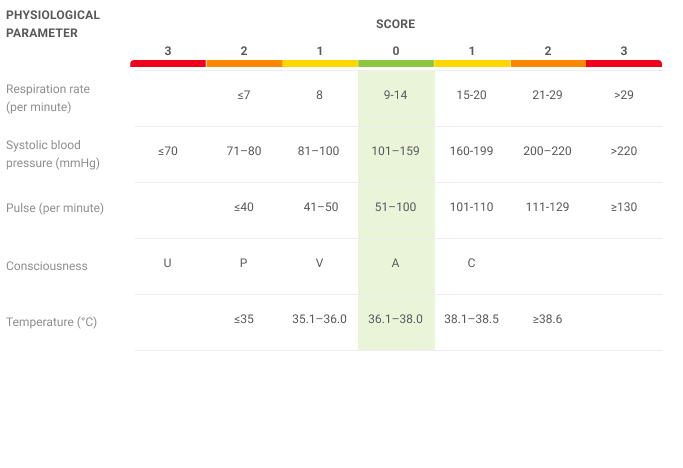
Modified Early Warning Score (MEWS)
To set the default EWS, which will be selected every time the Vitals app is is opened, press the “Use as default” option.
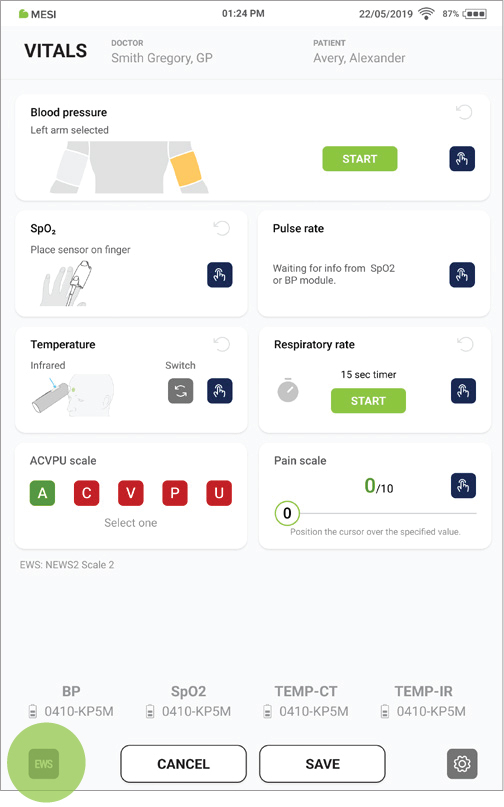
Tables with EWS scores, parameters, and parameter results are included in the EWS settings for each EWS calculator, as well as below.
NEWS2 Scale 1:
NEWS2 Scale 2:
MEWS:
The selected EWS is presented on the main measurement screen, below the ACVPU scale section.
Enabling or disabling the use of EWS calculators during the meas urement, as well as setting which EWSs are available for selection, can be configured in the Advanced settings of the MESI mTABLET.
The Vitals app measurement screen is divided into different sections, each dedicated to a specific measurement parameter:
Blood pressure
SpO2
Pulse rate
Temperature
Respiratory rate
ACVPU scale
Pain scale
NOTE: All measurements can be performed simultaneously and all measurement results can be entered manually, without using the MESI measurement modules
NOTE: The measurement results are coloured based on the selected EWS. If no EWS is selected, the result is based on the default MESI colour-coding.
Step 1
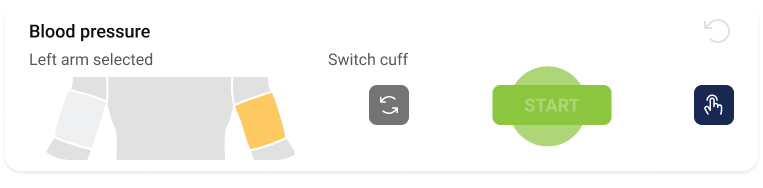
The patient can sit or lie down. Instruct the patient to remain still and quiet throughout the blood pressure measurement If the measurement is being performed with two blood pressure modules and two cuffs, the left or right arm cuff can be selected by pressing the “Switch cuff” button
STEP 2
After properly placing the blood pressure cuff, the measurement can be started by pressing the “START” button in the blood pressure measurement section.
STEP 3
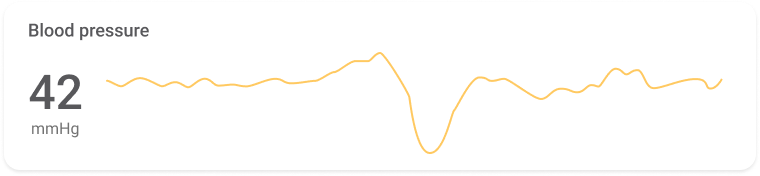
The measurement can be stopped by pressing anywhere on the Blood pressure section and confirming it by pressing “Stop”. To continue the measurement, press “Cancel.”
STEP 4
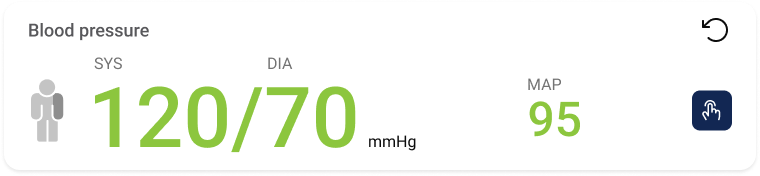
After the measurement is finished, the result is presented as systolic (SYS), diastolic (DIA), and mean arterial pressure (MAP).
STEP 5
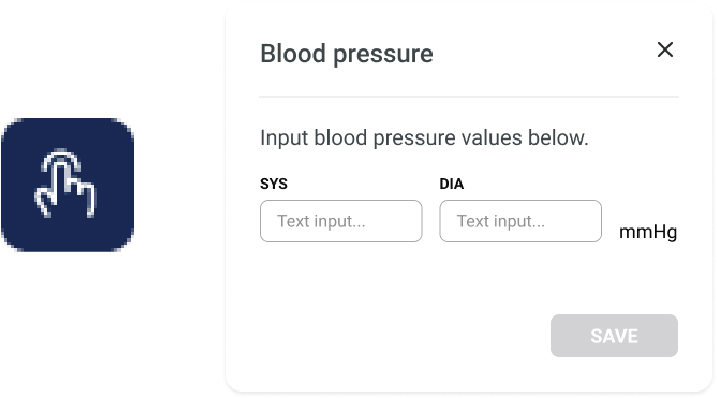
The result can also be entered manually by first pressing the “Manual entry” button, entering the values on the pop-up, and pressing “Save”.
STEP 6
The measurement can be repeated by pressing the “Redo” button and confirming it on the pop-up.
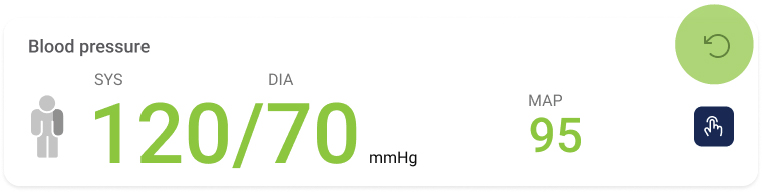
Step 1
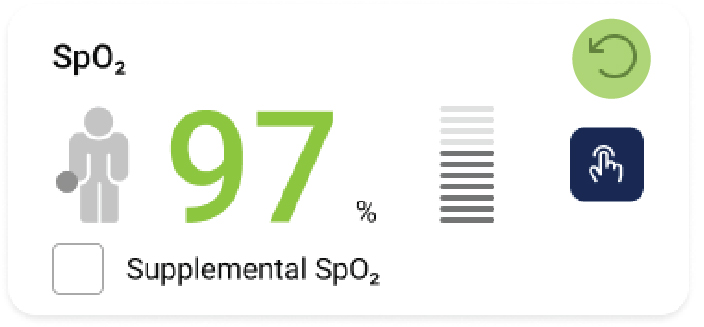
The SpO2 measurement is started automatically when the SpO2 probe is correctly placed on the patient’s finger. When the measurement is started, the result is presented, along with the heartbeat indicator.
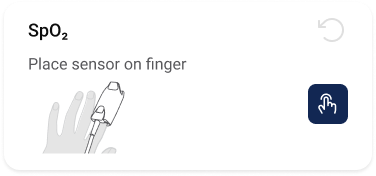
STEP 2
If using the NEWS2 Scale 2, the “Supplemental O2” option can be selected, indicating that the patient is using supplemental oxygen
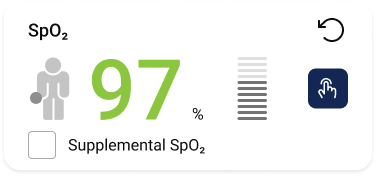
STEP 3
The measurement can be stopped by simply removing the SpO2 probe from the patient’s finger.
STEP 4
The result can also be entered manually by first pressing the “Manual entry” button, entering the value on the pop-up, and pressing “Save”.
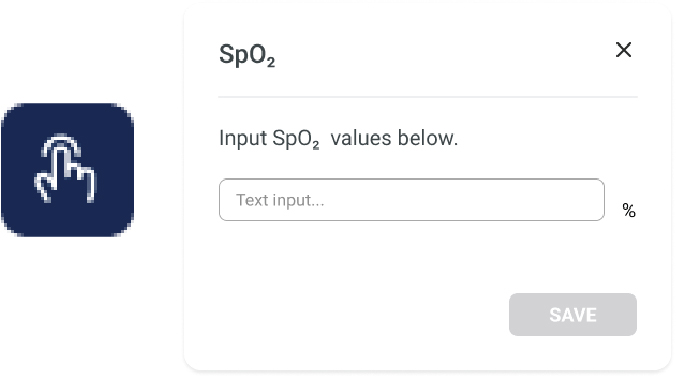
STEP 5
The measurement can be repeated by pressing the “Redo” button and confirming it on the pop-up
Step 1
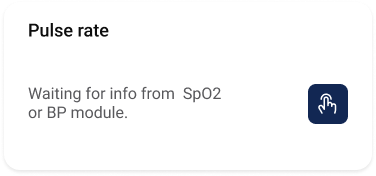
Pulse rate measurement starts automatically when either a Blood Pressure or SpO₂ measurement begins.
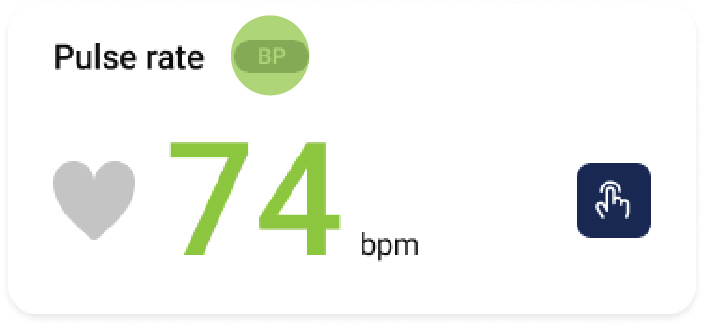
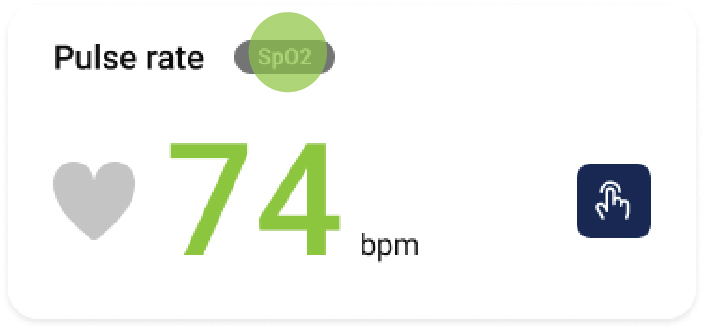
If only SpO₂ is measured, or if Blood Pressure and SpO₂ are measured simultaneously, the pulse rate is derived from the SpO₂ measurement. If only Blood Pressure is measured, the pulse rate is derived from the Blood Pressure measurement.
This is indicated by the “BP” or “SpO2” tag in the Pulse rate section.
STEP 2
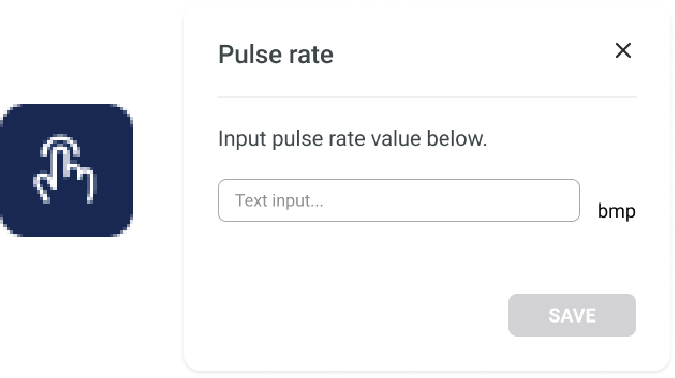
Pulse rate can be entered manually by first pressing the “Manual entry” button, entering the value on the pop-up, and pressing “Save”.
Step 1
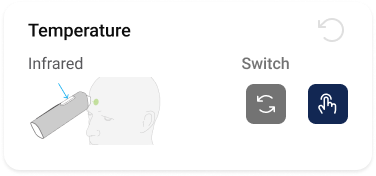
Infrared or contact measurement can be selected by pressing the “Switch” button.
STEP 2
Infrared measurement:
The infrared measurement is performed by placing the infrared thermometer approximately 3 cm from the center of the patient’s forehead and pressing the measurement button on the thermometer.
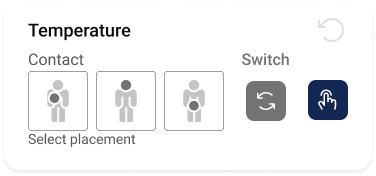
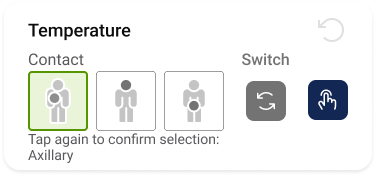
Contact measurement:
The contact measurement is performed by placing the contact thermometer in one of the measurement sites, as described in chapter “ Patient preparation”, and selecting the measurement site.
STEP 3
When the measurement is completed, the result is presented in the Temperature section, along with the thermometer and measurement site used.
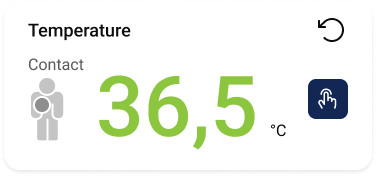
STEP 4
Temperature can also be entered manually by first pressing the “Manual entry” button, entering the value on the pop-up, and pressing “Save”.
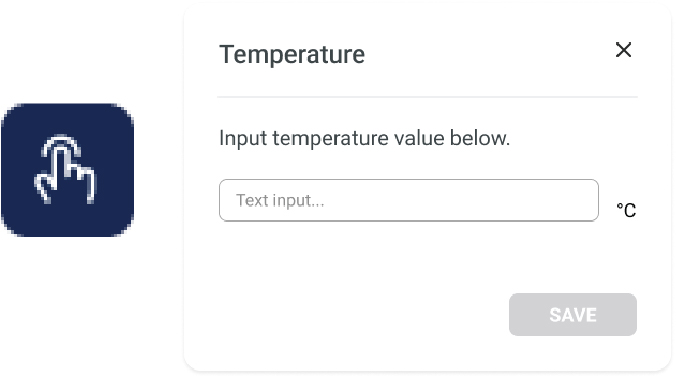
STEP 5
The measurement can be repeated by pressing the “Redo” button and confirming it on the pop-up.
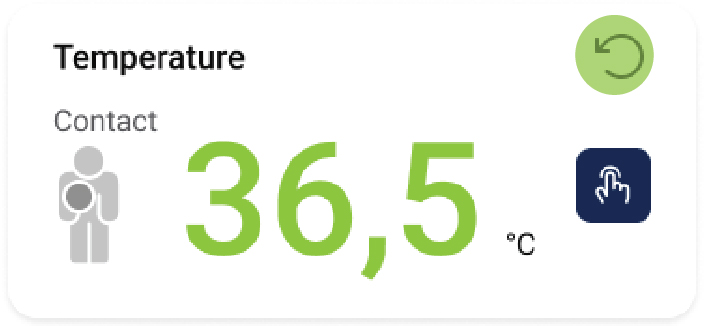
Step 1
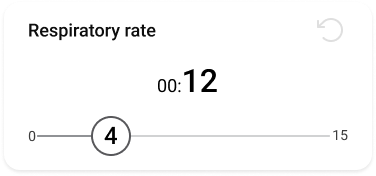
The respiratory rate measurement is started by pressing “Start,” which activates a 15-second timer. During this period, the healthcare professional counts the patient’s breaths.
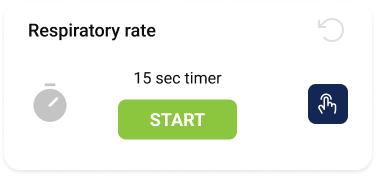
STEP 2
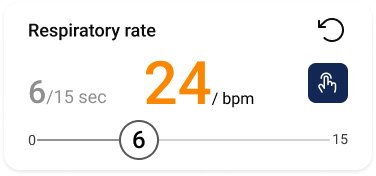
When the timer ends, the counted number of breaths is entered using the slider. The respiratory rate in breaths per minute is then calculated automatically.
STEP 3
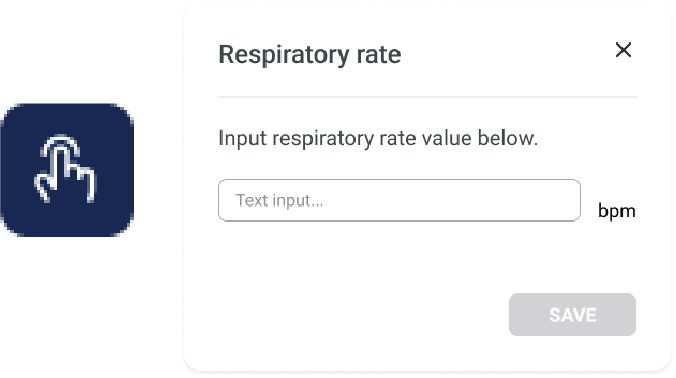
Raspiratory rate can also be entered manually by first pressing the “Manual entry” button, entering the value on the pop-up, and pressing “Save”.
STEP 4
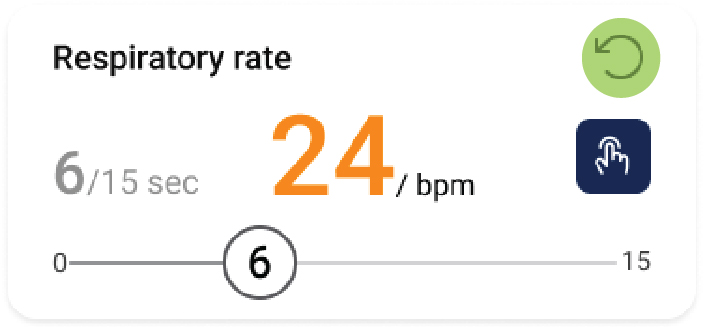
The measurement can be repeated by pressing the “Redo” button and confirming it on the pop-up.
Step 1
The ACVPU parameter can be selected by pressing one of the five options. The colour of the options is based on the selected EWS calculator.
NOTE: ACVPU stands for Alert, Confusion, Verbal, Pain, and Unresponsive and indicates the patient’s level of consciousness.
Step 1
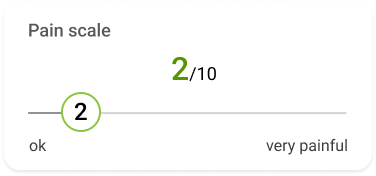
The pain level can be selected by sliding the slider to one of the ten values (0 – no pain, 10 – very painful).
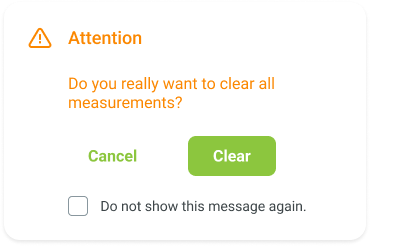
4.5.3 CLEARING AND CONFIRMING THE VITALS MEASUREMENT
When one or more Vitals measurements are completed, they can be cleared by pressing the “Clear” button at the bottom of the measurement screen, and confirming it by pressing “Clear” on the pop-up.
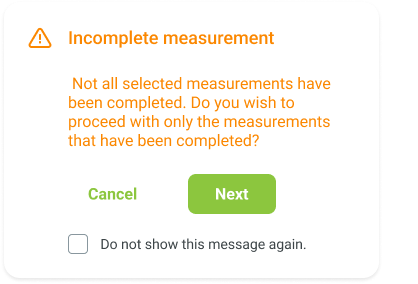
When one or more Vitals measurements are completed, the result can be saved by pressing the “Next” button at the bottom of the measurement screen. Pressing the “Cancel” button at the bottom of the measurement screen closes the Vitals application. This can only be done once the measurement results are cleared.
4.6 RESULTS
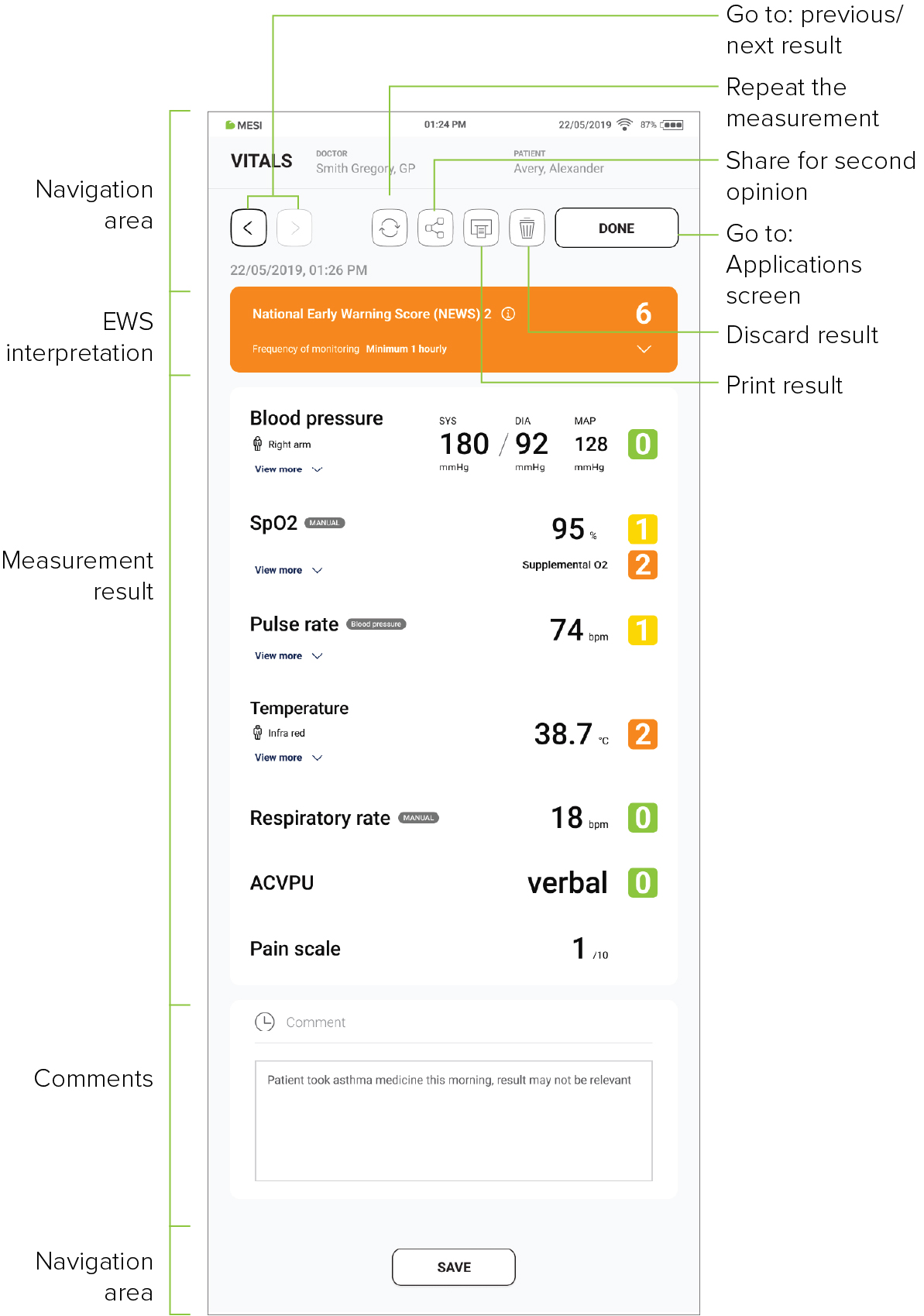
Once the measurement has been taken, the system automatically switches to the results screen. By scrolling the results page, the measurement parameters, as well as the EWS score, can be viewed.
4.7 EARLY WARNING SYSTEM ON THE RESULTS PAGE
If the EWS calculator was selected during the measurement, the EWS score is presented on the results page. It consists of two parts:
Score, assigned to each parameter, which is represented with a coloured number, based on how far it deviates from normal ranges
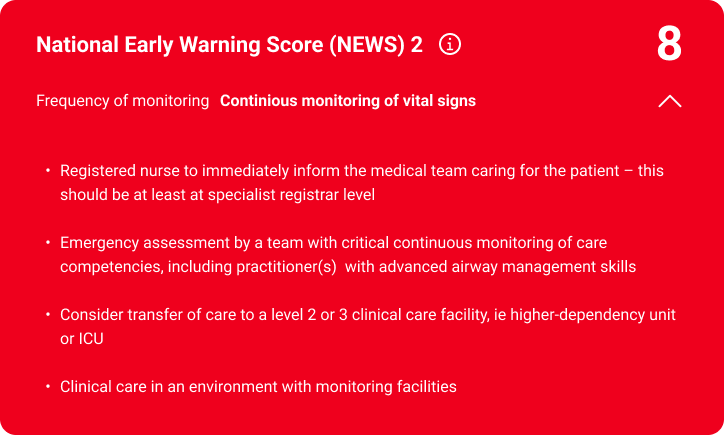
Overall EWS, displayed as a coloured banner, representing the sum of the individual scores and guiding clinical response and escalation of care
Information about the selected EWS, including colour coding, physio logical parameters, and the scoring scale, can be accessed by pressing the “i” icon on the EWS banner
4.8.1 LED INDICATORS
Although most of the MESI mTABLET Vitals control takes place through the MESI mTABLET UNIT interface, there is also a multi functional LED button at the top of the each module. In addition to the basic colour light notification functionalities of this button, it is also possible to perform some additional operations. These operations are based on the current status of each module.
4.8.1.1 Standby
Green 🟩: The battery capacity is at more than 25%.
Red 🟥: The battery is at less than 25%. Please recharge the battery as soon as possible.
4.8.1.2 Charging
Orange 🟨: The battery is charging.
Green 🟩: The battery is fully charged.
4.8.1.3 Pairing
Blue 🟦: The unit is waiting for conformation from the MESI mTABLET.
4.7.2.1 Standby
Button functions - Standby| Status check | A quick press on the status button in standby mode performs a basic status check of the module. A green button means a more than 25% battery charge. A red button means that less than a 25% charge is left, and the module should be charged. |
| Pairing mode | Holding the status button for 4 seconds puts
the module into pairing mode, so that it can be connected to the MESI mTABLET UNIT (for more information, go to chapter 4.2.5 Pairing). |
| Resetting the module | To reset the module, press and hold the
status button for 10 seconds until the LED lighchanges to red. The unit is ready to use in a few seconds. |
4.8.2.2 Measurement mode
Measurement mode| Stop measuring | The measurement is stopped by quickly pressing the top button on the module while performing the measurement. |
Maintenance
5.1 CHARGING THE BATTERY
The device can only be used on battery power. Therefore, the battery must be charged regularly. One battery charge is sufficient for approximately 2500 measurements or 19 hours of continuous use.
To charge the battery, place modules on the MESI LARGE CHARGING PLATE (CS4SYS). During the charging process, the light on the module will flash orange. Only when the device is completely charged will it start flashing green. For more information, see chapter 4.8 – Multifunctional buttons.
If the capacity of the battery is significantly decreased after a period of intensive use, the battery is most likely spent and should be replaced. As the device does not contain any parts that can be replaced by a user, contact your local distributor or the manufacturer for battery replacement.
5.2. CLEANING AND DISINFECTION
⚠️Before cleaning, disconnect from the mains. Due to constant standby mode of the device, do not clean the terminals as this may cause elec trical shock.
⚠️Only perform routine cleaning and maintenance procedures specifically described in these Instructions for Use
⚠️Read and follow cleaning instructions carefully.
CLEANING – MESI THERMOMETER UNIT
Do not use aggressive cleaning agents, volatile liquids or excessive force when cleaning the device. Do not dip the device or accessories in liquids or cleaning agents.
1. Before cleaning, remove the MESI THERMO UNIT from the charging station and disconnect the sensor from the MESI THERMO UNIT.
2. Use a soft lint-free cloth dampened with a proper cleaning agent to clean and disinfect the exterior and interior of both the IR and contact probes.
3. Wipe off all residues of the cleaning solution with a dry cloth.
4. Dry the equipment before next use.
Recommended cleaning agents:
Not approved cleaning agents:
CLEANING – MESI TUBELESS CUFF UNIT
Before cleaning remove the MESI TUBELESS CUFF UNIT from the charging station and disconnect the cuff from the MESI TUBELESS CUFF UNIT
Use a soft lint-free cloth dampened with a proper cleaning agent to clean and disinfect the exterior/interior of the unit/.
With a dry cloth wipe off all residues of the cleaning solution
Dry the equipment before next use.
Recommended cleaning agents:
DISINFECTION – MESI TUBELESS CUFF UNIT:
Use commercially available disinfectants intended for the professional healthcare environment. Refer to the instruction for use of the producer.
Recommended cleaning agents:
Isopropyl alcohol 70%
Propanol (70–80%)
Ethyl hexanal
Aldehyde (2–4%)
Ethanol (70–80%)
Not approved cleaning agents:
CLEANING – CUFF:
Clean the cuff’s surface by wiping a damp cloth with mild soap water.
Do not wash the cuffs or immerse it in water. Also do not use petrol, thinners or similar solvents to clean the cuffs.
⚠️ Do not sterilise cuffs. Do not use bleach.
NOTE: Do not wash the cuffs in a washing machine or iron them.
NOTE: The device must be calibrated in the event of mechanical stress!
DISINFECTION – CUFF:
Can be disinfected with medical-grade alcohol 70%.
After disinfection, the cuff cover should be left air dry.
CLEANING – REUSABLE PULSE OXIMETRY SENSORS
The pulse oximeter sensor must be carefully cleaned and disinfected after every use and before use with a different patient. The sensor can be reused on the same patient, for the patient’s entire stay. If the sensor is covered with dust and dirt, it can affect the performance of the device. Observe the cleaning instructions in the Instructions for Use that came with the sensor.
⚠️ Do not use aggressive cleaning agents, volatile liquids or excessive force when cleaning the device. Don’t dip the sensor in liquids or cleaning agents.
CLEANING – MESI PULSE OXIMETER UNIT
Before cleaning remove the MESI PULSE OXIMETER UNIT from the charging station and disconnect the sensor from the MESI PULSE OXIMETER UNIT.
Use a soft lint-free cloth dampened with a proper cleaning agent to clean and disinfect the exterior and interior of the unit/sensor.
With a dry cloth wipe off all residues of the cleaning solution.
Dry the equipment before next use.
Recommended cleaning agents:
Not approved cleaning agents:
5.3 PRODUCT LIFE AND STORAGE
If correctly used and maintained, the device will have a minimum service life of 5 years. It is possible to store the device in suitable conditions for a maximum of 5 years. While in storage, the battery needs to be recharged once a month to avoid accidental over-dis charge. When using the device after storage, we recommend a thorough maintenance check.
5.3.1 TRANSPORT & STORAGE CONDITIONS
TRANSPORT & STORAGE CONDITIONS| Temperature | -25° to 70°C |
| Relative humidity | 15 to 90% (no condensation) |
| Atmospheric pressure | 500 to 1060 hPa (mbar) |
The device should be inspected by a qualified service engineer at least every 12 months for the following safety checks:
Any mechanical or functional damage on the device and accessories
Performance of device in accordance with the Instructions for Use
Legibility of warning label
Battery cycle count
General warnings
6.1 MEASUREMENT PROCEDURE
⚠️Do not use this unit in areas with a presence of flammable gasses such as anaesthetic agents or in an oxygen-rich environment.
⚠️Monitor the patient closely during the measurement procedure. If there is any reason for concern, stop the test.
⚠️Important information on electromagnetic compatibility (EMC). As the number of electronic devices such as computers and mobile phones in the roomrooms increases, medical devices can become sensitive to the electromagnetic influences of other devices. Electromagnetic interference can cause medical devices to malfunction, which can potentially lead to dangerous situations. Furthermore, medical devices must not interfere with other devices. The IEC/EN 60601-1-2 standard was introduced due to the necessity to establish electromagnetic compatibility (EMC) requirements for the prevention of dangerous situations in the use of medical devices. The standard defines the level of resistance to electromagnetic interference for medical devices. This medical device is compliant with the IEC/EN 60601-1-2 standard in terms of resistance to electromagnetic interference and electromagnetic emissions. Nevertheless, do not use mobile phones and similar devices that create strong electromagnetic fields in the vicinity of the device. This can cause the device to malfunction and potentially cause a dangerous situation.
⚠️Do not operate in proximity of a steam kettle or any equipment that can generate moisture.
⚠️Do not operate in proximity of a fireplace, a or radiant heater or any equipment that can generate heat.
⚠️The cables and accessories may negatively affect the EMC performance. While operated, the device should not be closer than 30 cm (12 inches) from another medical device.
⚠️Do not use near devices that produce microwave radiation as this might interfere with the device operation.
⚠️The contact thermometer probe is designed exclusively for measuring temperature on intact skin. If measuring orally, ensure to use a protective cover.
⚠️Before using the device for the first time, read the Instructions for Use carefully and follow the recommendations.
⚠️The MESI mTABLET BP device users must be adequately educated to use the device. The education must be performed by the trained MESI representative. Before the first use of the device, users must read the entire Instructions for Use carefully and follow the instructions for the use of the connected equipment.
⚠️The MESI mTABLET BP is intended for blood pressure measurement on upper arm.
⚠️Do not use the device when it is wet. After cleaning the device with a damp cloth, wait for it to dry. Only use the device when it is completely dry.
⚠️The MESI mTABLET BP is not intended for use in conjunction with higher frequency surgical equipment
⚠️The AC/DC power supply must be connected to an easily accessible socket (the AC/DC power supply also serves for galvanic isolation).
⚠️When repeating the Blood Pressure measurement for several times a slight pain may appear at the measurement location. Other effects are excluded.
⚠️The cables and accessories may negatively affect the EMC performance. The device while operated should not be stacked closer than 30 cm from another medical device.
⚠️This product is not designed for sterile use.
⚠️Do not use this unit in areas where there in the presence of flammable gases such as anaesthetic agents or in an oxygen-rich environment
⚠️Do not place the sensor on wounds, as this may cause additional injury.
6.2 MAINTENANCE
⚠️Do not dispose of the device as unsorted municipal waste. Prepare it for recycling or separate waste collection in accordance with Directive 2002/96/EC on scrap electrical and electronic equipment (WEEE).
⚠️Only use non-aggressive cleaning agents for cleaning the device. and Mmake sure that the device does not come in contact with an electrical current while it is being cleaned. The device may be wiped with a damp cloth.
⚠️Protect the device from moisture, liquids, extreme temperatures, mechanical stress, and exposure to direct sunlight. If the device is used or stored outside the specified environmental parameters, the parameters specified within the technical specifications of the device are not guaranteed.
⚠️Do not use high-temperature sterilisation processes (such as autoclaving). Do not use e-beam or gamma radiation sterilisation.
⚠️Only perform routine cleaning and maintenance procedures specifically described in these Instructions for Use.
⚠️During transportation or storage, the temperature of the control device may have decreased or increased outside operating temperatures. Do not use the device until it has been at room temperature from 10 °C (50 °F) to 30 °C (86 °F) for at least two hours. This time is required for the thermometer unit to reach its normal recommended operating temperature.
⚠️Never carry out repairs of any kind yourself. Do not open the device. The device does not contain any parts which can be replaced by the user. Do not alter or adapt the device. If a defect occurs, consult your dealer or distributor.
⚠️Do not position the ME equipment so that it is difficult to operate the disconnection device.
⚠️AC/DC power supply unit is considered a disconnecting device from the mains.
⚠️Before cleaning disconnect from the mains. Due to constant standby mode of the device do not clean terminals.
⚠️To prevent electric shock hazard due to leakage current, only use AC/DC power supplies which are compliant with the technical specifications of the device.
⚠️Only use non-aggressive cleaning agents to clean the device. The device may be wiped with a damp cloth.
⚠️Be careful when wrapping the cuffs. Do not wrap them too tightly
⚠️Make sure that the device does not come into contact with an electrical current while it is being cleaned.
⚠️Read and follow cleaning instructions carefully.
6.3 FUNCTIONING OF THE DEVICE
⚠️The device may only be used by professional medical personnel. The device is class A equipment; it can cause radio interference or even prevent nearby devices from functioning. It may be necessary to reposition the MESI mTABLET THERMO device or protect the room containing the device from electromagnetic radiation.
⚠️The product should not be used if any of its parts are broken, worn, missing, incomplete, distorted, or contaminated.
⚠️It is mandatory to have the device calibrated once per year to ensure the correct functioning and accuracy. Contact your dealer or the manufacturer about calibrating the device.
⚠️Use only accessories and other parts recommended or supplied by MESI. Use of other than recommended or supplied parts may result in injury inaccurate information and/ or damage to the unit. Follow the instructions that are provided with the specific accessory.
⚠️To prevent electric shock or damage to the device do not disassemble the unit. The device does not contain any parts which can be replaced or serviced by a user. If a defect occurs, consult your dealer or distributor
⚠️Portable RF communications equipment including peripherals such as antenna cables and external antennas should be used no closer than 30 cm (12 inches) to any part of the MESI mTABLET SPO2 including cables specified by the manufacturer. Otherwise the degradation of the performance of this equipment could result.
⚠️Use of this equipment adjacent to or stacked with other equipment should be avoided because it could result in improper operation. If such use is necessary, this equipment should be observed to verify that they are operating normally.
⚠️Use of accessories, transducers and cables other than those specified or provided by the manufacturer of this equipment could result in increased electromagnetic emissions or decreased electromagnetic immunity of this equipment and result in improper operation.
6.4 PATIENT INJURY PREVENTION
⚠️Consecutively carrying out too frequent measurements may result in injury to the patient!
⚠️In case of the presence of intravenous cannulas or arteriovenous (A-V) fistulas in the limbs, the cuffs and measurement can cause injury to the limb.
⚠️If the patient has had breast surgery, do not place the arm cuff on the side which has been operated on.
⚠️Do not use the device on a patient while they are connected to a vital sign monitor. Pressurization of the cuff can temporarily cause loss of function of simultaneously used monitoring ME equipment on the same limb.
⚠️Check the pressure in the cuff several times during measurement. If the cuff puts pressure on the limb for too long, it can impair the blood flow.
⚠️Be careful when folding the cuffs. Do not fold them too tightly. Follow measuring instructions.
Errors
For error messages, related to specific measurements within the Vitals application, refer to the Instructions for Use of each device:
Troubleshooting
Errors| Issue | Probable cause | Solution |
|---|
| A continuously flashing purple or red indicator on the MESI THERMO UNIT. | Incorrect state of the diagnostic module. | Restart the MESI THERMO UNIT by pressing and holding the button at the top of the unit. The light should start flashing. |
| No light shows when the
multifunctional button at the top of the MESI THERMO UNIT is pressed. | Depleted battery. | Place the MESI THERMO UNIT onto the charging station and leave it to charge for at least half an hour before retrying. |
| Temperature measurement will not start even though the MESI THERMO UNIT is paired and next to MESI mTABLET UNIT. | Possibility of electromagnetic
interference. | Make sure that there are no devices nearby that produce electromagnetic interference. These devices can interfere with the basic functions of the MESI mTABLET UNIT; this can
potentially lead to dangerous situations. |
| Unexpected result. | Incorrect cuff placement. | Reread the instructions for use and place the cuffs correctly. |
| Unexpected result. | Patient moving during
measurement. | Repeat the measurement process. |
| Unexpected result. | Wrong cuff size used. | Use cuffs of the correct size. |
| Unexpected result. | Possible air leakage. | Check the cuffs, the air tubes and the connectors and replace them if necessary. If you cannot fix the issue yourself, consult your dealer or the manufacturer. |
| Audible stretching of the fastening tape. | Incorrect cuff placement. | Reread the instructions for use and place the cuffs correctly. |
| Audible stretching of the fastening tape. | Wrong cuff size used. | Use cuffs of the correct size. |
| Continuously flashing purple or red indicator on CUFFMD | Incorrect state of the diagnostic module | Press and hold the button on top of the MESI TUBELESS CUFF UNIT (CUFFMD) for 15 seconds to restart it. |
| No light indication when pressing the CUFFMD multifunctional button. | Battery is empty | Place the MESI TUBELESS
CUFF UNIT on the charging
station and leave it to charge for at least half an hour before retrying. |
| The cuffs do not inflate. Hissing noises. | Possible air leakage. | Check the cuffs, the air tubes and the connectors and replace them if necessary. |
| Blood pressure measurement will not start even though the MESI TUBELESS CUFF UNIT is paired and next to MESI mTABLET UNIT | Nearby of device which produce electromagnetic interference. | Make sure that there aren´t any devices nearby which produce electromagnetic interference. If the problem continues, contact the manufacturer or local distributor for further assistance. |
| The cuffs do not inflate. Hissing noises. | Possible air leakage | Check the cuffs, the air tubes and the connectors and replace them if necessary. If you cannot fix the issue yourself, consult your dealer or the manufacturer. |
| Continuously flashing purple or red indicator on MESI PULSE OXIMETER UNIT. | Incorrect state of the diagnostic module. | Press and hold the button on top of the MESI PULSE OXIMETER UNIT for 15 seconds to restart it. The light should start flashing. |
| No light shows
when the multifunctional
button on top of the MESI PULSE OXIMETER UNIT is pressed. | Depleted battery. | Place the MESI PULSE OXIMETER UNIT on the charging station and leave it
to charge for at least half an hour before retrying. |
| SpO2measurement will not start even though the MESI PULSE OXIMETER UNIT is paired and next to MESI mTABLET UNIT. | Possibility of electromagnetic interference. | Make sure that there aren’t any devices nearby which produce electromagnetic interference. These devices can interfere with the basic functions of the MESI mTABLET UNIT, which can potentially lead to dangerous situations. |
NOTE: If the problem continues, contact the manufacturer or the local distributor for further assistance.
Warranty information
A warranty period applies to the device, starting from the date of purchase (the delivery date is stated on the invoice). Warranty claims will only be valid if accompanied by the purchase receipt. More details about the warranty can be found in the warranty booklet attached to these Instructions for Use.
Standard compliance
For the list of covered standards, refer to the Instructions for Use of each device:
10.1 MANUFACTURER DECLARATION ON EMC
For the manufacturer declaration on EMC, refer to the Instructions for Use of each device:
Important labels