Safety and legal recommendations
All rights reserved. This publication may not be reproduced, copied or stored on a memory device. Furthermore, this publication may not be used for any purpose other than as the instructions for the use of the MESI SPIRO MODULE (part of the MESI mTABLET SPIRO). This publication may not be translated into other languages or converted into other formats in any way without prior written permission of MESI, Ltd.
The contents of the Instructions for Use may be altered without notice. The latest version of the Instructions for Use is available at www.mesimedical.com/support/mtablet/instructions-for-use.
To avoid personal injury and/or damaging the device or accessories, follow the safety recommendations given below.
1.2.1 SETUP AND TECHNICAL PERSONNEL
The device must be set up by authorised personnel with adequate professional training and experience who are aware of all the dangers in relation to the setup of the device and its use and who will take adequate risk prevention measures for themselves, users, other personnel and devices.
1.2.2 ACCESS TO THE DEVICE
Only authorized persons may be given access.
1.2.3 SAFETY MEASURES
The local safety requirements are to be complied with if so required by the regulations. In addition to the local safety regulations, the safety instructions in this document are also to be complied with. Should there be any conflict between the safety recommendations in this document and the recommendations stipulated by the local regulations, the local regulations take precedence.
The device does not contain medicinal products, tissues and cells of human and animal origin, substances intended to be introduced into human body/absorbed/locally dispersed nor CMR or endocrine-disrupting substances.
Product description
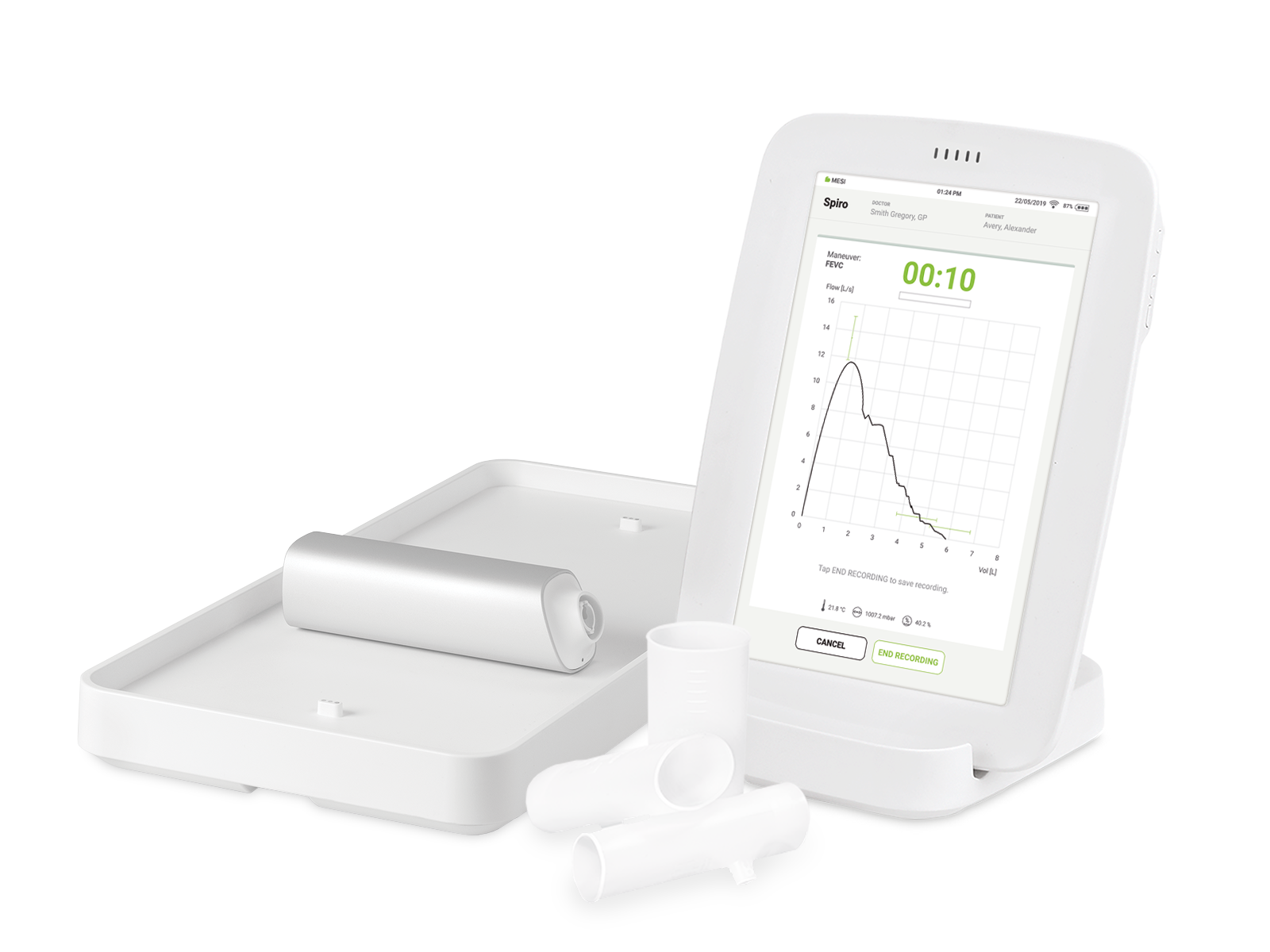
The MESI SPIRO MODULE is a wireless spirometry module designed for the MESI mTABLET SPIRO system. The exhaled or inhaled f low and volume measured with the MESI SPIROMETER UNIT are simultaneously displayed on the MESI mTABLET.
2.1 WHAT IS IN THE PACKAGE
The MESI mTABLET SPIRO diagnostic system package contains the following equipment:
the MESI SPIROMETER UNIT (SPIROMD)
a wireless medical tablet system (separate packaging),
a 4-port charging station module (separate packaging),
the Instructions for Use, and
the Declaration of Conformity.
2.1.1 ACCESSORIES
NOTE: Contact your local distributor for more information about filtered mouthpieces, f ilters and accessories.
⚠️Use only accessories and other parts recommended or supplied by MESI. Use of other than recommended or supplied parts may result in injury, inaccurate information and/ or damage to the unit. Follow the instructions that are provided with the specific accessory.
2.2 INTENDED USE
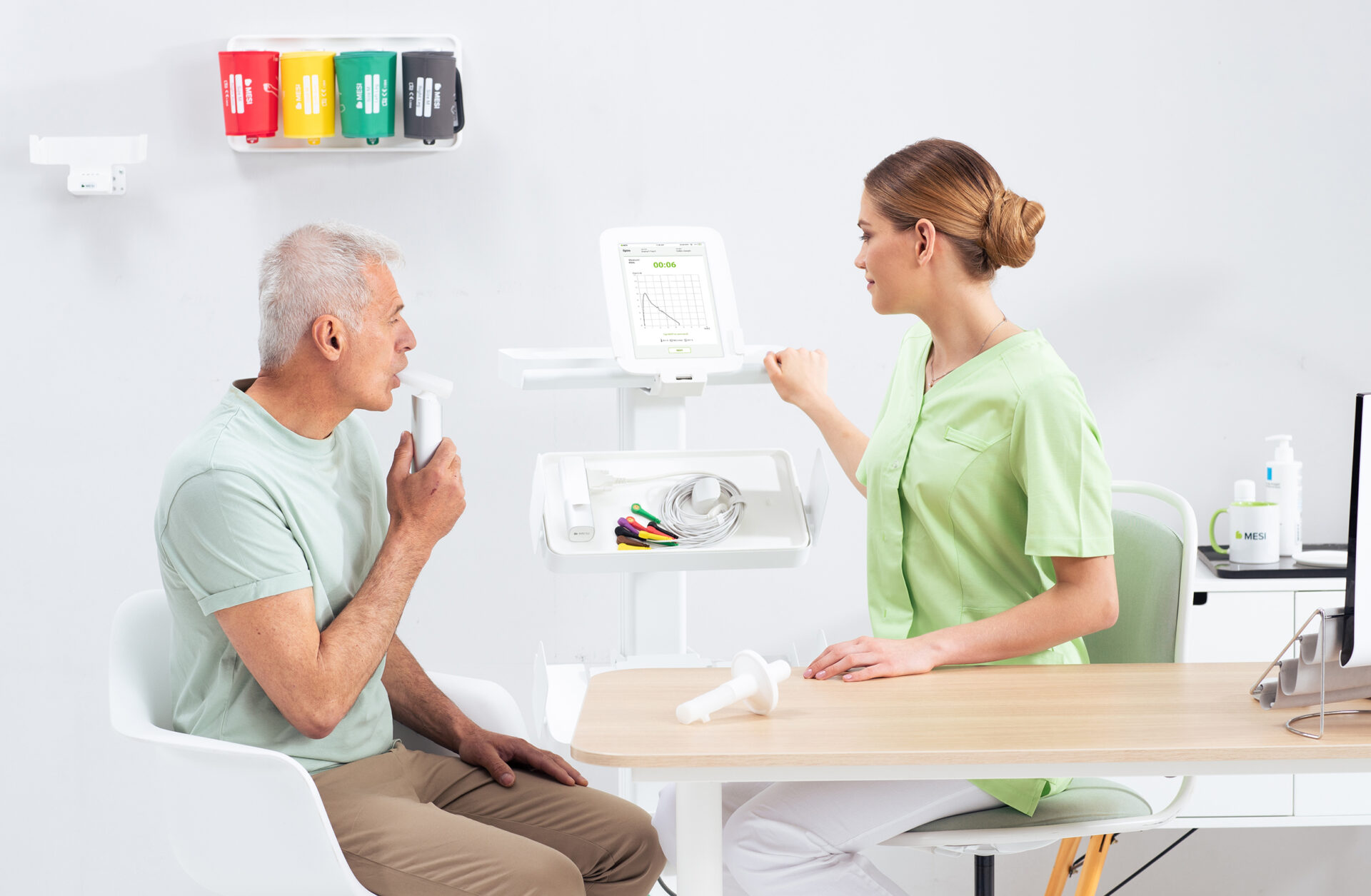
The MESI mTABLET SPIRO is an automated wireless spiro- meter device for diagnosing and screening patients with respiratory diseases. The system is intended to perform, view and store spirometry measurements of adult and child patients. It is a wireless system comprised of a wireless medical tablet, a spirometer module, disposable mouthpieces and a charging station module.
The MESI mTABLET SPIRO is intended for use in a professional clinical environment by trained healthcare personnel who understands the principle of spirometry measurements, is able to demonstrate the measurement procedure, to verify that the system is working as intended and to start the measuring process.
The MESI mTABLET SPIRO works on the pneumotach principle, which relies on the airflow measurement according to the pressure difference that occurs when a flowing fluid is forced through a narrow section, resulting in a pressure decrease and a velocity increase, which is also known as the Venturi effect. The values measured are indirectly calculated from the measured airflow. The values of the lung volumes, the flows and the curves are captured and displayed as a numerical and graphical representation on the MESI mTABLET UNIT.
The device is recharged through the AC/DC power supply. However, the MESI mTABLET SPIRO is not intended to be used while connected to mains electricity.
NOTE: MESI mTABLET software is integral part of the device.
2.3 ABBREVIATIONS
ABBREVIATIONS| ATS | American Thoracic Society |
| BMI | Body Mass Index |
| ERS | European Respiratory Society |
| FEVC | Forced Expiratory Vital Capacity |
| FIVC | Forced Inspiratory Vital Capacity |
| FVC | Forced Vital Capacity |
| FV | Flow Volume |
| Pre | Basal research phase |
| Post | Bronchodilatation research phase |
| Representative result | Best result from measurements |
| Phase | Measurement mode (Pre- and Postphase) |
| TV | Tidal Volume |
| SVC | Slow Vital Capacity |
| VT | Volume Time |
| VT6 | Volume Time in 6 seconds |
NOTE: Some features are only available in certain applications of the MESI mTABLET SPIRO.
⚠️The data provided by the MESI mTABLET SPIRO reflects the patient’s physiological condition. This data should not be used as a sole means of determining the patient diagnosis.
Technical specifications
In the continuation, please find the technical information regarding the MESI SPIRO MODULE, its measurement and mouthpieces.
3.1 MESI SPIROMETER UNIT (SPIROMD)
3.1.1 DIMENSIONS
Width: 40 mm (1.57 inches)
Depth: 40 mm (1.57 inches)
Height: 140 mm (7.05 inches)
Weight: 220 g
3.1.2 POWER & BATTERY
Power & Battery| Battery type | Rechargeable lithium-polymer battery (LP602248) |
| Capacity | 620 mAh |
| AC/DC adaptor | FW8030M/05 (FRIWO FOX30-XM) |
| Input | 100 - 240 V AC / 50 - 60Hz / 600 - 300 mA |
| Output | 5V DC / 5.0 A |
| Examinations per battery charge | > 150 |
| Continuous use | 13 h |
| Charging time for depleted battery | approximately 1 h (minimum charge time for a complete measurement using the FVC mode: 10 min) |
3.2 DEVICE SPECIFICATIONS
3.2.1 CLASSIFICATION
Classification| Protection against electric shock | Class II |
| Medical device classification | Class IIa |
| Applied parts | Type BF Applied part |
| Software classification | Class B |
| RF emissions (CIPSR 11) | Group 1. Class A |
3.2.2 OPERATING CONDITIONS
OPERATING CONDITIONS| Operating temperature | 10° to 40°C (50°F to 104°F) |
| Relative humidity | 25 to 85% (no condensation) |
| Pressure during operation | 700 to 1060 hPa |
| Ingress protection rating | IP30 |
| Warm up period | 5 min |
3.2.3 MEASUREMENT SPECIFICATIONS
Measurement specifications| Volume range | 0-14 L |
| Flow range | +/- 14 L/sec |
| Sensor type | Pneumotach |
| Time zero determination | Backward extrapolation |
| BTPS values | The values are expressed as BTPS values |
| Measurement modes SPIRO+ | FVC, FEVC, SVC, including basal (PRE) & bronchodilatation (POST) phases and paediatric animation mode |
| Measurement modes SPIRO | FEVC, SVC, including basal (PRE) & bronchodilatation (POST) phases |
| Accuracy & reproducibility | Meets or exceeds ATS (1994), ERS (1993), ATS/ERS (2005) & ATS/ERS (2019) |
| Highest expiratory impedance | The expiratory impedance of the spirometer, including its accessories and detachable parts, does not exceed 0.15 kPa |
3.2.4 CONNECTIVITY
Data connectivity with MTABMD (Bluetooth 2.1 + EDR)
Connectivity| Receiving section | |
|---|
| Frequency range | 2401.3 MHz – 2480.7 MHz |
| Bandwidth | 0.930 MHz |
Connectivity| Transmitter | |
|---|
| Output power | 0.5 – 4.5 dBm |
| Frequency range | 2401.3 MHz – 2480.7 MHz |
| Modulation | GFSK |
⚠️If the device is used or stored outside the specified environmental parameters, the accuracy specified within the technical specifications of the device is not guaranteed.
⚠️The spirometer should not be used if any part of the equipment or system is known or assumed to be defective.
3.3 CALIBRATION AND CALIBRATION CHECK
The MESI mTABLET SPIRO uses calibration-free technology that allows precise and accurate spirometry testing without manual calibration.
However, it is necessary to enter the mouthpiece calibration code every time a new package of mouthpiece is opened. The calibration code can be found on each box of the mouthpieces and should be entered in the calibration menu.
The calibration code can be entered / changed at any time in the calibration menu by pressing Calibration.
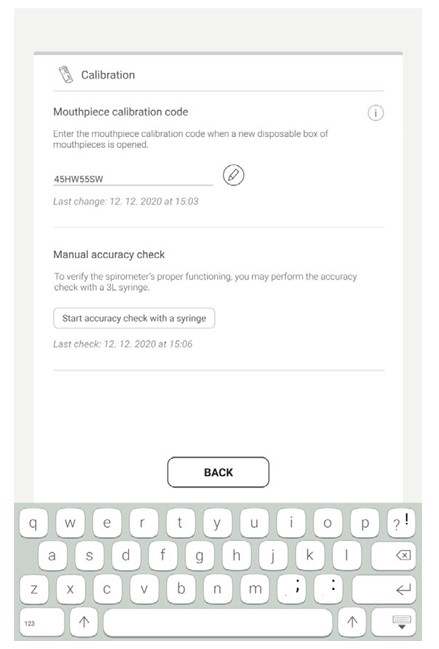
⚠️Using a wrong calibration code may result inaccurate measurements.
⚠️Incorrect code is indicated with red colour.
Even though the MESI mTABLET SPIRO does not need manual calibration, it is recommended to verify the accuracy of the device on a regular basis or at least when the new package of mouthpieces is opened. The accuracy check can only be performed with a 3000 mL MESI SPIROMD calibration syringe.
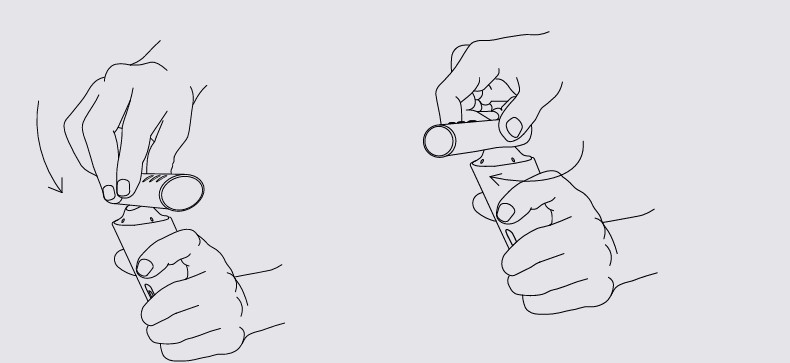
Step 1
Attach the mouthpiece to the MESI SPIROMETER UNIT.
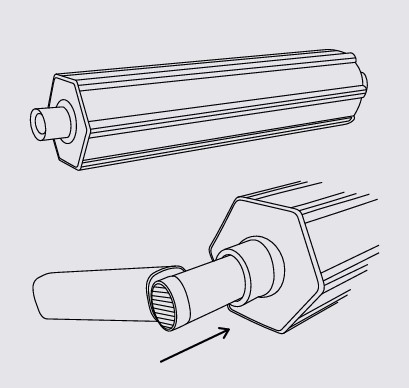
Step 2
Connect the MESI SPIROMETER UNIT with the mouthpiece to the calibration syringe. Assure a proper seal between the two.
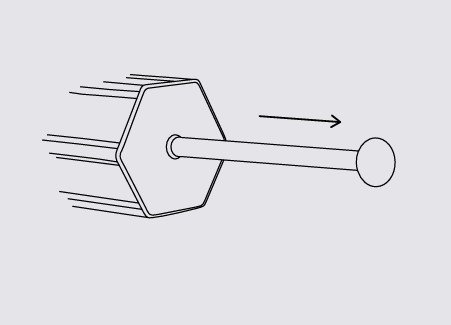
Step 3
Pull the plunger out to fill the calibration syringe.
Step 4
Tap the start button and empty the syringe by pushing the plunger in and tap the FINISH button after fully emptying the syringe. The graph should meet the x axis at precisely 3 L.
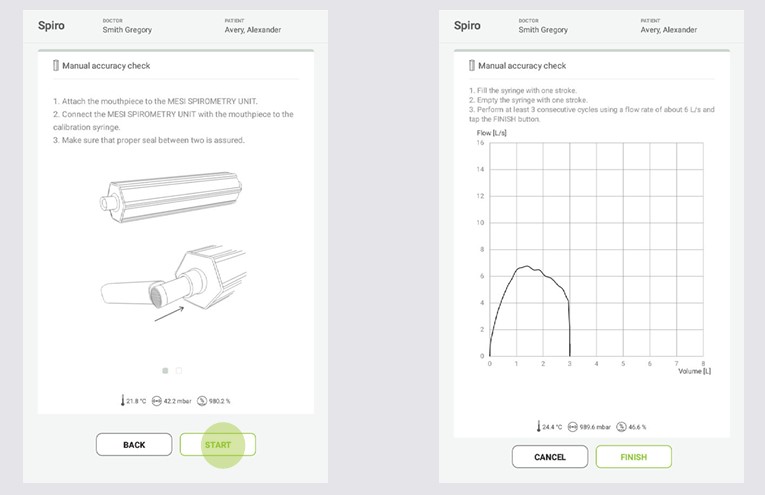
When a 3000 ml SPIROMD calibration syringe is used, the difference to given volume shall be within +-3.5 % (2.9 and 3. 1 L) according to the ATS/ERS Standardization of Spirometry 2019 Update.
If the result is not within the acceptance limit, check that the calibration code entered is accurate. If the verification still fails, please contact MESI technical support.
⚠️Make sure that the flow transducer is intact and securely connected to the spirometer and to the calibration syringe.
NOTE: The spirometer has a built-in ambiental factors measurement unit. Ambient factors such as temperature, pressure and humidity are updated automatically and can’t be changed manually.
3.4 DISPOSABLE MOUTHPIECES AND FILTERS
All MESI disposable mouthpieces are manufactured to high precision, so it is not necessary to calibrate the spirometer system with each f low transducer separately. The lot number is provided at the label of each flow transducer package and just needs to be entered and verified each time when a new package of the mouthpieces start being used. The calibration code can be found on each box of the mouthpieces.
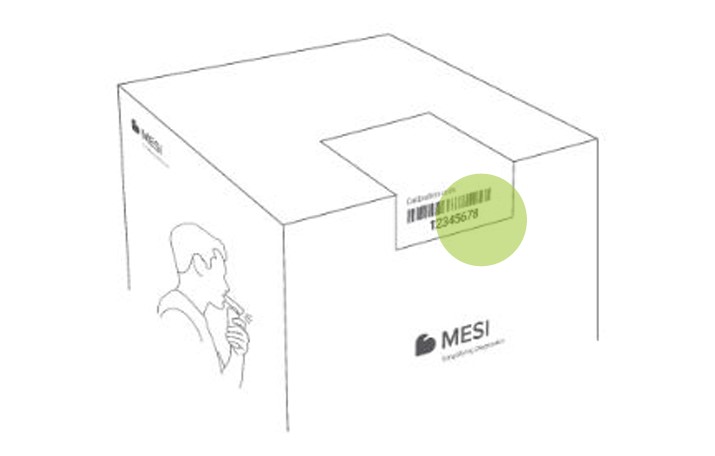
All MESI disposable mouthpieces use the screen type pneumotach principle. During production, the MESI disposable mouthpieces are subjected to continuous and detailed monitoring to ensure reliable quality, and given a lot number.
Each MESI disposable mouthpiece is inspected and measured. The basis of the measurement data is assured by the quality of the production lot.
⚠️Entering a wrong calibration code may produce inaccurate measurements.
⚠️The SPIROMD, DISPOSABLE MOUTHPIECE and the SPIROMD, DISPOSABLE FILTERED MOUTHPIECE shall only be used with the MESI SPIROMD spirometry diagnostic module.
⚠️The SPIROMD, DISPOSABLE MOUTHPIECE and the SPIROMD, DISPOSABLE FILTERED MOUTHPIECE are single-use only products.
⚠️Do not wash or clean the SPIROMD, DISPOSABLE MOUTHPIECE and the SPIROMD, DISPOSABLE FILTERED MOUTHPIECE. This increases the risk of cross-contamination and significantly alters the measurement results. If the SPIROMD, DISPOSABLE MOUTHPIECE or the SPIROMD, DISPOSABLE FILTERED MOUTHPIECE is washed, MESI cannot guarantee the measuring accuracy of the spirometry system.
⚠️The SPIROMD, DISPOSABLE MOUTHPIECE and the SPIROMD, DISPOSABLE FILTERED MOUTHPIECE are packaged as non-sterile
⚠️Do not keep clean and used mouthpieces together.
⚠️Use a new, clean mouthpiece for each patient.
⚠️Never calibrate the spirometer with a used SPIROMD, DISPOSABLE MOUTHPIECE or SPIROMD, DISPOSABLE FILTERED MOUTHPIECE. This causes a risk of cross-contamination through the calibration syringe.
⚠️Every time a new package of SPIROMD, DISPOSABLE MOUTHPIECE or SPIROMD, DISPOSABLE FILTERED MOUTHPIECE is opened, check the production lot number or calibration code on the label attached to the package. If this lot number or calibration code differs from the one currently used, a new calibration code must be entered. Using a wrong calibration code may produce inaccurate measurement data.
NOTE: You can also find the calibration code printed on the sealed bag of each individual mouthpiece.
NOTE: Dispose of the flow transducer, the internal bag, and the external carton according to national or local laws or according to your facility’s disposal policy. All materials are recyclable or combustible. The product safety sheet for each material is available upon request.
Quick measuring guide
NOTE: Before using the device for the first time, read the Instructions for Use carefully and follow their recommendations and suggestions. This chapter only contains short instructions for the use of the MESI mTABLET SPIRO. For detailed description of the individual functions of the device, see chapter 5.3.1 Step-bystep SPIRO measurement.
4.1 PREPARATION FOR MEASUREMENT
⚠️The MESI SPIRO MODULE is part of the MESI mTABLET SPIRO system. Before starting a measurement, please make sure that you are familiar with all devices that are part of the system as well as with their instructions. The MESI mTABLET SPIRO is comprised of the MESI mTABLET (MTABSYSW), the MESI SPIRO MODULE (SPIROSYS) and the MESI LARGE CHARGING PLATE (CS4SYS).
4.1.1 PAIRING WITH A MESI mTABLET UNIT
Before any measurements can be performed, the MESI SPIROMETER UNIT module needs to be paired to the MESI mTABLET UNIT. For detailed instructions, please follow the instructions in chapter 5.1.5 Pairing.
4.1.2 MOUNTING THE MOUTHPIECE TO THE UNIT
The mouthpieces are disconnected during storage and transport, and are individually packed in separate sealed bags in the transportation box.
Before using the spirometer, the user shall mount the mouthpiece onto the MESI SPIROMETER UNIT.
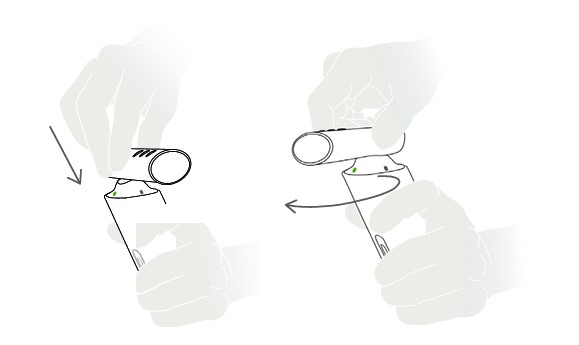
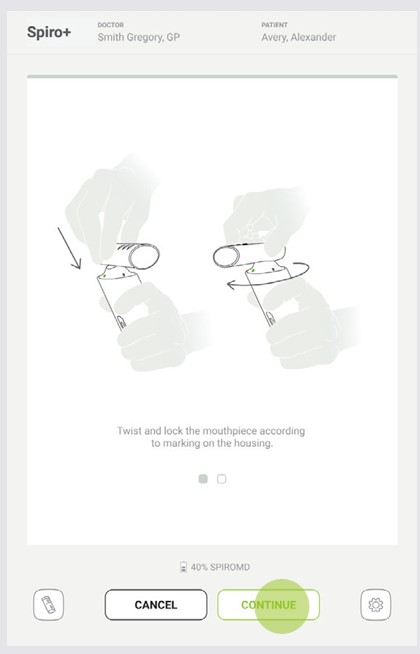
Connect the mouthpiece to the top side port on the MESI SPIROMETER UNIT. Position, twist and lock the mouthpiece from the grey dot to green in order to assure secure mounting of the mouthpiece.
⚠️Before starting actual measurements or calibration, it is recommended to allow the spirometer device to have a brief warm-up period of a minimum of 5 minutes to reach thermal equilibrium.
NOTE: For additional information, see the MESI mTABLET Instructions for Use, chapter 9 MANAGING USERS.
Step 1
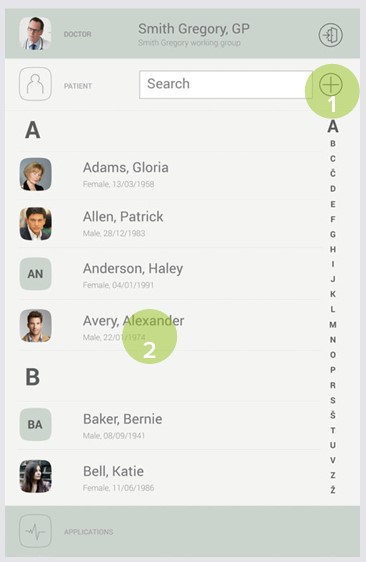
On the MESI mTABLET UNIT, select an existing patient (1) or add a new one (2).
Step 2
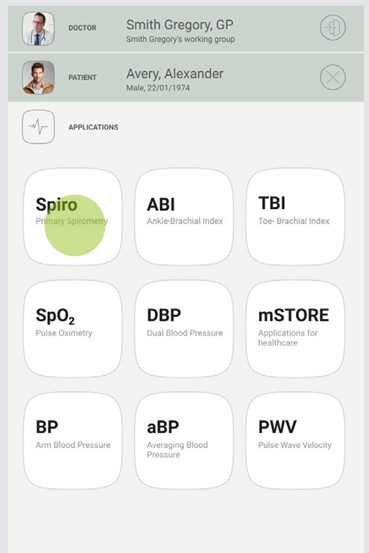
After selecting the patient, select one of the SPIRO measurements in the application menu.
Step 3
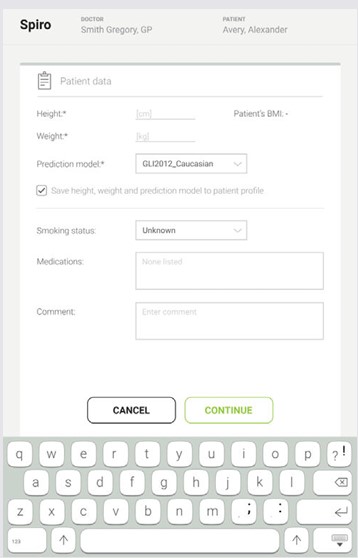
After pressing CONTINUE, enter the patient data (height, weight) and select the appropriate prediction model from the dropdown menu.
Step 4
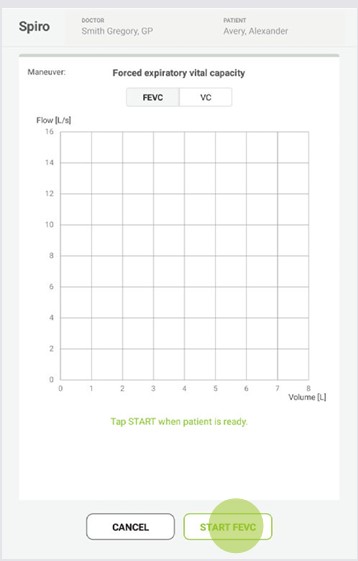
After entering the measuring screen, explain the measurement and prepare the patient for the maneuver before starting the actual measurement. The patient shall breathe normally at a relaxed rate.
Step 5
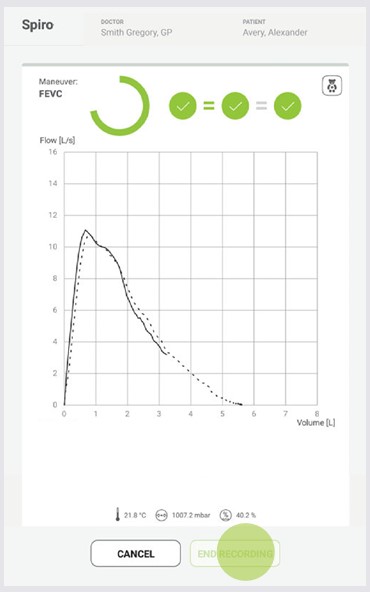
After pressing the START FEVC button, the device goes into standby mode and starts measuring when the patient starts blowing.
Before the blow, the patient inspires long and slowly. The patient expires fast and strongly into the mouthpiece, blowing for at least 6 seconds (till the animation ends).
Finish the maneuver by pressing the END RECORDING button.
Step 6
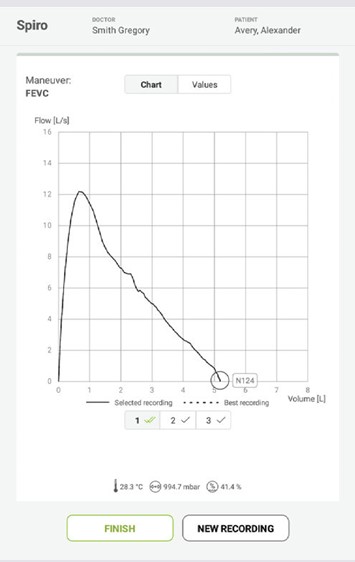
After pressing END RECORDING, the patient can remove the mouthpiece from their mouth. The user can review the maneuver spirograph and values.
Step 7
Performing the maneuver can be repeated by pressing the NEW RECORDING (1) button. By pressing the FINISH (2) button, the measurement can be completed. It is advised that the patient performs at least three representative maneuvers, the best of which will automatically be selected as the result.*
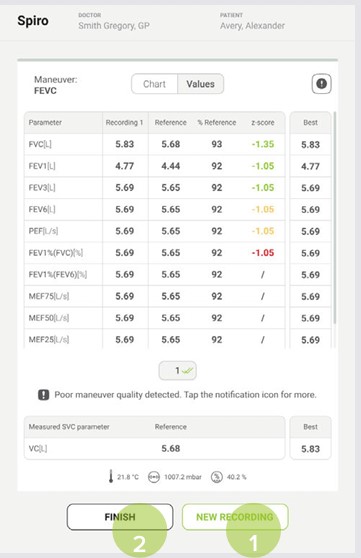
Step 8
After pressing the FINISH button, select the patient’s level of cooperation from the dropdown menu and add comments to the measurements.
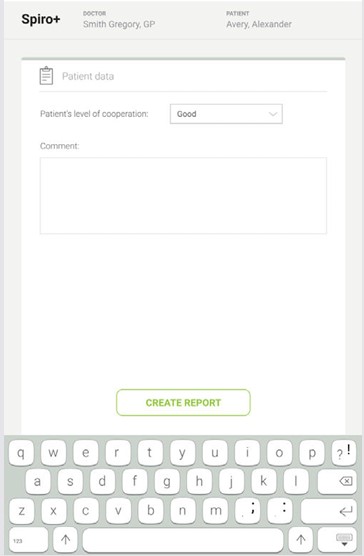
*According to the ATS/ERS 2019 recommendations.
4.3 RESULTS
Once the measurement has been taken, the system will automatically switch to the results screen. By scrolling the results page, additional SPIRO measurement parameters can be viewed. The following actions are listed on the top the navigation menu:
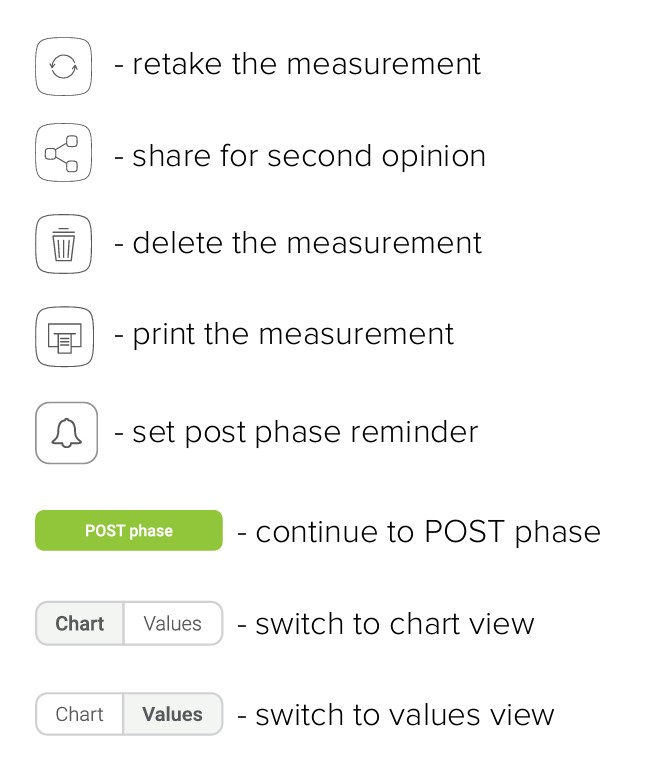
NOTE: For more information about the result screen, see chapter 5.4 REVIEWING SPIRO MEASUREMENT.
Detailed instructions
This chapter contains all the information required by users of the device for safe, correct and accurate measurement. It includes a detailed and complete description of all the functions of the device, safety instructions and all the information required to understand the operation of the device.
5.1 FIRST USE
5.1.1 BASIC FUNCTIONALITIES
MTABSYSSPIRO is a wireless system intended for performing spirometry measurements. The system is comprised of the MESI mTABLET UNIT, the MESI LARGE CHARGING PLATE (CS4SYS) and the MESI SPIROMETER UNIT.
5.1.2 AC/DC POWER SUPPLY AND BATTERY
The MESI SPIROMETER UNIT uses two power sources: mains electricity, using AC/ DC power supply for charging, and battery power while performing the measurements.
Connect the AC/DC power supply to a wall socket with a mains voltage of 100-240 V at 50-60 Hz and to the connector at the back of the device.
The device battery is now recharging. During this process, the light on the module will be flashing yellow. Only when the device is completely charged will it start flashing green. For more information, see chapter 5.8 Multifunctional buttons.
⚠️Do not connect in series more than one additional MESI Charging station.
5.1.3 ACTIVATION
When setting up the MESI SPIROMETER UNIT for the first time, it needs to be activated out of the shipping mode. The device will not respond until it has been placed placed on the MESI LARGE CHARGING PLATE and the multi-functional button illuminates. It is recommended that, prior to initial use, the MESI SPIROMETER UNIT is fully charged.
NOTE: The battery inside a completely new device is most likely not completely empty and can provide enough power to start up the device. Nonetheless, connect the device to mains electricity using the AC/DC power supply before f irst use.
NOTE: When the battery needs to be replaced, the MESI mTABLET UNIT will display a battery warning. For more information see chapter 8 ERRORS.
5.1.4 BATTERY STATUS
The MESI SPIROMETER UNIT comes with an internal battery. Press the button on top of the MESI SPIROMETER UNIT to activate the module. If the green light flashes, the module is ready for the next step. Otherwise, see chapter 6.1 Charging the battery.
5.1.5 PAIRING
Before any measurements can be performed, the MESI SPIROMETER UNIT needs to be paired to the MESI mTABLET UNIT. Take the MESI mTABLET UNIT and open Doctor’s profile (for more information about user accounts, see the MESI mTABLET Instructions for Use, chapter 9 MANAGING USERS).
Step 1
Go to User profile > Settings > Modules > +Add module
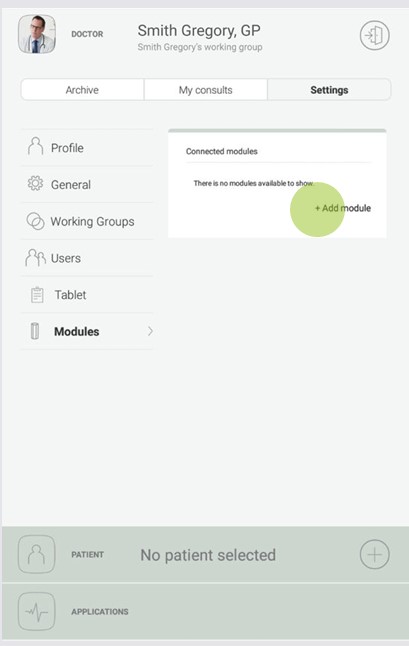
Step 2
Press and hold the button on top of the MESI SPIROMETER UNIT until the multifunctional button light changes to blue.
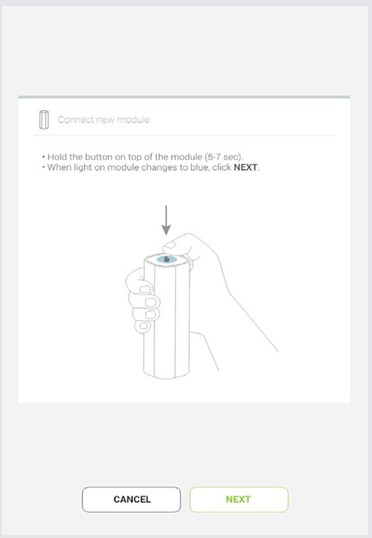
Step 3
When the MESI mTABLET UNIT establishes a connection with the MESI SPIROMETER UNIT, the light on top of the module will change to green. Confirm the pairing process by pressing the button on top of the module again.
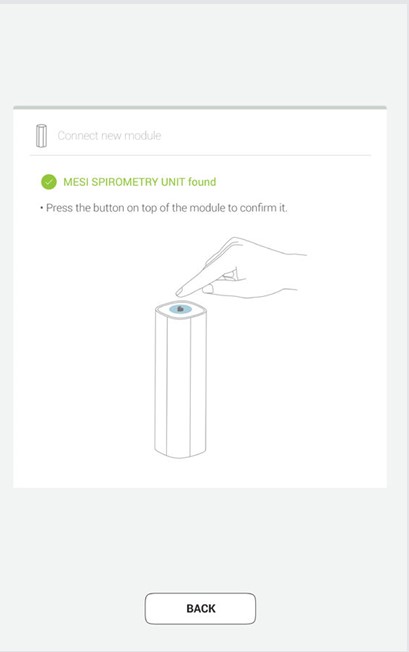
Step 4
The final screen indicates successful connection between the MESI mTABLET UNIT and the MESI SPIROMETER UNIT. It is possible to access all technical information about the connected modules in User profile > Settings > Modules.
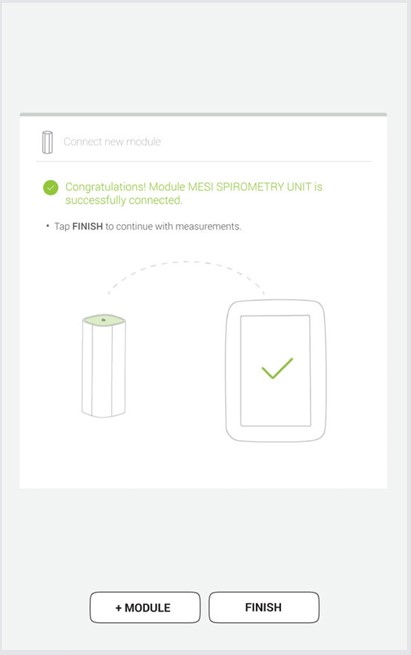
NOTE: When operating only one MESI mTABLET UNIT, this operation only needs to be performed once. In case of several MESI mTABLET UNITS, this process has to be repeated on each MESI mTABLET UNIT.
NOTE: The pairing process needs to be performed with all modules being used.
5.1.6 MOUNTING THE MOUTHPIECE
Before using the spirometer, the user needs to mount the mouthpiece onto the MESI SPIROMETER UNIT.
The mouthpieces are disconnected during storage and transport, and are individually packed in separate sealed bags.
Open the MESI mouthpiece and avoid touching the area around the hole. If possible, give the mouthpiece to the patient to open it themselves.
Hold the MESI SPIROMETER UNIT in place and connect the mouthpiece to the top side port on the MESI SPIROMETER UNIT. Position, twist and lock the mouthpiece from grey dot to green in order to assure secure mounting of the mouthpiece. Check if the mouthpiece is firmly attached.
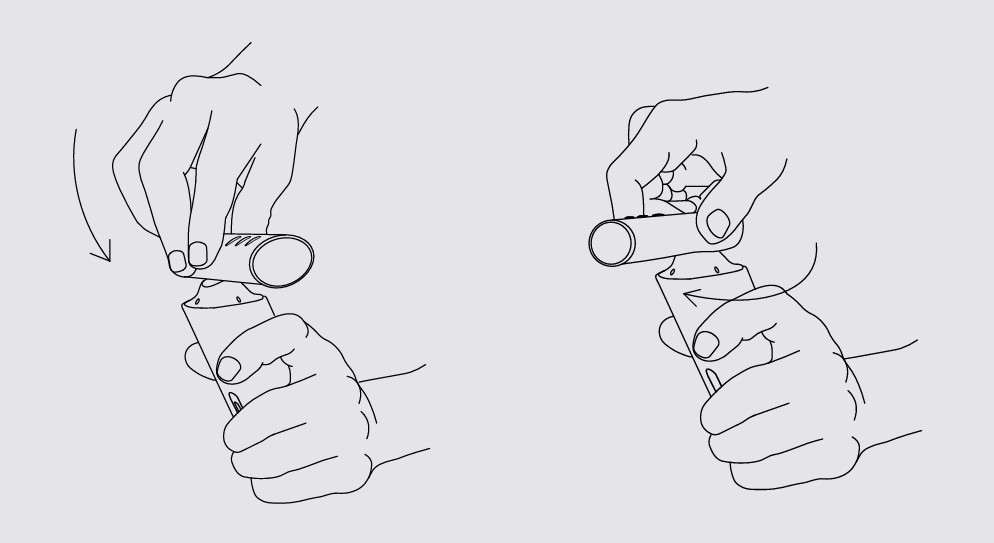
⚠️While attaching the flow transducer, always inspect the openings on the top part for particles that could block the airway and impact the measurement result.
⚠️Avoid using excessive force while mounting the mouthpiece as this may damage the housing of the module or the mouthpiece.
5.2 PATIENT SELECTION
Before performing a measurement, a patient needs to be selected or created within your working group’s patient list.
5.2.1 SELECTING A PATIENT
Step 1
Select the patient tab button.
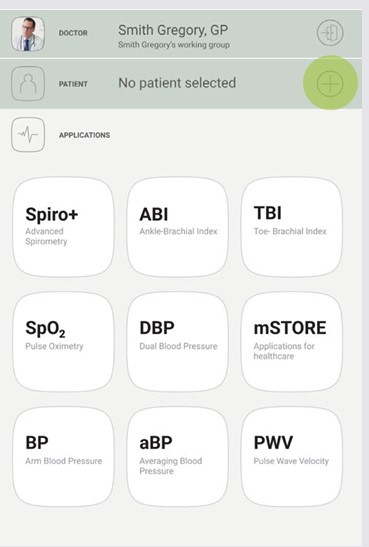
Step 2
Use the search bar (1) or scroll (2) to the patient who is having the SPIRO measured.
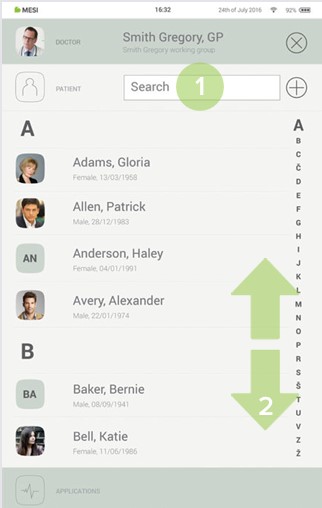
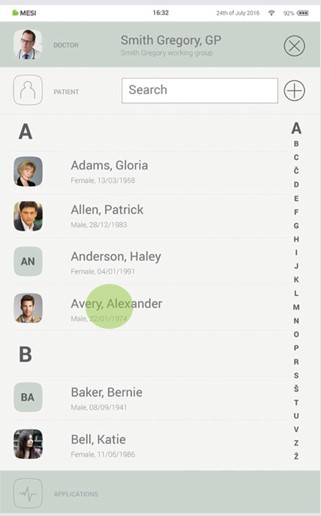
Step 3
Select the patient.
5.2.2 ADDING A PATIENT
Step 1
On your home screen, press the + button in the Patient tab.
Step 2
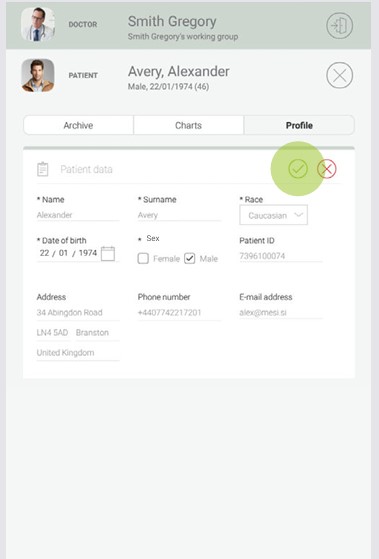
Fill out required fields (Name, Surname, Date of Birth and Gender) and any additional information regarding the patient.
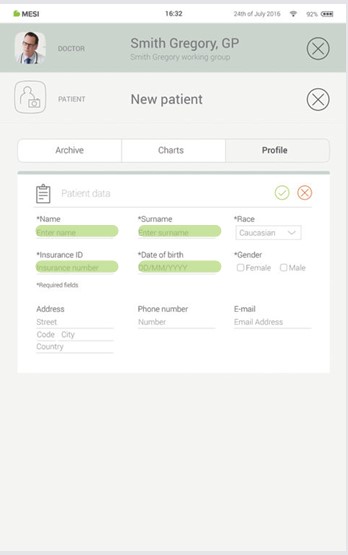
Step 3
Save the patient by pressing the ✔️ button.
5.3 PREPARATION FOR SPIROMETRY MEASUREMENT
There are two levels of the MESI spirometry applications available within the MESI mTABLET SPIRO device.
Starting the measurement process is unified across both applications. However, the scope of functionalities offered by the device may differ.
Mount the SPIROMD Mouthpiece on to the MESI SPIROMETER UNIT.
The patient should stand or sit still in an upright position with their head elevated, and breathe normally. It is recommended to allow the patient to perform 1-2 sample maneuvers before the measurement to get used to the maneuver.
It is recommended to use a nose clip during the measurement.
NOTE: The person carrying out the measurement should always remain by the patient’s side and closely monitor the measurement process.
NOTE: During the inspiration, the operator can encourage the patient using phrases such as “more, more, more.”
Step 1
Select an existing patient or add a new one on the MESI mTABLET UNIT. For additional information, see chapter 5.2 Patient selection.
Step 2
After selecting the patient, select the SPIRO application in the application menu. (SPIRO+ users shall select the SPIRO+ application).
Step 3
Mount the mouthpiece to the MESI SPIROMETER UNIT according to the instructions on the MESI mTABLET and press the CONTINUE button.
Step 4
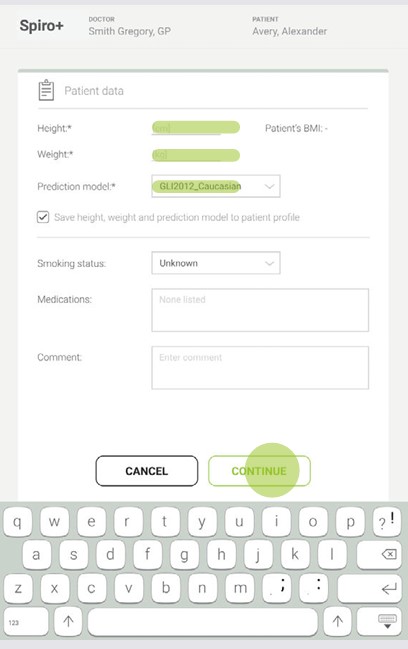
After pressing the CONTINUE button, enter the patient data (height, weight)and select the appropriate prediction model from the dropdown menu. After that, press CONTINUE.
Step 5
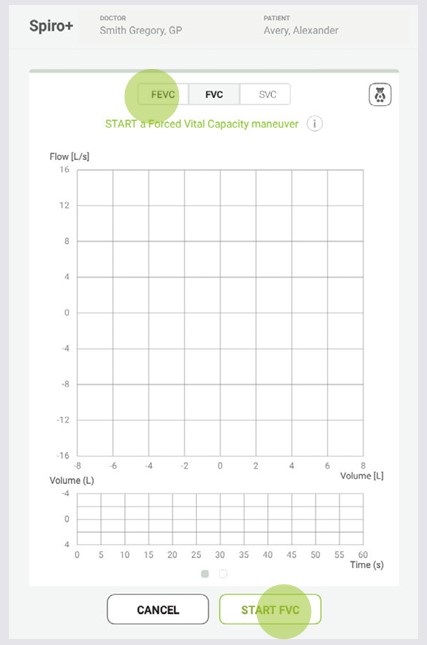
After entering the measuring screen, the user has the option of selecting different maneuver modes.
SPIRO+ offers the FEVC (Forced Expiratory Volume Capacity), FVC (Full Loop Expiratory Vital Capacity), FIVC (Forced Inspiratory Vital Capacity) and SVC (Slow Vital Capacity) maneuvers.
SPIRO offers FEVC and SVC maneuvers.
Make sure that you select the desired maneuver before starting the measurement process.
NOTE: The appropriate prediction model shall be selected by the user and is normally described in the country’s national guidelines for spirometry performing.
5.4 SPIRO MEASUREMENTS
5.4.1 SPIRO - FEVC MANEUVER
Step 1
When selecting the FEVC maneuver and pressing the START button, the device goes into standby mode and starts measuring when the patient starts blowing.
Before the blow, the patient inspires long and slowly. The expiration should be fast and strong, at least until the end of the animation.
Finish the maneuver by pressing the END RECORDING button.
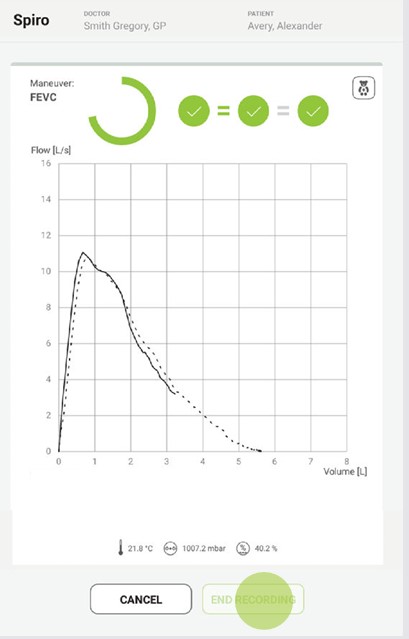
Step 2
After pressing END RECORDING, the patient can remove the mouthpiece from their mouth.
The user can review the maneuver spirograph and values. Acceptable maneuvers are marked by a button with a green check mark.
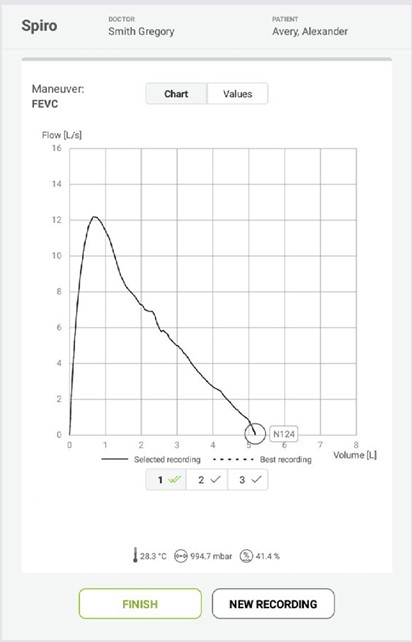
Step 3
The maneuver can be repeated by pressing the NEW RECORDING button.
At least three acceptable maneuvers shall be made to meet the reproducibility criteria of the ATS/ERS 2019 recommendations.
A new maneuver can be made by pressing NEW RECORDING.
Complete the measurement by pressing the FINISH button.
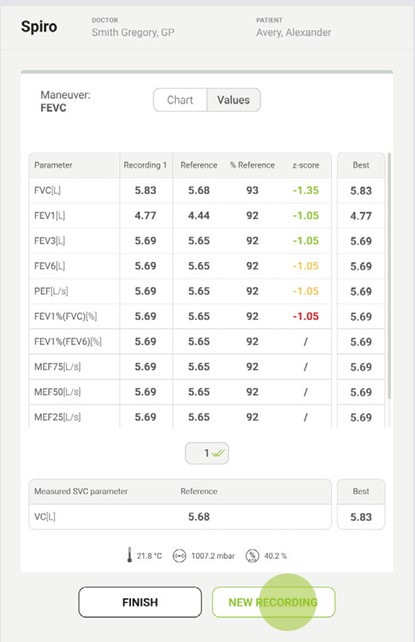
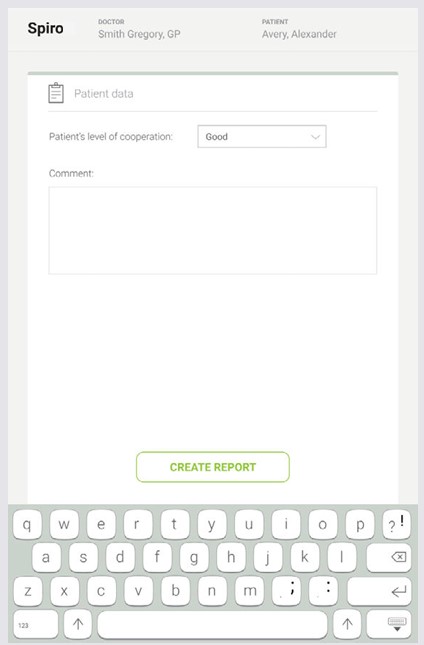
Step 4
After pressing FINISH, select the patient’s level of cooperation from the drop-down menu and add comments to the measurements.
NOTE: If the MESI SPIROMETER UNIT has low battery or connectivity issues, a warning will be displayed on the instructions screen. In case of errors, advise the see chapters 8 Errors and 9 Troubleshooting.
NOTE: Regardless of the maneuver selected, the MESI mTABLET SPIRO supports the both open loop and closed loop technique. This means that the patient can keep the mouthpiece in their mouth all the time and perform the maneuver when they are ready or put the mouthpiece in their mouth when they are ready to perform the maneuver.
5.4.2 SPIRO - SVC MANEUVER
Step 1
When pressing the START button, the device goes into standby mode and starts measuring when the patient starts blowing.
Before the blow, the patient inspires long and slowly. The patient expires slowly.
Finish the maneuver by pressing the END RECORDING button.
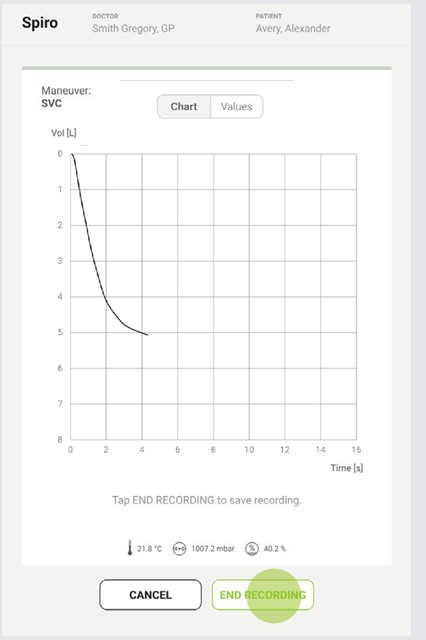
Step 2
After the END RECORDING is pressed, the patient can remove the mouthpiece from their mouth. The user can review the maneuver spirograph and values.
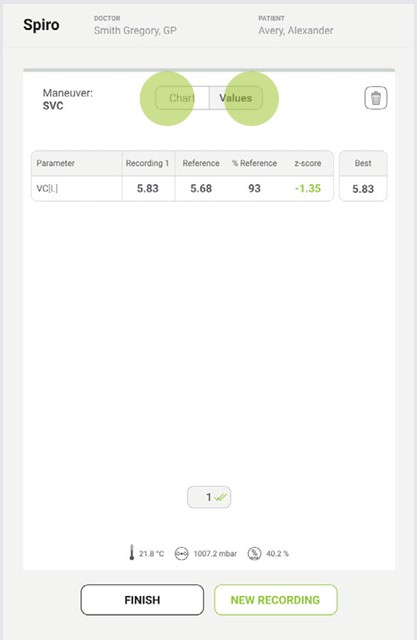
Step 3
The maneuver can be repeated by pressing the NEW RECORDING button.
The measurement is completed by pressing FINISH.
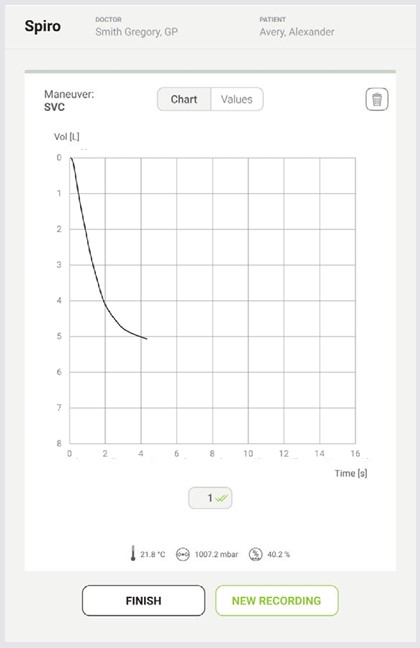
5.4.3 REVIEWING A SPIRO MEASUREMENT
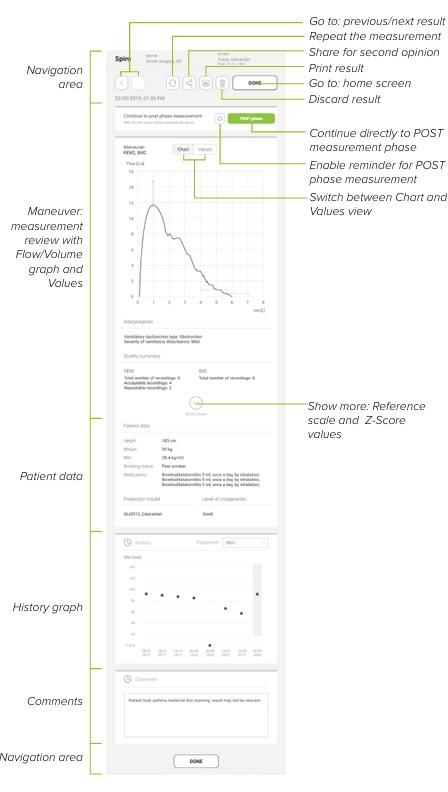
5.4.3.1 Patient measurement trend
The history contains an overview of the measurements performed by the same doctor on the same patient. It shows the trend of the patient’s results based on several spirometry parameters that can be selected from the dropdown menu.
A comment can be added to every measurement. It will be stored and always available together with the recording report.
5.5 SPIRO+ MEASUREMENTS
5.5.1 SPIRO+ FVC MANEUVER
Step 1
When selecting the FVC maneuver and pressing the START button, the device goes into standby mode and starts measuring when the patient starts blowing.
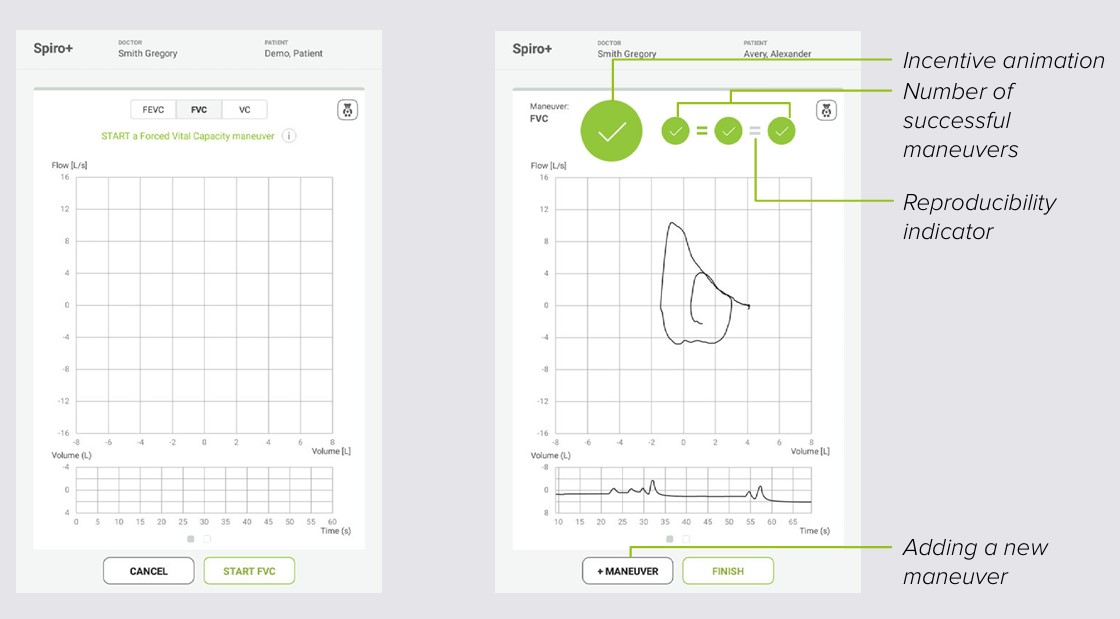
The patient keeps the mouthpiece in their mouth, breathing slowly. Before the forced blow, the patient inspires long and slowly. The patient expires fast and strongly, at least until the animation makes a full circle and a check mark appears.
Step 2
Maneuvers can be repeated on the same screen and are not limited number-wise. At least three acceptable manoeuvres shall be made to meet the reproducibility criteria of the ATS/ERS 2019 recommendations. The measurement is completed by pressing the FINISH button. Combining different maneuvers within a measurement is possible by selecting the +MANEUVER button.
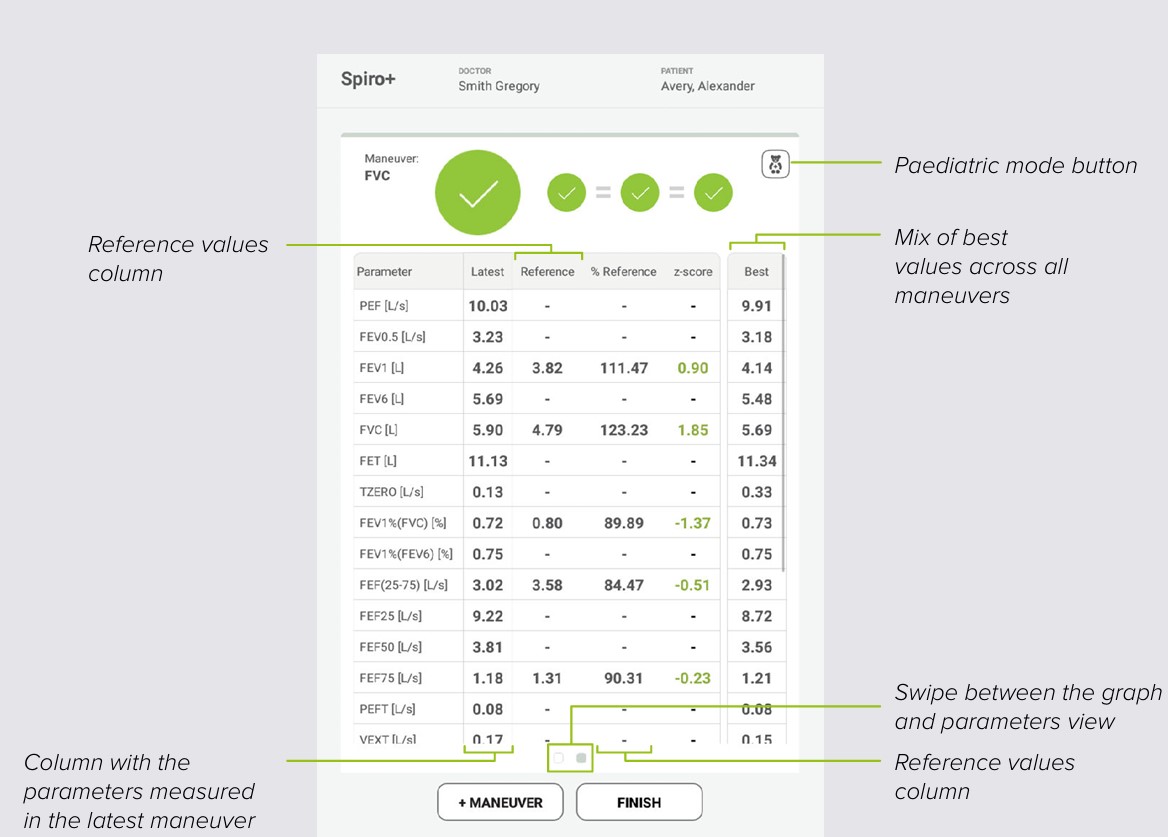
During the measurement, the user can swipe between the graph view and the paramater values view.
Paediatric animation mode
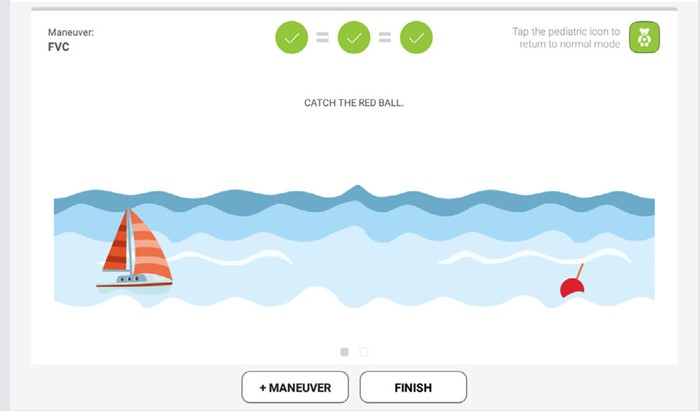
There is a paediatric animation mode available: as the patient blows, the sailboat is getting closer to the red buoy. A blow is successful once the sailboat touches the buoy and the green check mark appears.
Step 3
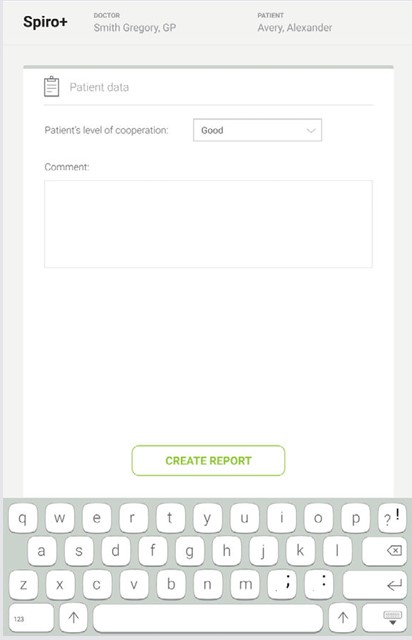
After pressing FINISH button, select the patient’s level of cooperation and add comments to the measurement.
5.5.2 SPIRO+ SVC MANEUVER
Step 1
When pressing the START button, the device goes into standby mode and starts measuring when the patient starts blowing.
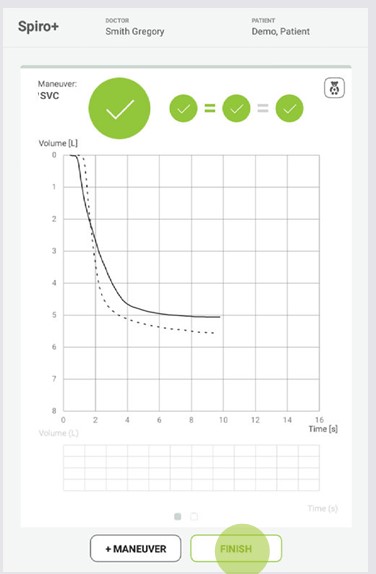
The patient keeps the mouthpiece in their mouth, breathing slowly. Before the blow, the patient inspires long and slowly. The patient expires slowly until the curve becomes parallel to the x axis.
Maneuvers can be repeated on the same screen and not limited number-wise.
The measurement is completed by pressing the FINISH button.
Step 2
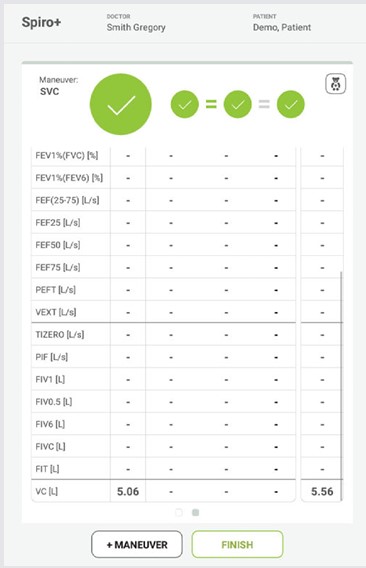
During the measurement, the user can swipe between the graph view and the paramater values view.
5.5.3 SPIRO+ FEVC MANEUVER
Step 1
When selecting the FEVC maneuver and pressing the START button, the device goes into standby mode and starts measuring when the patient starts blowing.
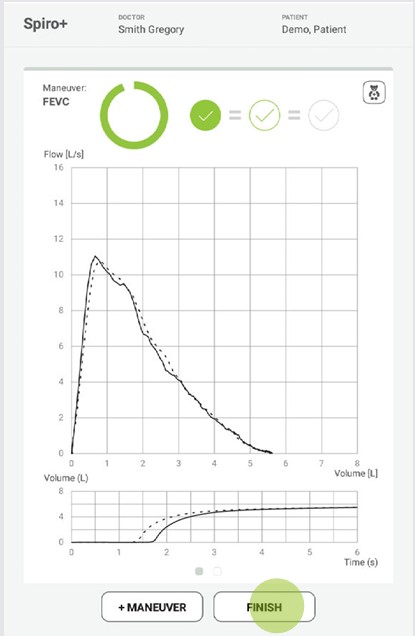
The patient keeps the mouthpiece in their mouth, breathing slowly. Before the forced blow, the patient inspires long and slowly. The patient expires fast and strongly, at least until the animation makes a full circle and a check mark appears.
Maneuvers can be repeated on the same screen and not limited number-wise. At least three acceptable maneuvers shall be made to meet the reproducibility criteria of the ATS/ERS 2019 recommendations.
Combining a measurement with different maneuvers is possible by selecting the +MANEUVER button.
The measurement is completed by pressing the FINISH button.
Step 2
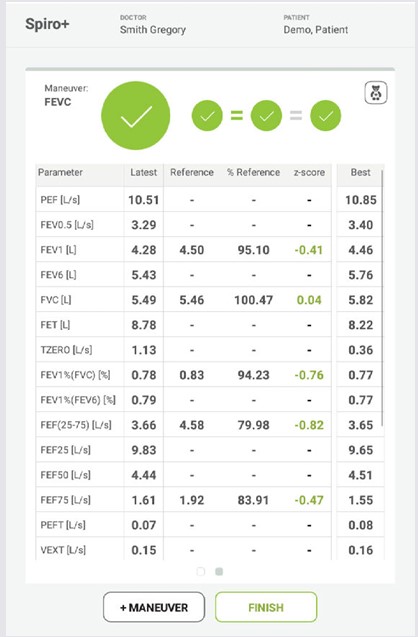
During the measurement, the user can swipe between the graph view and the paramater values view.
5.5.4 REVIEWING SPIRO+ MEASUREMENT
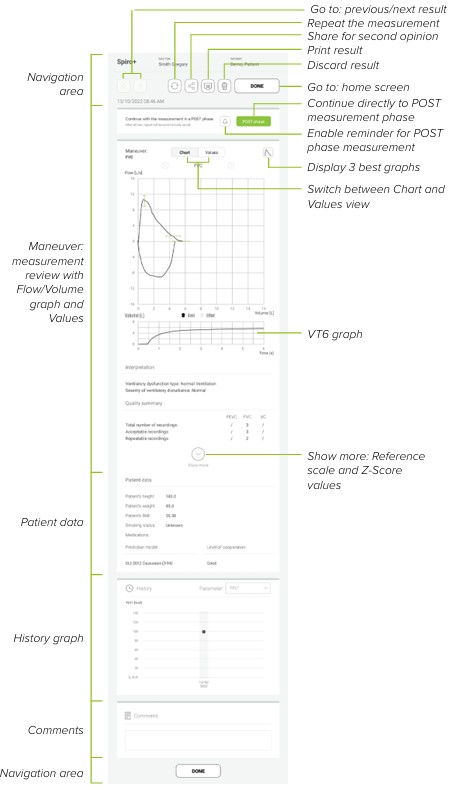
5.6 POST MEASUREMENT
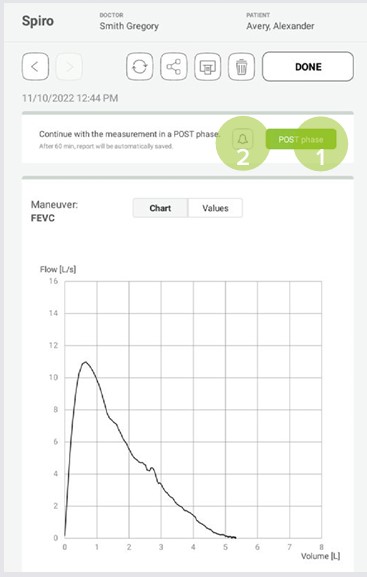
When reviewing the result, the user has the option of entering the POST measuring phase. This is which is useful when the user decides to perform a bronchodilatation test.
Step 1
The user can proceed to the POST phase by clicking the POST phase (1) button or setting up a reminder by clicking the bell button (2). A pop-up window will open once the reminder times out. Alternatively, the user can enter the POST phase via the patient’s archive within 60 minutes after performing the spirometry measurement. The active measurement is marked with the In progress label.
Step 2
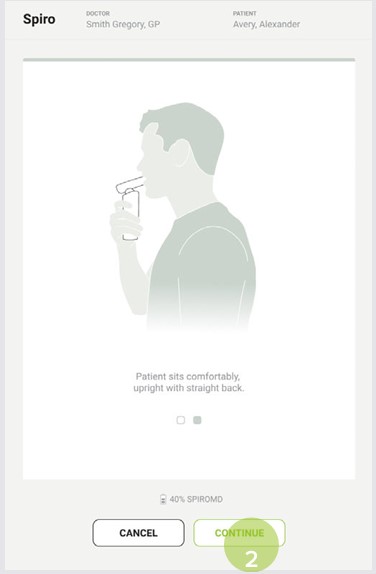
After entering the POST phase, the user is first taken to the instructions screen, where they need to wait for the module to connect to the MESI mTABLET.
After the module is connected, the CONTINUE (2) button turns green and the user can continue with the measurement.
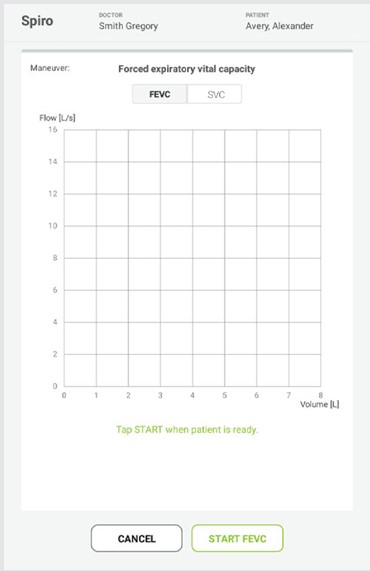
Step 3
After clicking the CONTINUE button, the user enters the measurement screen, where the measurement follows the standard measuring procedure.
When pressing START button, the device goes into standby mode and starts measuring when the patient starts blowing as described in steps 1 and 2 in chapter 5.4.1. until getting to the result report screen, where the PRE & POST measurement phases can be compared and reviewed.
5.6.1 REVIEWING THE RESULT IN POST MEASUREMENT PHASE
By creating the report in the POST measurement phase, the user can review the comparison of both Flow/Volume graphs and Values.
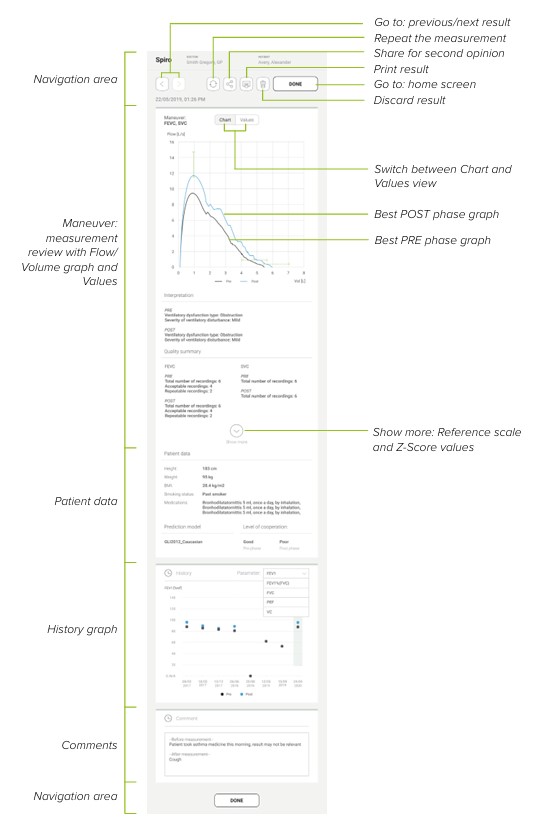
5.7. INTERPRETATION AND BLOW QUALITY
Each performed blow is evaluated for quality and reproducibility. The blows are represented as circles.
The three most representative blows are placed in ranking order. When more than three blows are performed, only three most representative ones are shown.
Representative criteria for FEV: FEV1+FEV6
Representative criteria for PEF: FEV1+PEF
Based on the criteria, the algorithm will automatically select the best maneuver for the result.
The values displayed during the measurement represent each individual maneuver. The values displayed in the table on the report screen are a mix of the best values from all maneuvers made. The curve displayed is the one from the best maneuver.
5.7.1 INCENTIVE
The incentive is shown during the FVC and FEVC maneuvers. It indicates the duration of the expiration. The 6-second target time is reached when the incentive has drawn a full circle. When the expiration is stopped, the incentive displays the blow quality symbol.

5.7.2 REPRODUCIBILITY
When a breath meets the reproducibility criteria in comparison with the most representative breath, a connector (=) is shown on the left of the breath indicator.
Reproducibility criteria for FEV: The difference between two values is a maximum of 150 mL. Reproducibility criteria for PEF: The difference between the two best values is less than 10%.

5.7.3. QUALITY INDICATORS
If a maneuver is properly executed, a green check mark will appear. If a maneuver is not properly executed, one of the following indicators will display on the measurement screen:
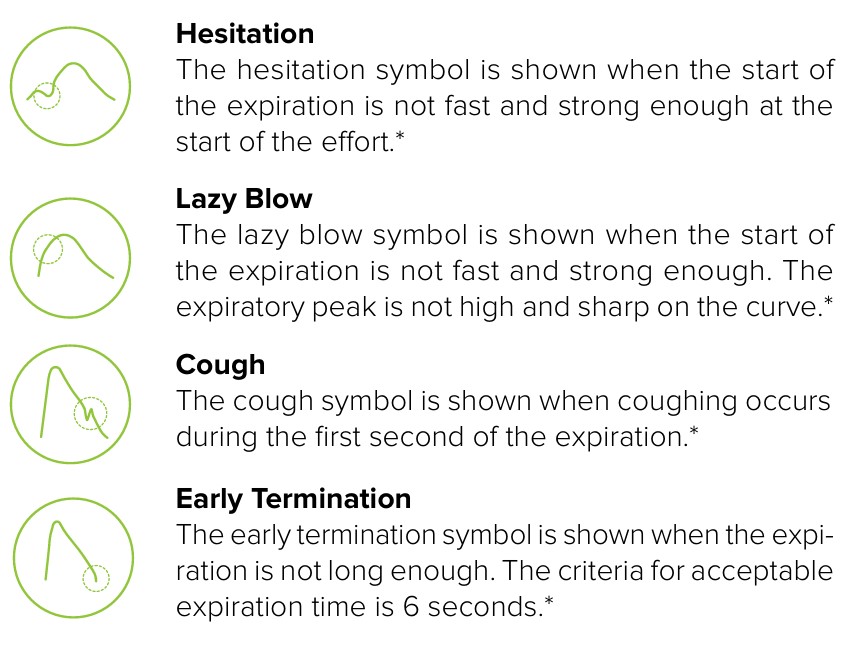
* The maneuver acceptability criterion defined by Enright et al. (1991) is applied.
5.7.4 PREDICTION MODEL TARGET VALUES
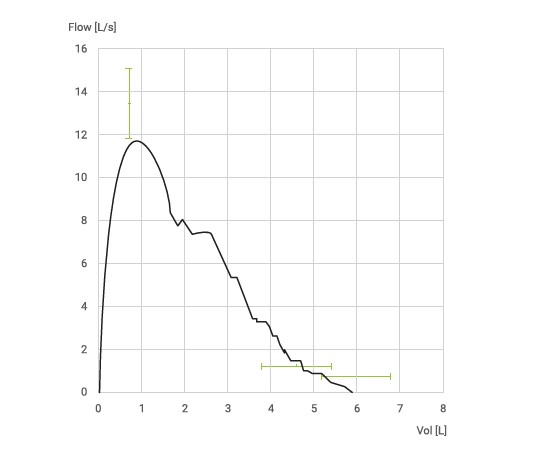
The flow-volume curve is drawn and saved for individual breaths during each maneuver. The line segments illustrate the healthy range within the predicted values for the measured variables.
The segment is drawn only if the selected prediction model provides predicted values for the variable.
5.7.5 VALUES TABLE
The results table presents representative results for the measurement as well as predicted values and Z-score values if the selected prediction model provides predicted values for the variable.
When a Z-score is available, the graphical presentation indicates the Z-value in respect of the normal range (+/- 1.645). The green area indicates that the Z-value is within or above the normal range (Z >= -1.645). The yellow area indicates mild decrease (-2.0 <= Z < -1.645). The red area indicates more severe decrease (Z < -2.0).
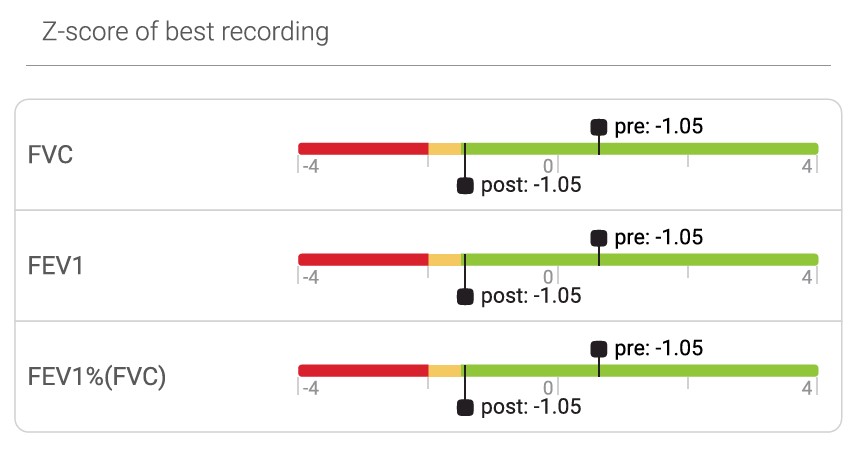
When Z-score is not available, the measured values are shown on a scale as the percentage of the predicted value. In this, 100% of the predicted value is represented as 0 in the middle of the scale. The green area indicates that the value is within or above the normal range.
5.8.1 LED INDICATORS
Although most of the MESI SPIROMETER UNIT control is performed through the MESI mTABLET UNIT interface, there is still a multifunctional LED button on top of the device. In addition to the basic colour light notification functionalities of this button, there is also a possibility to perform some additional operations. These operations are based on the current status of the MESI SPIROMETER UNIT.
5.8.1.1 Standby
Green: The unit battery is at more than 25 %.
Red: The unit battery is at less than 25 %. Please recharge the unit as soon as possible.
5.8.1.2 Charging
Green: The battery is fully charged.
Orange: The unit is charging.
4.8.1.3 Pairing
Blue: The unit is waiting for confirmation from the MESI mTABLET.
5.8.2.1 Standby
Standby| Status check | A quick press on the button in standby mode performs a basic status check of the MESI SPIROMETER UNIT. The green light means a more than 25% battery charge while the red indicates that less than 25% charge is left and the module should be charged. |
| Pairing mode | Holding the button for 4 seconds will put the module into pairing mode, in which it can be connected to the MESI mTABLET UNIT (for more information see chapter 5.1.5 Pairing). |
| Resetting the MESI SPIROMETER UNIT | To perform a reset of the MESI SPIROMETER UNIT, press and hold the LED button for 10 seconds until its colour changes to red. |
5.8.2.2 Measurement mode
Measurement mode| Stop measuring | Quickly pressing the top button on the MESI SPIROMETER UNIT while performing the SPIRO measurement will stop the measurement. |
Maintenance
6.1 CHARGING THE BATTERY
The device can only be used on battery power. It therefore has to be ensured that the battery is charged regularly. One battery charge is sufficient for approximately 150 measurements or 4 hours of continuous use.
To charge the battery, place the MESI SPIROMETER UNIT on the MESI LARGE CHARGING PLATE UNIT. During the charging process, the light on the module will be flashing yellow. Only when the device is completely charged will it start flashing green. For more information, see chapter 5.8 Multifunctional buttons.
If the capacity of the battery is significantly decreased after a certain period of intensive use, the battery is most likely spent and should be replaced. As the device does not contain any parts that can be replaced by a user, contact your local distributor or the manufacturer about battery replacement.
6.2 CLEANING INSTRUCTIONS
⚠️Read and follow cleaning instructions carefully.
MESI SPIROMETER UNIT
Do not use aggressive cleaning agents, volatile liquids or excessive force when cleaning the device. Don’t dip the device or accessories in liquids or cleaning agents.
Before cleaning, remove the MESI SPIROMETER UNIT from the charging station and disconnect the sensor from the MESI SPIROMETER UNIT.
Use a soft lint-free cloth dampened with a proper cleaning agent to clean and disinfect the exterior and interior of the unit/sensor.
Wipe off all residues of the cleaning solution with a dry cloth.
Dry the equipment before next use.
Recommended cleaning agents:
Not approved cleaning agents:
6.3 PRODUCT LIFE AND STORAGE
If correctly used and maintained, the device will have a minimum service life of 5 years. It is possible to store the device in suitable conditions for a maximum of 5 years. While in storage, the battery needs to be recharged once per month to avoid accidentally over-discharging the batteries. When using the device after storage, we recommend a thorough maintenance check.
6.3.1 TRANSPORT & STORAGE CONDITIONS
TRANSPORT & STORAGE CONDITIONS| Temperature | -15° to 50°C (< 1 month)
-15° to 40°C (< 3 months)
-15° to 25°C (< 12 months) |
| Relative humidity | 25 to 85% (no condensation) |
| Atmospheric pressure | 500 hPa (mbar) to 1060 hPa (mbar) |
The device should be inspected by a qualified service engineer at least every 12 months for the following safety checks:
Any mechanical or functional damage on the device and accessories,
Performance of device in accordance to instructions for use,
The warning label’s legibility, and
The battery cycle count.
⚠️Prior to initial use of the device, please read the Instructions for Use carefully and follow their recommendations.
⚠️The MESI mTABLET SPIRO device users must be adequately trained in the use of the device. The training must be performed by a trained MESI representative. Prior to initial use of the device the users must read the entire Instructions for Use carefully as well as follow the Instructions for Use of the connected equipment.
General warnings
7.1 MEASUREMENT PROCEDURE
⚠️This product is not designed for sterile use.
⚠️Do not use this unit in the presence of flammable gases such as anaesthetic agents or in an oxygen-rich environment.
⚠️Use a new disposable mouthpiece for every patient.
⚠️The reflecting the patient’s physiological condition should not be used as a sole means for determining the patient’s diagnosis.
⚠️It is the physician’s responsibility to ensure that the spirometry tests are properly administered, evaluated, and interpreted.
⚠️Monitor the patient closely. If there is any reason for concern, stop the test and take appropriate action.
⚠️The performance of the device can be affected by the patient spitting or coughing into the device during the expiration.
⚠️In the case of unusual readings, the device is to be visually inspected for particles that might prevent the air flow between the mouthpiece and the module. The operator must also verify that the mouthpiece is mounted onto the module correctly.
⚠️Any serious incident that has occured in relation to the device should be reported to the manufacturer and the competent authority of the country in which the device user is established.
⚠️Cross contamination: Dispose of the flow transducer and nose clips after the measurement. Do not clean the flow transducer or nose clip.
⚠️Disposable flow transducer change: Use rubber gloves when replacing the flow transducer and wash your hands after touching the flow transducer.
⚠️Make sure that the patient has followed the spirometry research guidelines before the research begins (some medications and stimulants might affect the spirometry results).
⚠️No modification of the device or its accessories is allowed.
⚠️Important information on electromagnetic compatibility (EMC: As the number of electronic devices (such as computers and mobile phones) in the room increases, medical devices can become sensitive to the electromagnetic influences of other devices. Electromagnetic interference can cause medical devices to malfunction, which can potentially lead to dangerous situations. Furthermore, medical devices must not interfere with other devices. The IEC/EN 60601-1-2 standard was introduced due to the necessity to establish electromagnetic compatibility (EMC) requirements for the prevention of dangerous situations in the use of medical devices. The standard defines the level of resistance to electromagnetic interference for medical devices. This medical device is compliant with the IEC/EN 60601-1-2 standard in terms of resistance to electromagnetic interference and electromagnetic emissions. Nevertheless, do not use mobile phones and similar devices that create strong electromagnetic fields in the vicinity of the device. This can cause the device to malfunction, which can potentially cause a dangerous situation.
⚠️The EMISSIONS characteristics of this equipment make it sutable for use in industrial areas and hospitals (SICPR 11 class A). If it used in a residential ENVIRONMENT (for which CISPR 11 class B is normaly required), this equipment might not offer adequate protection to radio-frequency communication services. The user might need to take mitigation measures such as relocating or reorienting the equipment.
⚠️Do not operate in proximity of steam kettles or any equipment that can potentially generate moisture.
⚠️Do not operate in proximity of fireplaces or radiant heaters or any equipment that can potentially generate heat.
⚠️The cables and accessories may negatively affect EMC performance. While operated, the device should be located at least 30 cm (12 inches) away from other medical devices.
⚠️Do not make measurements on person with the wounds on the lip or mouth area as this may cause additional injury.
⚠️Do not use near devices that produce microwave radiation. This might affect the device operation.
7.2 CONTRAINDICATIONS
The disposable flow transducers are clean but not sterile. Avoid placing the flow transducer over open wounds prone to infection. Medical contraindications other than the physical limitations of the patient are not known.
Do not perform a spirometry test if any of the following reasons apply to the patient. Relative contraindications to spirometry:
⚠️Hemoptysis of unknown etiology (forced expiratory maneuver may aggravate the underlying condition).
⚠️Pneumothorax.
⚠️Unstable cardiovascular status (forced expiratory maneuver may worsen angina or cause changes in blood pressure) or recent myocardial infarction or pulmonary embolus.
⚠️Recent myocardial infarction or pulmonary embolus.
⚠️Thoracic, abdominal, or cerebral aneurysms (danger of rupture due to increased thoracic pressure).
⚠️Presence of an acute disease process that might interfere with spirometry test performance (e.g. nausea, vomiting).
⚠️Recent eye (e.g. cataract), thoracic or abdominal surgery.
⚠️Chest or abdominal pain.
7.3 MAINTENANCE
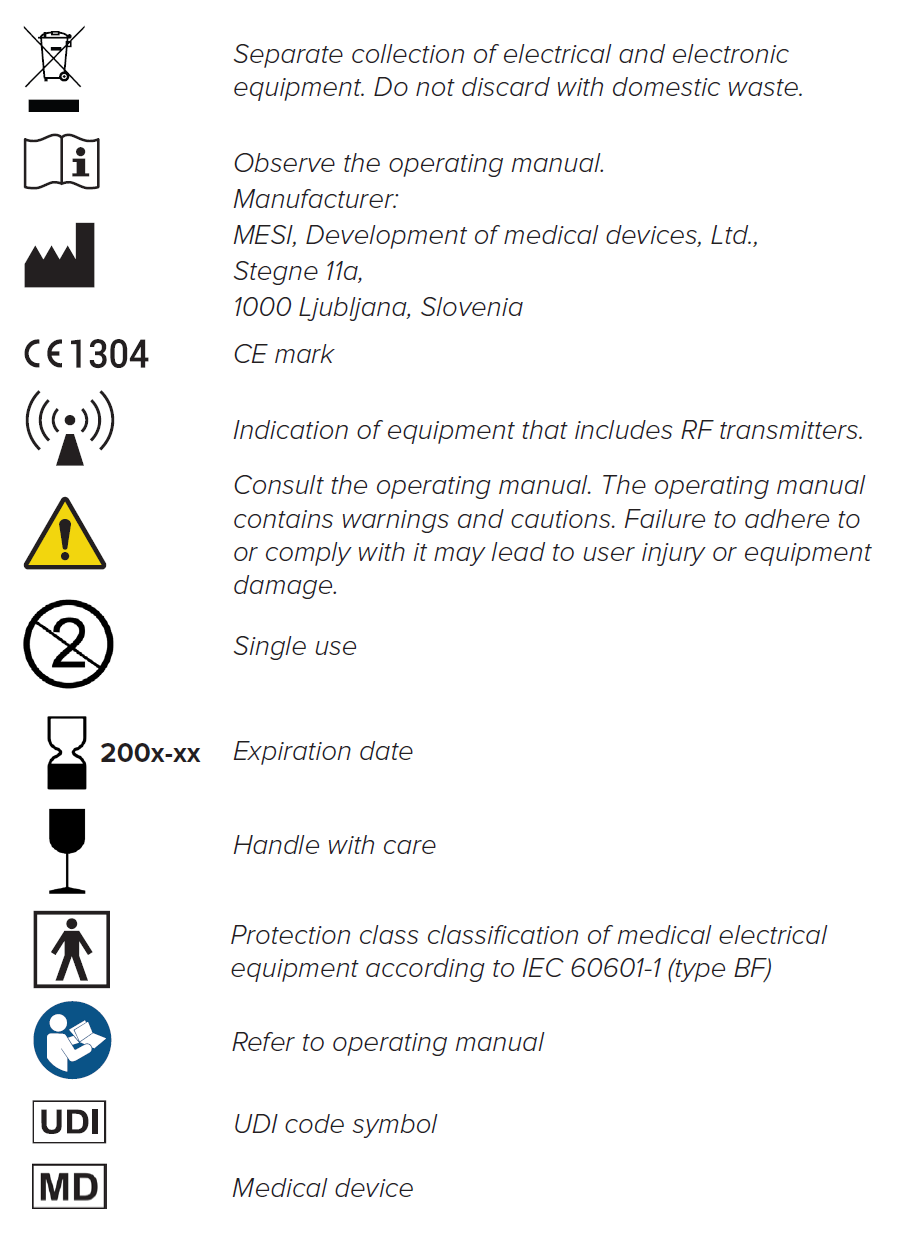
⚠️Do not dispose the device as unsorted municipal waste. Prepare it for recycling or separate waste collection in accordance with Directive 2002/96/EC on scrap electrical and electronic equipment (WEEE).
⚠️To prevent electric shock hazard due to leakage current, only use AC/DC power supplies which are compliant with the technical specifications of the device.
⚠️Only use non-aggressive cleaning agents to clean the device. The device may be wiped with a damp cloth.
⚠️Be careful when mounting the mouthpiece. Do not overrotate it by force.
⚠️Make sure that the device does not come into contact with an electrical current while it is being cleaned.
⚠️Do not open the device. The device does not contain any parts which can be replaced by a user. Do not alter or adapt the device.
⚠️Protect the device from moisture and liquids and extremely high/low temperatures. Also protect the device from mechanical stress and do not expose it to direct sunlight, as this can cause the device to not function properly.
⚠️Do not, under any circumstances, immerse the unit or cable assemblies in liquid.
⚠️Do not use high-temperature sterilisation processes (such as autoclaving). Do not use e-beam or gamma radiation sterilisation.
⚠️Only perform routine cleaning and maintenance procedures described in this user manual.
⚠️Disconnect from the mains before cleaning. Do not clean the connectors due to the constant standby mode of the device.
⚠️During transport or storage, the temperature of the control device may have decreased or increased outside its operating temperatures. Do not use the device until it has been at room temperature +10 °C (50 °F) to 30 °C (86 °F) for at least two hours. This time is required for the spirometer unit to reach the normal recommended operating temperature.
7.4 FUNCTIONING OF THE DEVICE
⚠️The device may only be used by professional medical personnel. The device is class A equipment and can cause radio interference or even cause nearby devices to stop functioning. It may be necessary to reposition the MESI mTABLET SPIRO device or protect the room containing the device from electromagnetic radiation.
⚠️The product should not be used if any of its parts are broken, worn, missing, incomplete, distorted, or contaminated.
Errors
Errors| Error | Description | Solution |
|---|
| N21: MESI SPIRO MODULE not in range. | The MESI SPIROMETER UNIT is out of range. | Bring the MESI SPIROMETER UNIT closer to the MESI mTABLET UNIT and restart the SPIROMETRY application. |
| N21: MESI SPIRO MODULE not in range. | The connection between the MESI SPIROMETER UNIT and the MESI mTABLET UNIT is not optimal. | Remove any mobile devices in proximity of the MESI SPIROMETER UNIT or bring the MESI mTABLET UNIT closer to the MESI SPIROMETER UNIT. |
| N22: MESI SPIRO MODULE not paired with MESI mTABLET UNIT. | The MESI SPIROMETER UNIT is not paired to the tablet. | Pair the MESI SPIROMETER UNIT to the MESI mTABLET UNIT. For pairing, see chapter 5.1.5 Pairing. |
| N23: MESI SPIRO MODULE battery cycle count is high. | The battery needs replacing. | Please contact your MESI representative to replace the battery. |
| E24: Depleted battery. Measurement ended. | The battery of the MESI SPIROMETER UNIT is empty. | Place the MESI SPIROMETER UNIT onto the MESI LARGE CHARGING PLATE UNIT. |
| N61: Please disconnect the MESI SPIRO MODULE from the power supply and restart the SPIROMETRY application. | The MESI SPIROMETER UNIT is placed on the MESI LARGE CHARGING PLATE UNIT. | Take the MESI SPIROMETER UNIT off the MESI LARGE CHARGING PLATE. |
| N62: Connection to diagnostic module has been interrupted. Please restart the recording process. | A SPIRO module error has occurred, or there might be a communication problem between the module and the MESI mTABLET. | Restart the SPIROMETRY application and the recording process. |
Troubleshooting
Troubleshooting| A continuously flashing purple or red indicator on the MESI SPIROMETER UNIT. | Incorrect state of the diagnostic module. | Press and hold the button on top of the MESI SPIROMETER UNIT for 15 seconds to restart it. The light should start flashing. |
| No light shows when the multifunctional button on top of the MESI SPIROMETER UNIT is pressed. | Depleted battery. | Place the MESI SPIROMETER UNIT onto the charging station and leave it to charge for at least half an hour before retrying. |
| The spirometry measurement will not start although the MESI SPIROMETER UNIT is paired with and next to MESI mTABLET UNIT. | Possibility of electromagnetic interference. | Make sure that there aren’t any devices nearby that produce electromagnetic interference. These devices can interfere with the basic functions of the MESI mTABLET UNIT, which can potentially lead to dangerous situations. |
NOTE: If the problem persists, contact the manufacturer or local distributor for further assistance.
Warranty information
For the SPIROSYS systems purchased from April 1, 2026 on, the company MESI, Ltd. hereby ensures a warranty period up to two years, which begins with the date of purchase (delivery date shown on the invoice). The warranty is valid with an invoice or a copy of the invoice. The Company MESI, Ltd. also guarantees that the SPIROSYS system you have purchased is free from defects in materials and is made from suitable materials. In the warranty period the company MESI, Ltd. guarantees a free repair of defective device or parts covered by this warranty. If the defective device in the warranty period cannot be repaired, a free replacement will be provided. The company MESI, Ltd. will ensure maintenance and supply spare parts for a period of ten years from the date of purchase as long as (spare) parts are available from suppliers.
What the warranty does not cover:
The cost of repairs and/or damage done by an unauthorized person. If you wish to make a warranty claim, please contact your local distributor or the manufacturer of the SPIROSYS system, whose contact details can be found at the company’s website.
Regular inspections (at the customer’s request) and/or maintenance (replacement of worn parts).
Deterioration of accessories and other additions other than the main device.
Costs incurred due to disagreement with the warranty conditions (it shall be charged).
Any damage caused by accidents, misuse, neglect, abrasion, exposure to extreme temperatures, solvents, acids, water, normal wear and tear or damage in transit, theft or loss.
Use of the device for purposes other than its intended use.
Damage caused by airline or freight company mishandling.
Improper use or abuse of SPIROSYS system, including but not solely limited to the failure to use this product for its normal purposes or in accordance with company’s instructions on usage and maintenance.
Defects resulting from usage of the product in conjunction with accessories that are not approved by company MESI, Ltd. for use with the SPIROSYS system.
Defects or deficiencies of the SPIROSYS system arising from incorrect installation or use not consistent with the instructions and technical or safety standards prescribed in the device’s user manual.
Accidents, Acts of God, lightning, water, fire, public disturbances, improper ventilation, voltage fluctuations or any cause beyond the control of company MESI, Ltd.
Damage to the battery caused by failing to charge the empty battery regularly, or failure to use in accordance with the instructions of user manual.
Replacement or repair of defective device or its parts, if the serial number on the product has been altered, deleted, removed or made illegible.
| Parts included in the two-year warranty | MESI SPIROMETER UNIT |
| Parts excluded from warranty | Packaging, single-use mouthpieces |
All of the above is the sole and exclusive warranty for the SPIROSYS system.
We state:
That during the warranty period the SPIROSYS system will work flawlessly, if handled as stated in the instructions for use and if maintained regularly.
That the warranty period commences on the date of purchase.
That in the warranty period the defects and technical deficiencies of the SPIROSYS system that are generated during normal use will be eliminated at company’s own expense.
That the SPIROSYS system will be fully operational, if optimum conditions for the operation of the product, ranging from 10-40 °C and 25-85 % humidity, non-condensing and without excessive amounts of dust and dirt, are fulfilled.
That the warranty is not applicable to cases other than defects in material and workmanship.
That the warranty is void if the SPIROSYS system is used in a rental capacity and damaged at the same time.
That the repair or replacement under the terms of this warranty does not provide the right to extension or renewal of the warranty period.
That the warranty will be void if payments are not received by company MESI, Ltd. in the period after any agreed upon credit terms expire.
Description of the warranty claim process:
The warranty is valid only if the SPIROSYS system and its parts are returned during the applicable warranty period, together with the original invoice or its copy issued by the manufacturer of the device. If necessary, give a description of the problem. In case the invoice is not presented, the company MESI, Ltd. holds the right to void the warranty.
Standard compliance
The project is compliant with Regulation (EU) 2017/745 on medical devices, the Directive RoHS 2015/863/EU and Radio Equipment Directive (RED) 2014/53/EU.
Standard compliance| Reference Number (ID:year) | Description |
|---|
| EN 60601-1:2006/ A1:2013 | Medical electrical equipment - Part 1: General requirements for basic safety and essential performance |
| EN 60601-1-2:2015 | Medical electrical equipment - Part 1-2: General requirements for basic safety and essential performance - Collateral Standard: Electromagnetic disturbances - Requirements and tests |
| EN 60601-1-6:2010 +A1:2015
EN 60601-1-6:2010 + A1:2013 | Medical electrical equipment - Part 1-6: General requirements for basic safety and essential performance - Collateral standard: Usability |
| EN 62304:2006 +A1:2015 | Medical device software – Software life cycle processes |
| EN ISO 26782:2009 | Anaesthetic and respiratory equipment — Spirometers intended for the measurement of time forced expired volumes in humans |
| EN ISO 14971:2019 / A11:2021 | Medical devices – Application of risk management to medical devices |
| EN ISO 13485:2016 | Medical devices – Quality management systems – Requirements for regulatory purposes |
| EN 62304:2006/ A1:2015 | Medical device software - Software lifecycle processes |
| EN ISO 152231:2021 | Symbols for use in the labelling of medical devices |
| EN ISO 109931:2009 | Biological evaluation of medical devices – Part 1: Evaluation and testing within a risk management process |
| EN 60068-264:2008 | Environmental testing – Part 2-64: Tests Test Fh: Vibration, broadband random and guidance |
| EN 60068-2-27:2009 | Environmental testing Tests. Test Ea and guidance. Shock |
| EN 62366-1:2015 | Medical devices – Part 1: Application of usability engineering to medical devices |
| EN 301 489-1 V2.2.3 | ElectroMagnetic Compatibility (EMC) standard for radio equipment and services; Part 1: Common technical requirements; Harmonised Standard for ElectroMagnetic Compatibility |
| EN 301 489-17 V3.2.4 | ElectroMagnetic Compatibility (EMC) standard for radio equipment and services; Part 17: Specific conditions for Broadband Data Transmission Systems; Harmonised Standard for ElectroMagnetic Compatibility |
11.1. MANUFACTURER DECLARATION ON EMC
The MESI mTABLET SPIRO is intended for use in the electromagnetic environment specified below. The customer or the user of the above models should assure that they are used in such environment.
Manufacturer declaration on EMC| Emissions test | Compliance | Electromagnetic environment - guidance |
|---|
| RF emissions CISPR 11 | Group 1 | The above models use RF energy only for their internal function. Therefore, their RF emissions are very low and not likely to cause any interference in nearby electronic equipment. |
| RF emissions CISPR 11 | Class A | |
| Harmonic emissions
IEC 61000-3-2 | N/A | |
| Voltage fluctuations / flicker emissions IEC 61000-3-3 | Complies | |
The MESI mTABLET SPIRO is intended for use in the electromagnetic environment specified below. The customer or the user of the above models should assure that they are used in such environment.
Patient coupling PORT
Patient coupling PORT| Immunity Test | Test Condition | IEC 60601 Compliance level | Electromagnetic environment - guidance |
|---|
| Electrostatic discharge (ESD) according to IEC 61000-4-2 | ± 8 kV Contact
± 2, 4, 8, 15 kV Air | ± 8 kV Contact
± 15 kV Air | The floors should be wood, concrete or ceramic tile. If the floors are covered with synthetic material, the relative humidity should be at least 30%. |
| Conducted RF induced by RF fields IEC 61000-4-6 (a) | 3 Vrms 150 kHz - 80 MHz
6 Vrms in ISM bands between 150 kHz - 80 MHz c)
80% AM 1kHz | Exempt from this requirement - cable length is less than 3 m | - |
Comment: *Not applicable, unit, without signal input/output parts PORT
a) SIP/SOPS of less than 3 m maximum cable length are excluded.
b) This test only applies to output lines intended to connect directly to outdoor cables.
c) The ISM (industrial, scientific and medical) bands between 0.15 MHz and 80 MHz are 6.765 MHz to 6.795 MHz; 13.553 MHz to 13.567 MHz; 26.957 MHz to 27.283 MHz; and 40.66 MHz to 40.70 MHz. The amateur radio bands between 0.15 MHz and 80 MHz are 1.8 MHz to 2.0 MHz, 3.5 MHz to 4.0 MHz, 5.3 MHz to 5.4 MHz, 7 MHz to 7.3 MHz, 10.1 MHz to 10.15 MHz, 14 MHz to 14.2 MHz, 18.07 MHz to 18.17 MHz, 21.0 MHz to 21.4 MHz, 24.89 MHz to 24.99 MHz, 28.0 MHz to 29.7 MHz and 50.0 MHz to 54.0 MHz.
The MESI mTABLET SPIRO is intended for use in the electromagnetic environment specified below. The customer or the user of the above models should assure that they are used in such environment.
Enclosure Port
Enclosure Port| Immunity Test | Test Condition | IEC 60601 Compliance level | Electromagnetic environment - guidance |
|---|
| Electrostatic discharge (ESD) IEC 61000-4-2 | ±,8 kV Contact
± 2, 4, 8, 15 kV Air | ±8 kV Contact
± 15 kV Air* | Floors should be wood, concrete or ceramic tile. If floors are covered with synthetic material, the relative humidity should be at least 30% |
| Radiated RF EM fields and Proximity fields from RF wireless communications equipment IEC 61000-4-3 | 3 V/m 80 MHz – 2.7 GHz 80% AM 1 kHz | 3 V/m 80 MHz – 2.7 GHz | The mains power quality should be that of a professional healthcare facility environment and home healthcare environment. |
| Radiated RF EM fields and Proximity fields from RF wireless communications equipment IEC 61000-4-3 | 385 MHz (18Hz Pulse Modulation) | 27 V/m | The mains power quality should be that of a professional healthcare facility environment and home healthcare environment. |
| Radiated RF EM fields and Proximity fields from RF wireless communications equipment IEC 61000-4-3 | 450 MHz (FM+/-5 KHz deviation 1 kHz sine or 18 Hz Pulse Modulation) | 28 V/m | The mains power quality should be that of a professional healthcare facility environment and home healthcare environment. |
| Radiated RF EM fields and Proximity fields from RF wireless communications equipment IEC 61000-4-3 | 710 MHz (217 Hz PM) | 9 V/m | The mains power quality should be that of a professional healthcare facility environment and home healthcare environment. |
| Radiated RF EM fields and Proximity fields from RF wireless communications equipment IEC 61000-4-3 | 745 MHz (217 Hz PM) | 9 V/m | The mains power quality should be that of a professional healthcare facility environment and home healthcare environment. |
| Radiated RF EM fields and Proximity fields from RF wireless communications equipment IEC 61000-4-3 | 780 MHz (217 Hz PM) | 9 V/m | The mains power quality should be that of a professional healthcare facility environment and home healthcare environment. |
| Radiated RF EM fields and Proximity fields from RF wireless communications equipment IEC 61000-4-3 | 810 MHz (18 Hz PM) | 28 V/m | The mains power quality should be that of a professional healthcare facility environment and home healthcare environment. |
| Radiated RF EM fields and Proximity fields from RF wireless communications equipment IEC 61000-4-3 | 870 MHz (18 Hz PM) | 28 V/m | The mains power quality should be that of a professional healthcare facility environment and home healthcare environment. |
| Radiated RF EM fields and Proximity fields from RF wireless communications equipment IEC 61000-4-3 | 930 MHz (18 Hz PM) | 28 V/m | The mains power quality should be that of a professional healthcare facility environment and home healthcare environment. |
| Radiated RF EM fields and Proximity fields from RF wireless communications equipment IEC 61000-4-3 | 1720 MHz (217 Hz PM) | 28 V/m | The mains power quality should be that of a professional healthcare facility environment and home healthcare environment. |
| Radiated RF EM fields and Proximity fields from RF wireless communications equipment IEC 61000-4-3 | 1845 MHz (217 Hz PM) | 28 V/m | The mains power quality should be that of a professional healthcare facility environment and home healthcare environment. |
| Radiated RF EM fields and Proximity fields from RF wireless communications equipment IEC 61000-4-3 | 1970 MHz (217 Hz PM) | 28 V/m | The mains power quality should be that of a professional healthcare facility environment and home healthcare environment. |
| Radiated RF EM fields and Proximity fields from RF wireless communications equipment IEC 61000-4-3 | 2450 MHz (217 Hz PM) | 28 V/m | The mains power quality should be that of a professional healthcare facility environment and home healthcare environment. |
| Radiated RF EM fields and Proximity fields from RF wireless communications equipment IEC 61000-4-3 | 5240 MHz (217 Hz PM) | 9 V/m | The mains power quality should be that of a professional healthcare facility environment and home healthcare environment. |
| Radiated RF EM fields and Proximity fields from RF wireless communications equipment IEC 61000-4-3 | 5500 MHz (217 Hz PM) | 9 V/m | The mains power quality should be that of a professional healthcare facility environment and home healthcare environment. |
| Radiated RF EM fields and Proximity fields from RF wireless communications equipment IEC 61000-4-3 | 5785 MHz (217 Hz PM) | 9 V/m | The mains power quality should be that of a professional healthcare facility environment and home healthcare environment. |
| RATED power frequency magnetic fields IEC 61000-4-8 | 50 Hz or 60 Hz | 30 A/m | Power frequency magnetic fields should be at levels characteristic of a typical location in a typical commercial or hospital environment. |
Guidance and manufacturer’s declaration - electromagnetic immunity
The MESI mTABLET SPIRO is intended for use in the electromagnetic environment specified below. The customer or the user of the above models should assure that they are used in such environment.
Guidance and manufacturer’s declaration - electromagnetic immunity| Immunity test | IEC 60601 Test level | Compliance level | Electromagnetic environment - guidance |
|---|
| Conducted RF induced by RF fields IEC 61000-4-6
Radiated RF EM fields and Proximity fields from RF wireless communications equipment IEC 61000-4-3 | 3 Vrms 150 kHz - 80 MHz 6 Vrms in ISM bands between 150 kHz - 80 MHz c)
3 V/m 80 MHz – 2.7 GHz | 3 Vrms 150 kHz - 80 MHz 6 Vrms in ISM bands between 150 kHz - 80 MHz c)
3 V/m | Portable and mobile RF communications equipment should not be used no closer to any part of the above listed models, including cables, than the recommended separation distance calculated from the equation applicable to the frequency of the transmitter.
Recommended separation distance
d = 1.2√P
d = 1.2√P 80 MHz - 800 MHz
d = 2.3√P 800 MHz – 2.7 GHz
Where P is the maximum output power rating of the transmitter in watts (W) according to the transmitter manufacturer and d is the recommended separation distance in meters (m). Field strengths from fixed RF transmitters, as determined by an electromagnetic site survey a should be less than the compliance level in each frequency range. (b) Interference may occur in the vicinity of equipment marked with the following symbol: |
NOTE 1: At 80 MHz and 800 MHz, the higher frequency range applies.
NOTE 2: These guidelines may not apply in all situations. Electromagnetic propagation is affected by absorption and reflection from structures, objects and people.
a) Field strengths from fixed transmitters such as base stations for radio (cellular/cordless) telephones, land mobile radios, amateur radio, AM and FM radio broadcast and TV broadcast, cannot be predicted theoretically with accuracy. To assess the electromagnetic environment due to fixed RF transmitters, an electromagnetic site survey should be considered. If the measured field strength in the location where the MESI mTABLET SPIRO is used exceeds the applicable RF compliance level above, the above models should be observed to verify normal operation. If abnormal performance is observed, additional measures may be necessary, such as reorienting or relocating the above models.
b) Over the frequency range 150 kHz to 80 MHz, field strength should be less than 3 V/m.
c) The ISM (industrial, scientific and medical) bands between 0.15 MHz and 80 MHz are 6.765 MHz to 6.795 MHz; 13.553 MHz to 13.567 MHz; 26.957 MHz to 27.283 MHz; and 40.66 MHz to 40.70 MHz. The amateur radio bands between 0.15 MHz and 80 MHz are 1.8 MHz to 2.0 MHz, 3.5 MHz to 4.0 MHz, 5.3 MHz to 5.4 MHz, 7 MHz to 7.3 MHz, 10.1 MHz to 10.15 MHz, 14 MHz to 14.2 MHz, 18.07 MHz to 18.17 MHz, 21.0 MHz to 21.4 MHz, 24.89 MHz to 24.99 MHz, 28.0 MHz to 29.7 MHz and 50.0 MHz to 54.0 MHz.
Recommended separation distances between portable and mobile RF communications equipment and the above models
The MESI mTABLET SPIRO is intended for use in the electromagnetic environment in which radiated RF disturbances are controlled. The customer or the user of the above models can help prevent electromagnetic interference by maintaining a minimum distance between portable and mobile RF communications equipment (transmitters) and the above models as recommended below, according to the maximum output power of the communication equipment.
Separation distance according to frequency of transmitter m
Separation distance according to frequency of transmitter m| Rated maximum output power of transmitter W | 150 kHz to 80 MHz d = 1.2√P | 80 MHz to 800 MHz d = 1.2√P | 800 MHz to 2.5 GHz d = 2.3 √P |
|---|
| 0.01 | 0.12 | 0.12 | 0.23 |
| 0.1 | 0.38 | 0.38 | 0.73 |
| 1 | 1.2 | 1.2 | 2.3 |
| 10 | 3.8 | 3.8 | 7.3 |
| 100 | 12 | 12 | 23 |
For transmitters rated at a maximum output power not listed above, the recommended separation distance (d) in metres (m) can be determined by using the equation applicable to the frequency of the transmitter, where P is the maximum output power rating of the transmitter in watts (W) according to the transmitter manufacturer.
NOTE 1: At 80 MHz and 800 MHz, the separation distance for the higher frequency range applies.
NOTE 2: The ISM (industrial, scientific and medical) bands between 150 kHz and 80 MHz are 6.765 MHz to 6.795 MHz; 13.553 MHz to 13.567 MHz; 26.957 MHz to 27.283 MHz; and 40.66 MHz to 40.70 MHz.
NOTE 3: An additional factor of 10/3 has been incorporated into the formulae used in calculating the recommended separation distance for transmitters in the ISM frequency bands between 150 kHz and 80 MHz and in the frequency range between 80 MHz to 2.5 GHz to decrease the likelihood that mobile/portable communications equipment causes interference if it is inadvertently brought into patient areas.
NOTE 4: These guidelines may not apply in all situations. Electromagnetic propagation is affected by absorption and reflection from structures, objects and people.
The MESI SPIRO MODULE is a part of the MESI mTABLET SPIRO, whose essential performance is performing spirometry measurements in specified operating conditions. The measurement is defined as a measurement process and data storage to a MESI mTABLET UNIT. Due to its high sensitivity, intended use and operating modes, the device is susceptible to EM interferences. If the essential performance of the device is compromised, the device will notify the operator with error messages about any issues.
Important labels